
8 BEST Video Recovery Software (2026)
 Editorial Team

I spent over 170 hours testing 30+ video recovery software and shortlisted 8 best tools to ensure quality and safety. This article is backed by my first-hand experience and unbiased opinion. In this review, you will find each tool’s features, pros, cons, and pricing. You can now go ahead and find the right tool depending on your scenario.

Stellar is a professional video recovery software that is designed to retrieve lost or damaged video files. It can recover the files from multiple storage devices, including hard drives, SSDs, USB drives, etc. It supports formats like MP4, MOV, and AVI.
Best Video Recovery Software: Top Picks!
| Tool Name | Key Features | Free Trial | Link |
|---|---|---|---|
Stellar |
• Video preview • Repairs corrupted video |
30-day money-back guarantee | Learn More |
 Wondershare Recoverit |
• Fragment reconstruction • Supports 1000+ formats |
7-day refund policy | Learn More |
 Dr.Fone |
• Read-only safe recovery • Supports 6000+ Android versions |
7-day free trial | Learn More |
 Glarysoft |
• Virus affected file recovery • Partition-based deep scan |
7-day to 90-day money-back guarantee | Learn More |
 iToolab RecoverGo |
• Email video retrieval • Advanced file type and path filtering |
30-day money-back guarantee | Learn More |
1) Stellar
Best for overall data recovery for all devices
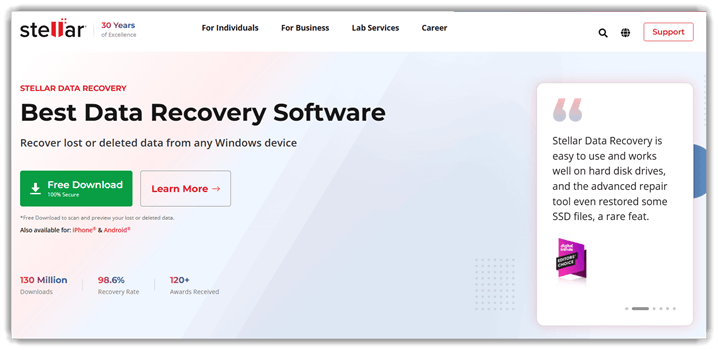
Stellar is a professional video recovery software that is designed to retrieve lost or damaged video files. It can recover the files from multiple storage devices, including hard drives, SSDs, USB drives, etc. In an unfortunate incident, I lost several important videos from a cousin’s wedding. That’s when I tested Stellar and realized that it supports not only video recovery but also retrieves data from formatted drives, enables RAW partition recovery, and even repairs corrupted media.
It supports formats like MP4, MOV, and AVI. Stellar also offers deep and quick scan modes, which help detect lost files in case of more complex scenarios. It also has a file type filtering feature and a preview for more precise retrieval. This one time, a friend of mine accidentally deleted footage from my camera card after a shoot, and Stellar’s preview helped me with selective video recovery.
Features:
- High-Resolution Video: Stellar offers support for modern footage formats and not just old camera files. It can restore 4k and 8k HD or UHD videos without any interruptions. I was able to recover formats like MP4, MOV, AVI, WMV, MKV, and MXF. Additionally, it can retrieve drone, DSLR, and action-cam videos.
- Preview Before Recovery: I was able to check recoverable videos before saving them, which helped me avoid recovering unnecessary files blindly. This feature is especially helpful when you need to recover broken projects.
- Metadata and Folder Structure: Using Stellar, I was able to retain original file names, date timestamps, and preserve the folder structure. It has been thoughtfully designed for photographers and other professionals who require managing large video libraries.
- Corrupted Video Repair: I found the video repair feature quite helpful when my recovered files seemed to have been corrupted. It addresses jerky flickering, playback issues, missing audio, unplayable media, etc. This feature is particularly helpful for enterprises that focus on video footage, such as ad agencies, news channels, etc.
- Formatted and RAW Drive Recovery: It can handle messy loss scenarios such as formatted drives, corrupt media, RAW partitions, and inaccessible storage. You can use it when your media vanishes after a card format or a system failure.
Pros
Cons
Pricing:
It provides a free download, and if required, you can upgrade to its yearly paid plans that come with a 30-day money-back guarantee:
| Standard | Professional | Premium |
|---|---|---|
| $59.99 | $89.99 | $99.99 |
30-Days Money-back Guarantee
2) Wondershare Recoverit
Best for recovering videos from external storage
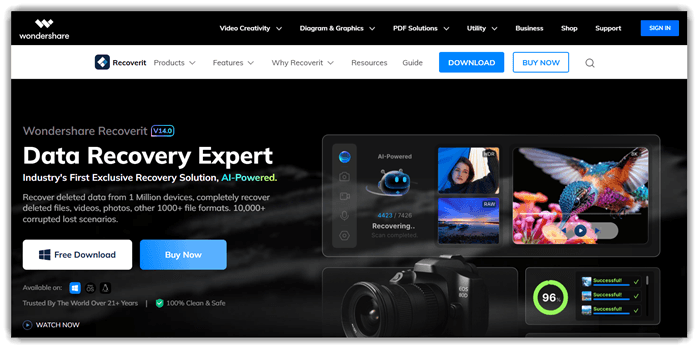
Wondershare Recoverit is known for its advanced video recovery software that is built to rescue deleted or lost videos. It helped me recover videos from computers, SD cards, USB drives, external hard drives, and even crashed systems. Photographers and filmmakers who work with various file types will benefit from using Recoverit since it supports 1000+ formats and works across thousands of data-loss scenarios. One of the best features of this tool is that it can easily detect fragments of deleted video files.
Its advanced video fragment reconstruction helps restore playable files even when they are large and need partial recovery. I noticed that it also supports corrupted video repair and scanning of external storage devices. Thus, making it ideal for retrieving videos from portable storage devices like cameras, drones, etc.
Features:
- USB and External Drive: Video loss on portable storage is a common issue. Hence, Recoverit is built to retrieve USB and external drive media easily. It can restore formatted and corrupted media across devices. Youtubers and other creators who move footage around can use it on laptops, SSDs, and even thumb drives.
- System Crash Recovery: This feature offers a practical edge for crash recovery on Windows devices that are not bootable. It creates WinPE bootable media, which helped me access the files before reinstalling the OS. Additionally, it enables you to rescue video projects after a blue screen or startup failure occurs.
- Fragment Reconstruction: It can recover high-bitrate 4k and 8K footage seamlessly. As per my experience, it is designed to gather and match the scattered video fragments. This feature matters when the large clip breaks apart on camera cards. I was impressed with this recovery, which saved my project after I captured a long-form shoot at an event.
- Quick Scan and Deep Scan: Recoverit starts a quick scan and continues to dive deep into memory cards and other storage mediums. This increases the chance of finding a recently deleted video and stubbornly hidden fragments. I suggest you use filters, especially when scanning returns hundreds of mixed media results.
- Formatted Drive Recovery: With the help of this feature, you can recover videos that disappear after formatting a hard drive or a memory card. Recoverit scans the full drives, partitions, or folders and lets you preview the results before restoration. You must save these recovered files on another disk to avoid overwrite risks.
Pros
Cons
Pricing:
Recoverit offers a free download, and its paid version comes with three plans that offer a 7-day refund policy:
| Monthly | Annual | Perpetual Plan |
|---|---|---|
| $59.99 | $69.99 | $129.99 |
7-Days Refund Policy
3) Dr.Fone
Best for mobile devices and selective recovery
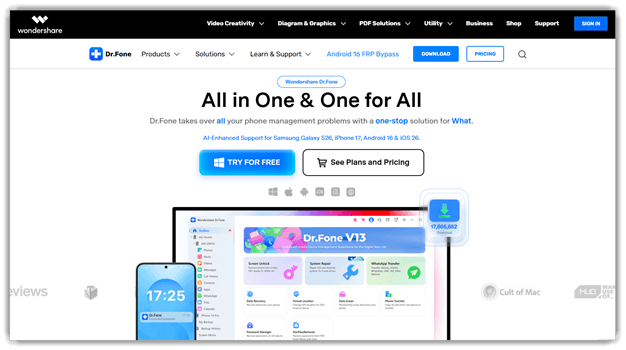
Dr.Fone is a versatile data recovery and device management toolkit that is built for mobile devices. It can recover deleted videos, photos, and other files from smartphones along with connected storage. I also tested it on SD cards and backups and noticed that it addresses scenarios like accidental deletion, system crashes, and corrupted data. Content creators and other professionals who usually work on their smartphones can use Dr.Fone, as it has a quick scan and recovery process.
The preview option also simplifies selective recovery for deleted videos from a smartphone after a failed update or accidental file removal. Dr.Fone combines quick scan and deeper recovery modes to ensure that mobile recordings, social media videos, and camera footage are restored to your device’s memory.
Features:
- Read-Only Safe Recovery: Dr.Fone uses a read-only scan approach. This means the software is designed to avoid overwriting existing data during recovery, which is a common issue. Hence, you will see that it is less risky to recover important media with Dr.Fone.
- Computer-Assisted Recovery: With this feature, I received a desktop-based process on Windows and Mac. This gives users a more stable environment for scanning, previewing, and restoring lost video files. I suggest using a computer workflow if you need larger recovery jobs to simplify the management.
- SD Card Recovery: You can use this feature to retrieve lost videos from your SD cards. Hence, vloggers or reporters using phones or other devices with SD cards for their content will find Dr.Fone very helpful. In case you delete any important media from your SD card by mistake or if a memory medium becomes inaccessible, you can rely on this tool.
- Android Device Video Extraction: This feature is built to recover videos directly from Android devices, including broken phones. I had to recover footage from an old Android phone, which wouldn’t even turn on. Using Dr.Fone, I was able to gather all the media in the device without any extensive process.
- WhatsApp Video Recovery: This feature helps restore deleted videos of WhatsApp, along with related chats and media files from your device. It can help you understand the context of the chats and save your memorable moments shared by your friends and family over the messages. The tool scans the WhatsApp databases instantly and retrieves lost clips and media without disrupting existing chats.
Pros
Cons
Pricing:
You get a 7-day free trial with free download, and here are the Windows and Mac recovery software starting prices:
| Dr.Fone Basic Windows | Dr.Fone Basic Mac |
|---|---|
| $29.95 | $29.95 |
7-Days Free Trial
4) Glarysoft
Best for retrieving files after virus attacks
Glarysoft File Recovery is a lightweight video recovery software that is designed to restore deleted videos from various storage devices. You can use it for recovery from hard drives, USBs, and camera memory cards with minimal effort. First-time users, such as casual users or students who want a free and simple recovery app, can use Glarysoft. Additionally, it has a built-in intuitive interface and intelligent recovery technology, which adds to its ease of use.
It supports multiple file systems such as NTFS and FAT, and even retrieves files that users lose due to virus attacks, formatting, and corruption. I tested it in a real-life scenario to recover a formatted USB drive. Its quick scan feature instantly lists the lost media and allows a preview before restoring, making selective recovery easy among thousands of other files.

Features:
- Automatic File Sorting: I was really impressed with how Glarysoft automatically sorts the recovered files by type, name, size, and creation date. That makes large video recovery jobs easier to manage. I must say that filtering by creation date can speed up finding the recent footage from shoots or client exports.
- Corrupted Virus Loss Recovery: This feature handles recovery scenarios that are related to accidental formatting, corrupted files, system crashes, and virus-affected data loss. Hence, it gives more range than a basic tool. Editors will find this feature quite beneficial when the project drive suddenly fails after an interrupted transfer.
- Encrypted and Fragmented Files: I like the fact that this feature goes beyond standard video recovery. It supports compressed, fragmented, and user-encrypted files on NTFS. Thus, adding value to advanced Windows users, it is especially reassuring when you recover edited media from cluttered workstation drives.
- Pause and Resume Scan Control: Glarysoft’s scanning workflow includes pause or stop controls, which are useful for longer recovery sessions. Thus, I received flexibility when I was scanning larger drives that were stuffed with media. Whether you are a filmmaker or a business owner who deals with videography, you will like the fact that its deep scan collides with active editing and file transfers.
- Partition-Based Deep Scan: One of the main strengths of this tool is its capability to scan by partition when the video location is unclear. It gives you a more targeted recovery path, helping you avoid scouting in the dark. You will find this feature especially useful for formatted drive recovery or RAW-style partition confusion.
Pros
Cons
Pricing:
Glarysoft offers a free download, and the pro version has a 7-day to 90-day money-back guarantee depending on the plan. Here are its pro plans:
| One-Week License | Annual License | Lifetime License |
|---|---|---|
| $19.95 | $49.95 | $99.95 |
7-Days Money-back Guarantee
5) iToolab RecoverGo
Best for recovering corrupted and damaged media files
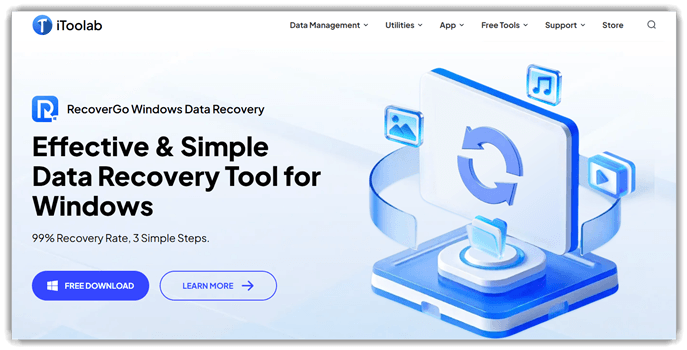
iToolab RecoverGo is a powerful data and video recovery software that is designed to restore deleted files from various devices. I was able to recover the media from Windows PCs, 7000+ Android devices, Macs, iPhones, SD cards, and other external storage devices. It is suitable for all kinds of users, such as IT professionals, vloggers, journalists, casual users, etc. That’s because it supports over 1000 file formats and can retrieve videos in case of system crashes, RAW partitions, and more.
In one recovery scenario, which involved accidental deletion of MP4 clips from my SD card, its deep scan revealed not only missing files but also the fragments. It offers a high level of control, which is combined with read-only scanning and preview options, making media recovery a smooth experience.
Features:
- Multi Storage Recovery: iToolab works across HDDs, SSDs, SD cards, USB flash drives, external drives, etc. Hence, the recovery is not meant only for one device type. This cross-device coverage matters the most when the footage is scattered across field gear. Hence, this flexibility makes it more reliable for real-life situations.
- Smart File Type/Path Filtering: You get advanced file type and path filtering, which helps you narrow down the results easily. This feature has been my lifesaver in cases when a large scan dumps hundreds of recoverable items on my screen. When you are testing similar recovery workflows, I suggest filtering the video format first to cut down on the review time.
- Camera Card and Creator Workflow: Using this feature, you can recover the deleted photos or videos from digital cameras such as Canon, Fujifilm, and Nikon. I see this as a practical fit for creators and student filmmakers who end up clearing their cards too early after a shoot. Hence, it helps with real camera-card recovery needs.
- 3-Step Recovery Workflow: RecoverGo’s video recovery process involves only 3 steps. First, select the location, scan for the lost data, and then recover the files you want. It is a simple method that beginners can instantly catch and enjoy using the tool right after installation.
- iPhone Scenario Recovery: This is a new feature that has been added to RecoverGo. It supports all iPhone data-loss scenarios such as accidental deletion, jailbreak errors, factory resets, system crashes, broken devices, failed upgrades/downgrades, and even water damage. Additionally, you can recover videos even when the device gets stolen, misplaced/lost, or backup restoration fails.
Pros
Cons
Pricing:
iToolab RecoverGo offers a free download version, and the paid plans come with a 30-day money-back guarantee. You get different plans based on the device. Here are its monthly fees:
| 1 Month Windows | 1 Month Android | 1 Device (iOS) for Windows |
|---|---|---|
| $39.99 | $35.95 | $19.95 |
30-Days Money-back Guarantee
6) EaseUS Data Recovery Wizard
Best for recovering videos from inaccessible storage
EaseUS Data Recovery Wizard is an advanced video recovery software that is suitable for both personal and business use. It is capable of performing both quick and deep scans to detect recoverable files and has a built-in filter to find specific video formats for instant restoration. I like the fact that it helped me recover videos even from inaccessible devices and storage cards.
It assisted me in recovering footage from a corrupted memory card with its deep scan and uncovered all the files that some of the apps were unable to detect. I could also use it to repair corrupted videos and even retrieve data remotely for hard drives, SSDs, RAIDs, NASs, and more.

Features:
- Advanced Deep Scan: EaseUS’s capability to dig deep into the storage sectors helps locate traces of deleted or lost videos, which standard scans often miss. Hence, users who are panicking about not finding a video after major file corruption or formatting can use this feature.
- Rapid Deletion Detection: Its quick recovery pass helps locate recently deleted video files from the recycle bin or storage drives. This speeds up the recovery workflow significantly. In one of the scenarios, this rapid deletion detection helped me recover footage when I accidentally removed a clip while editing.
- Precision File Filtering: With this functionality, you can narrow down the scanned results with search options and filters like file type. This is extremely useful when the scan returns hundreds of thousands of files. I often filter the results using video formats like MP4, MOV, etc., which speeds up the selection process.
- Boot Repair and Crash Recovery: During the testing session, this feature proved itself as one of the most robust recovery processes. It helped recover data from serious boot issues such as blue screen, black screen, and OS startup failure. Furthermore, during a sudden system crash while editing, it retrieved my important footage before attempting a full system repair.
- Integrated Video Repair Assistance: Recovering files is only part of the problem when the video clips are damaged, and EaseUS doesn’t let you down. It has an integrated repair feature for corrupted recordings, which fixes unplayable videos. I found out that it also works well for videos that are damaged due to interrupted transfer.
Pros
Cons
Pricing:
It has free download software and offers a 30-day money-back guarantee with limited recovery. The monthly paid plans include:
| Windows | MAC |
|---|---|
| $69.95 | $85.95 |
30-Days Money-back Guarantee
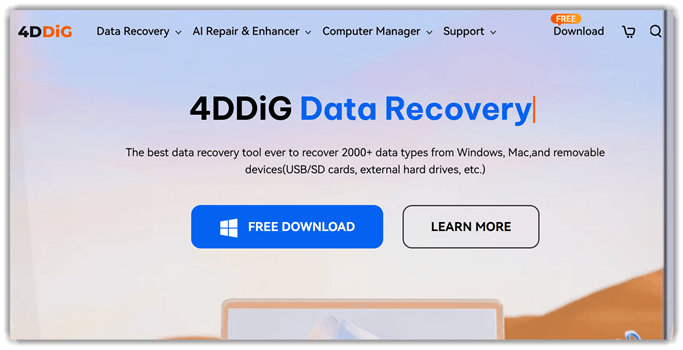
7) Tenorshare 4DDiG
Best for complex data-loss scenarios
The Tenorshare 4DDiG is a powerful video recovery software that is designed to retrieve lost or deleted media files from computers and storage devices. It supports over 2000 file types and offers both quick scan and deep scan options. I used it to detect traces of deleted videos across formatted drives, RAW partitions, and corrupted storage software.
From my experience, its workflow scanning system surprisingly feels thorough when it handles a formatted drive for recovery. You also get support for camera card, USB drive, and AI-assisted repair for damaged videos. I was also impressed with how well 4DDiG worked while rescuing the files from a complex data loss. Hence, it is an excellent choice for professional videographers, gamers, security camera users, etc.
Features:
- AI Video Enhancement: This feature improves video clarity using AI-powered processing designed to enhance both speed and output quality. You will see that it sharpens the details and reduces visual noise in the damaged or low-resolution clips. I tested it with older footage, and the improvement in the sharpness was immediately noticeable.
- File and Audio Repair Support: 4DDiG goes beyond video recovery by allowing you to repair corrupted files and broken audio tracks. Professionals and casual users dealing with videos that fail to play due to storage errors or incomplete transfers can use it to restore the file. During my testing session, I found out that it works particularly well for damaged recordings during sudden device shutdowns.
- AI Colorization of Videos: This tool uses artificial intelligence to add color or enhance the grading in old black-and-white and dull-colored videos. It analyzes the visual elements and intelligently applies natural color tones and shades. With the help of this feature, I gave my grandfather’s home video clips a livelier look.
- BitLocker Data Recovery: Using the feature that enables video recovery from drives protected with BitLocker encryption. It helped me retrieve deleted or lost videos from secured partitions without compromising the protection layer. I suggest you ensure that you have the correct key available before starting the scan process.
- Full Disk Backup for Mac: You can create a complete backup of your Mac’s storage in one step. It captures videos, files, and system data so nothing important is left behind. You can rely on this feature to secure footage before attempting any recovery process.
Pros
Cons
Pricing:
It offers a free download, and the paid plans include:
| 1 Month License | 1 Year License | Lifetime License |
|---|---|---|
| $35.95 | $65.95 | $79.95 |
30-Days Money-back Guarantee
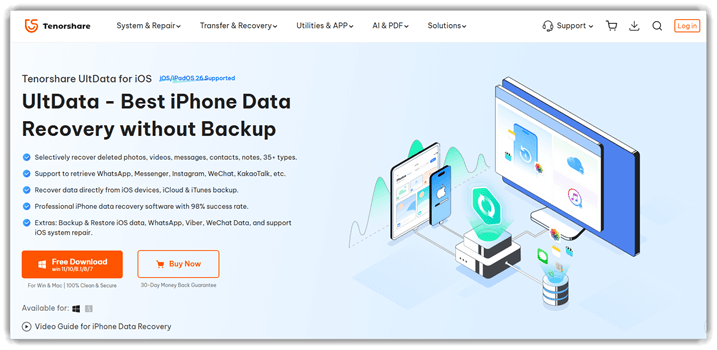
8) Tenorshare UltData
Best for both iOS and Android video recovery
Tenorshare UltData is a great and excellent data recovery tool for both iOS & Android devices. It can retrieve deleted videos, photos, and other files effortlessly without lengthy processes. You get multi-recovery modes, such as scanning the device or direct extraction from the cloud backups. Using its video recovery features, I could also locate deleted files of WhatsApp, Instagram, Telegram, WeChat, and more.
I found its scanning process particularly useful when it comes to handling deleted video recovery from a mobile device that does not have a backup. I had to retrieve videos after a friend of mine emptied their smartphone storage. It took only a few minutes to find their lost pictures, videos, messages, contacts, etc. Moreover, it has an iOS repair system that fixes your system/smartphone if any corrupted file interferes with the performance.
Features:
- iOS Upgrade or Downgrade: You can easily recover videos and media files that get lost during an iOS upgrade or downgrade. System updates tend to wipe media libraries at times. That’s when you can run a target scan using Tenorshare UltData to retrieve the missing videos.
- Factory Reset Recovery: Its factory reset recovery helped me recover deleted videos after resetting my device. It scans residual system data and locates recoverable media. In my experience, running the scan immediately after the reset improves your chances of retrieving original video files.
- Locked or Disabled Device Access: This capability allows you to extract recoverable videos even when the iPhone is locked or disabled. It works by scanning device storage or existing backups. If you forgot the passcode, this feature still helps retrieve important video recordings.
- Virus Attack Data Recovery: It targets video files lost due to malware, system corruption, or virus attacks affecting iOS storage. This tool performs a deep analysis of recoverable data sectors. I noticed the scan categorizes media types automatically, which makes locating deleted videos significantly easier.
- Backup and Restore for Social Data: This feature extends beyond recovery by letting users back up and restore iOS and social app data. This gives you a prevention layer after a recovery job. In a common use case, it helps avoid losing client-shared videos.
Pros
Cons
Pricing:
It has a free download and a 30-day money-back guarantee for paid plans. The plans differ based on the number of devices. Here’s a pricing table for a single device:
| 1 Month License | 1 Year License | Lifetime License |
|---|---|---|
| $45.95 | $49.95 | $69.95 |
30-Days Money-back Guarantee
Feature Comparison: Best Video Recovery Software
Use the table below for a quick and easy feature comparison of the above tools:
| Video Recovery Features | Stellar | Wondershare Recoverit | Dr.Fone | Glarysoft |
| Recover Deleted Videos | ✔ | ✔ | ✔ | ✔ |
| Quick Scan for Lost Videos | ✔ | ✔ | ✔ | ✔ |
| Deep Scan for Lost Videos | ✔ | ✔ | Limited | ✔ |
| Preview Videos Before Recovery | ✔ | ✔ | Limited | ✔ |
| Recover Videos from External Storage (USB, HDD, SSD) | ✔ | ✔ | Limited | ✔ |
| Recover Videos from Memory Cards (SD/CF) | ✔ | ✔ | Limited | ✔ |
How to Troubleshoot the Common Issues of Video Recovery Tools?
Using video recovery tools is not always a simple task; like any other software, these tools also come with several challenges. However, I will help you tackle these issues with some troubleshooting tricks that you can perform yourself.
- Issue: The recovered videos appear corrupted; hence, you aren’t able to open them, or they show a black screen during playback.
Solution: First of all, you must stop using the affected drive and rerun the recovery carefully. Then, repair the damaged files with reliable repair tools, and then test them in the media player. - Issue: Your file recovery scan is completed, but the expected video is still missing.
Solution: In such cases, you must run a deep sector-level scan and check all the discovered file types, and try alternative tools. You can then avoid writing any new data to the storage device. - Issue: The recovered videos have the correct size, but they stop playing midway, freeze, or are in fragments.
Solution: Let’s assume that there’s been a partial overwrite or fragmentation. Now, create a full disk image, attempt recovery again, and then use specialized repair features or tools to rebuild the incomplete streams. - Issue: Your recovered video files show “unsupported format” or “missing codec” errors in the default player.
Solution: You should try another player with broad codec support and install updated codec packs. I also suggest transcoding the recovered files into a widely supported standard container format. - Issue: The recovery process repeatedly crashes, hangs for hours, or never completes on the damaged storage media.
Solution: I recommend stopping the direct scans immediately. You must clone the failing drive to an image and then perform intensive recovery operations only on the cloned copy. - Issue: The free edition recovers only tiny portions and locks the saving. In other scenarios, the app might restrict larger high‑resolution video restoration.
Solution: You should review license limitations beforehand and use free versions only for preview. It’s better to invest in trustworthy paid software once you confirm videos are recoverable. - Issue: You have installed the recovery software on the same drive where the deleted videos resided because you didn’t know better.
Solution: Start by uninstalling the app from the drive; this will avoid any further writes. Now install or run the recovery tool from another clean disk or bootable environment instead. - Issue: The interface of the tool feels confusing, which leads to wrong scan options, and you mistakenly select the drive.
Solution: Start by carefully reading each step, reviewing the drive letters twice, and choosing guided or wizard modes if available. I also suggest consulting official documentation before you conduct destructive actions.
What is Video Recovery Software and How Does It Work?
Video recovery software is a tool built for retrieving deleted, lost, or corrupted video files. It recovers the media from storage devices such as memory cards, hard drives, USB drives, or various types of cameras. Such tools are commonly used when videos are accidentally deleted, or a device is formatted, or the files suddenly become inaccessible due to some system error or malware. Video recovery software supports formats like MP4, MOV, AVI, and MKV, which help users restore valuable recordings without needing any advanced technical skills.
The video recovery tool works by scanning the storage device to locate traces of deleted or damaged files that exist in the unused disk space. When a file is deleted, the system usually removes its reference but not the actual data immediately. Hence, the recovery software analyzes the file signatures and fragments, then it reconstructs them and restores your files, making them viewable again.
What to Do if the Video Cannot be Recovered Even with Recovery Tools?
If you are stuck trying to recover a video and the recovery tools have failed, here’s what you can do:
- Find out if there’s a partial version that exists in the messaging apps, email attachments, social media drafts, or synced folders that might still contain compressed copies.
- You can reach out to collaborators, event attendees, friend circle, etc., who could have the video of the special moment/event that you are looking for.
- Go through your systems, temporary folders, and auto-save directories. That’s because some of the editing software tend to store the projects created in the app.
- You can consider reconstructing the story using remaining photos, audio, or notes to create a new narrative instead of breaking your head over the irretrievable file.
- Unfortunately, at times, you just have to accept the loss and shift your focus towards preventing it from happening again in the future. Set up automatic backups using reliable cloud storage or external drives.
How to Prevent Losing Your Files from Your Device?
Here’s how you can prevent losing files from your device:
- You should regularly back up the files to an external drive or secure the cloud service so that unexpected crashes or theft can never erase your videos.
- Always use strong passwords and enable encryption to prevent unauthorized access that could corrupt or delete critical documents.
- It is a good idea to install reliable antivirus software that can guard your device and storage against malware that silently damages files and makes them inaccessible.
- Turn on automatic syncing with cloud platforms so your files remain updated. The syncing also makes your videos recoverable across devices, even if you accidentally delete them on one device.
- You must keep your operating system and apps updated. This helps avoid bugs that could corrupt the storage or make your files unreadable.
- Organize the files into clear folders and name them logically so you can easily recognize them during recovery.
- You must avoid saving critical data only on one device because physical damage or theft can permanently eliminate access without backups.
Verdict
After spending an extensive amount of time with the best video recovery tools, I realized that all of the above providers are robust and have a high retrieval rate. However, the three most reliable tools, in my opinion, are:
- Stellar: It is overall my go-to software for data recovery, since it has advanced repair for unlimited corrupted files in one go. Moreover, it is quick to scan and provides support for popular video codecs.
- Wondershare Recoverit: I like that it supports 10,000+ scenarios for recovery, making it an advanced tool. Its fast, deep scan capability also stood out to me among other tools.
- Dr.Fone: This is an all-in-one data recovery software, and it can also recover deleted media files from messaging apps such as WhatsApp, making it an excellent choice for everyday use.
FAQs
Stellar is a professional video recovery software that is designed to retrieve lost or damaged video files. It can recover the files from multiple storage devices, including hard drives, SSDs, USB drives, etc. It supports formats like MP4, MOV, and AVI.
