
FBRA: How to Reset Cleared Items in SAP
 Editorial Team
⚡ Smart Summary
Resetting cleared items in SAP uses transaction code FBRA to break the link between an invoice and the payment that cleared it, returning both documents to open status so the mistake can be corrected.
How to Reset AR Cleared Items
In SAP, if a customer payment is made against an incorrect invoice, the clearing can be reset. The following steps work through an accounts receivable clearing document.
Step 1) Enter transaction code FBRA in the SAP command field, as shown below.

Step 2) In the next screen, enter the following on the Reset Cleared Items selection screen shown below.
- Enter the clearing document number for the cleared items.
- Enter the company code in which it was posted.
- Enter the fiscal year in which it was posted.

Step 3) Press the ‘Save’ button shown below to reset the cleared status of the items.

Step 4) Confirm the modal dialog box for the deactivation of open correspondence, shown below.

Step 5) In the next dialog box, shown below, enter the following.
- Enter the reversal reason for the cleared items.
- Enter the posting date.

Step 6) In the next dialog box, confirm the reset of the clearing document, as shown below.
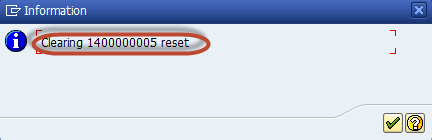
Step 7) In the next dialog box, check the reversal document number shown below to confirm the reset of the cleared items.

How to Reset Vendor Cleared Items in SAP
The same transaction resets an accounts payable clearing document. In SAP, if a vendor payment is made against an incorrect invoice, that clearing can be reset as well.
Step 1) Enter Transaction Code
In the first step, enter transaction code FBRA in the SAP command field, as shown below.

Step 2) Reset Cleared Items
Fill in the selection screen shown below.
- Enter the clearing document number for the cleared items.
- Enter the company code in which it was posted.
- Enter the fiscal year in which it was posted.

Step 3) Press the ‘Save’ Button
Now press the ‘Save’ button shown below to reset the cleared status of the items.

Step 4) Confirm the Reset
In the next dialog box, shown below, confirm the reset of the clearing document.

Step 5) Confirmation of Reset
Now check the status bar shown below for the confirmation of the reset.

Reset vs. Reset and Reverse in FBRA
The FBRA screen offers two buttons, and choosing the wrong one is the most common mistake on this transaction. Both act on the clearing document, but only one of them posts a new accounting document.
| Aspect | Reset Cleared Items | Reset and Reverse |
|---|---|---|
| What happens | The link between the invoice and the payment is broken. | The link is broken and the clearing document is reversed. |
| Document status | Both documents return to open status. | The invoice reopens; the payment document is reversed. |
| New posting | No reversal document is created. | A reversal document is posted. |
| Reversal reason | Not required. | Required, and it controls the posting date. |
| Typical use | The payment is correct but was applied to the wrong invoice. | The payment itself was wrong and must be cancelled. |
Choose Reset when the cash is genuinely in the bank and only the assignment was wrong, so the item can be re-cleared against the correct invoice. Choose Reset and Reverse when the payment posting itself has to disappear from the ledger.
Reversal Reasons and Prerequisites for FBRA
Before running the transaction, confirm that the posting period is open, that the clearing document has not already been reset, and that the payment has not been sent to the bank through a payment medium. The reversal reason then controls which posting date SAP accepts.
| Reason | Description | Posting date used |
|---|---|---|
| 01 | Reversal in current period | Same as the original document, current period must be open |
| 02 | Reversal in closed period | An alternative date in an open period |
| 03 | Actual reversal in current period | Same as the original document |
| 04 | Actual reversal in closed period | An alternative date in an open period |
| 05 | Accrual or deferral posting | Used for reversing accrual and deferral documents |
Reasons 03 and 04 mark a negative posting, which reverses the original amount rather than posting an offsetting entry, so the account turnover is not inflated. Negative postings have to be permitted in the company code before these reasons can be used.
Common FBRA Errors and Related T-codes
Most FBRA failures come from period control, from documents that are not really clearing documents, or from payments that have already left the system. The list below covers the messages that appear most often.
- Document is not a clearing document: the number entered is the invoice or the payment, not the clearing document. Look up the clearing document in the line item display first.
- Posting period is not open: either open the period or use reversal reason 02 with a date in an open period.
- Document already contains a reversed item: the clearing has already been reset, so nothing remains to reverse.
- Payment already issued: a cheque or payment medium exists, so the payment must be voided before the clearing is reset.
Several transactions surround this task, and knowing which one to reach for saves a reversal that has to be undone again.
| T-code | Purpose |
|---|---|
| FBRA | Reset, or reset and reverse, a clearing document |
| FB08 | Reverse a single document that is not cleared |
| FBL5N | Display customer line items and find the clearing document |
| FBL1N | Display vendor line items and find the clearing document |
| F-32 / F-44 | Clear customer and vendor open items again after the reset |
