
FB60 Tcode in SAP: How to post a Purchase Invoice
 Editorial Team
⚡ Smart Summary
Posting a purchase invoice in SAP uses transaction FB60, the Financial Accounting entry point for supplier invoices that carry no purchase order reference, covering local currency, foreign currency, tax codes and payment terms.
FB60 is the Financial Accounting transaction used to enter a supplier invoice directly, without a purchase order or a goods receipt behind it. The walkthrough below covers a domestic invoice first, then the same transaction used for a document posted in a foreign currency.
How to Post a Purchase Invoice in SAP Using FB60
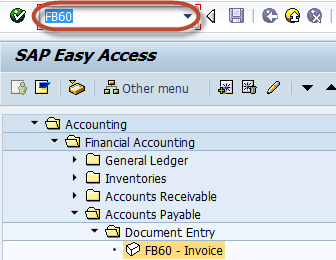
Step 1) Enter transaction FB60 in the SAP command field, as shown in the screenshot below.
Step 2) In the next screen, enter the company code you want to post the invoice to. The pop-up below appears the first time FB60 is opened in a session.

Step 3) In the next screen, enter the following header data. The Basic data tab in the image that follows shows where each field sits.
- Enter the Vendor ID of the vendor to be invoiced
- Enter the Invoice Date
- Enter the Amount for the invoice
- Select the Tax Code for the tax applicable
- Select the tax indicator “Calculate Tax”

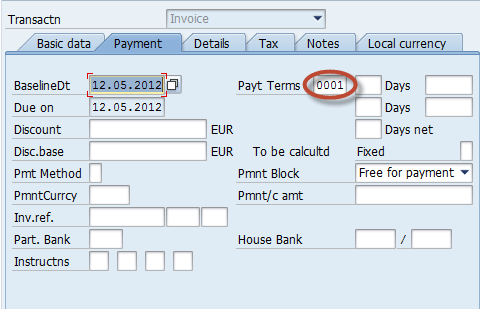
Step 4) Check the payment terms on the Payment tab page. The baseline date and terms of payment shown here decide when the item becomes due.
Step 5) In the item details section, enter the following. The grid below is where the offsetting expense line is captured.
- Enter the Purchase account
- Select Debit
- Enter the Amount for the invoice
- Check the Tax code

Step 6) After completing the above entries, check the status of the document. A zero balance and a green traffic light, as in the strip below, mean the document is ready.

Step 7) Press the Post button in the standard bar, highlighted below.

Step 8) Wait for the document number to be generated and displayed on the status bar for confirmation, as shown here.

The purchase invoice has now been posted successfully, and the open item appears against the vendor account.
How to Post a Foreign Currency Vendor Invoice in FB60
The same transaction handles invoices received in a currency other than the company code currency. Only the currency and exchange rate handling differ from the steps above.
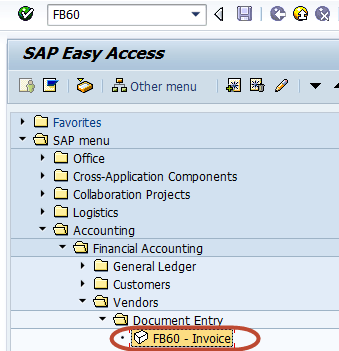
Step 1) Enter transaction code FB60 in the SAP command field. The entry screen opens as pictured below.
Step 2) In the next screen, enter the following data. Each entry maps to the header and item fields visible in the following image.
- Enter the Vendor ID of the vendor whose invoice is to be posted
- Enter the Invoice Date
- Enter the Document Type as Vendor Invoice
- Enter the invoice amount in the currency in which the invoice is to be posted (document currency)
- Enter the Tax Code applicable to the invoice
- Enter the purchase G/L account to be debited
- Enter the Debit Amount

Step 3) The exchange rate can be adjusted on the Local Currency tab, shown below.

Step 4) After maintaining the exchange rate, press Save to post the document using the toolbar icon below.

Step 5) Check the status bar for the document number generated, as confirmed in the message below.

Key Fields and Document Types in FB60
Several FB60 fields are easy to confuse because they look similar but drive different postings. The table below explains what each one controls.
| Field | What it controls |
|---|---|
| Invoice Date | The date printed on the supplier document. It normally drives the baseline date used for payment terms. |
| Posting Date | The date the entry hits the ledger, and therefore the posting period and fiscal year of the document. |
| Reference | The external invoice number. It is the field the duplicate invoice check compares against existing documents. |
| Document Type | KR for a standard vendor invoice, KG for a vendor credit memo, and KZ for a vendor payment. The type controls the number range. |
| Calculate Tax | When ticked, the system derives the tax amount from the tax code instead of expecting it to be keyed manually. |
| Payment Terms | Copied from the vendor master but changeable per document. It sets the due date and any cash discount. |
Only one vendor line is permitted per FB60 document. Invoices that must split across two suppliers, or that need several vendor lines, are entered with the general document entry transactions FB01 or F-43 instead.
FB60 vs MIRO: When to Use Each Transaction
New users often post an invoice in the wrong place. The distinction is simply whether a purchase order sits behind the document.
| Aspect | FB60 | MIRO |
|---|---|---|
| Module | Financial Accounting (FI) | Materials Management (MM), logistics invoice verification |
| Purchase order | Not required — no PO reference | Mandatory — invoice is matched to a PO |
| Goods receipt | Not involved | Three-way match against the goods receipt |
| Typical use | Rent, utilities, telephone, audit fees, stationery | Trade payables for materials and services procured on a PO |
| Accounts updated | Vendor and expense or purchase G/L accounts | GR/IR clearing, material or stock accounts, price differences, vendor |
Where the Materials Management module is not implemented, or where the spend never passes through purchasing, FB60 is the correct entry point. Anything raised on a purchase order should be verified through MIRO so the GR/IR clearing account balances.
Common FB60 Errors and Related T-codes
Most FB60 failures come from missing derivation data rather than from the transaction itself. The problems below account for the majority of posting errors.
- “Enter tax base amount for account … in company code”: the tax code expects a base amount. Tick Calculate Tax, or key the tax figure on the item line.
- Account requires an assignment to a CO object: the expense account is cost element managed. Open the line item and enter a cost centre, internal order or WBS element.
- Posting period not open: the posting date falls outside the open period. Correct the date, or have the period opened in OB52.
- Vendor blocked for posting: a posting block is set on the supplier master. Review it in FK02 or XK02 before retrying.
- Duplicate invoice warning: the same reference, amount and date already exist. Confirm the document is genuinely new before overriding the message.
The transactions listed below are the ones most often needed alongside FB60.
| T-code | Purpose |
|---|---|
| FV60 | Park a supplier invoice for later completion and approval |
| FBV0 | Post or delete a parked vendor document |
| FB65 | Post a vendor credit memo for a purchase return |
| FB08 | Reverse an incorrectly posted document |
| FBL1N | Display vendor line items and open invoices |
| F-53 | Post an outgoing payment against the invoice |
| OB08 | Maintain the exchange rates used for foreign currency documents |
Checking the vendor line items in FBL1N straight after posting is the quickest way to confirm that the invoice reached accounts payable with the expected due date and amount.
