
SAP Park, Hold & Post Document with Reference
 Editorial Team
⚡ Smart Summary
Park, hold, and post with reference in SAP are three document-entry options that let users save incomplete entries, defer postings for approval, and reuse an existing document as a template for faster, accurate G/L posting.
What Are Park, Hold, and Post with Reference in SAP?
SAP FI gives users three flexible ways to handle a general ledger document before it is finally posted. Parking saves an entry that a user is not yet authorized to post, holding stores an incomplete draft, and post with reference reuses an existing document as a template. All three are reached from the FB50 G/L posting screen.
These options reduce errors and rework, because clerks can prepare entries for approval, save partial work, or copy a recurring posting instead of typing it again.
Park vs Hold: Key Differences
Parking and holding both save a document without updating the general ledger, but they serve different purposes:
| Aspect | Park Document | Hold Document |
|---|---|---|
| Purpose | Await approval or authorization | Save an incomplete draft |
| Document number | Permanent number assigned | Temporary number only |
| Typical use | Internal approval workflow | Short-term personal draft |
| Posted by | Authorized approver | Same user, later |
How to Park a G/L Document Posting
In SAP, a user can be given a limited posting authorization amount. For example, an accounting clerk may be authorized to post documents up to a maximum of $5,000. If a document amount is $10,000, which exceeds the clerk’s authority, SAP provides the Park facility, which lets the user save the document without posting the amount to the G/L accounts. A higher authority with the appropriate posting limit can later review and post it.
Here is a demo for parking a G/L account document.
Step 1) Enter transaction code FB50 for G/L Account Posting in the SAP Command Field.

Step 2) In the next screen, enter the following:
- Enter Document Date.
- Enter G/L Account to be Credited.
- Enter Credit Amount.
- Enter G/L Account to be Debited.
- Enter Debit Amount.

Step 3) Press the Park button.

Step 4) Check the status for the parked document number.

How to Hold a G/L Document Posting
A user may want to temporarily save the document under the following conditions:
- The G/L document is not complete.
- The user does not have complete or accurate information.
- The user wants to complete or correct the document at a later stage.
Under such situations, you can HOLD a document without posting the amount to the G/L accounts. Here is a demo for holding a G/L account document.
Step 1) Enter transaction code FB50 for G/L Account Posting in the SAP Command Field.
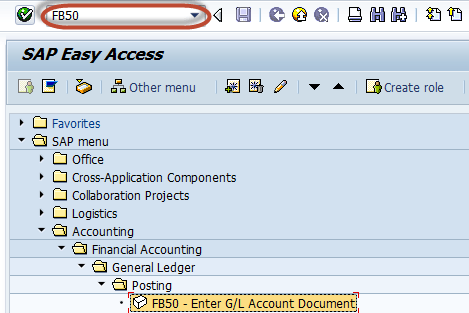
Step 2) In the next screen, enter the following:
- Enter Document Date.
- Enter G/L Account to be Credited.
- Enter Credit Amount.
- Enter G/L Account to be Debited.
- Enter Debit Amount.

Step 3) Press the Hold button.

Step 4) In the next screen, enter the Temporary Document Number and press Hold Document.

Step 5) Check the status bar for the document to be held.

How to Post a Document with Reference in SAP
Posting with reference reuses a document that was already posted as a template, so repetitive entries do not have to be keyed again from scratch.
Step 1) Enter transaction code FB50 in the SAP Command Field.

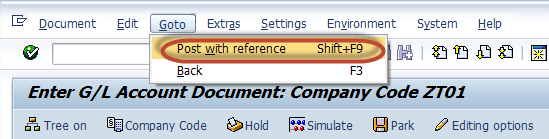
Step 2) In the next screen, select Goto -> Post with Reference from the SAP Standard Menu Bar.
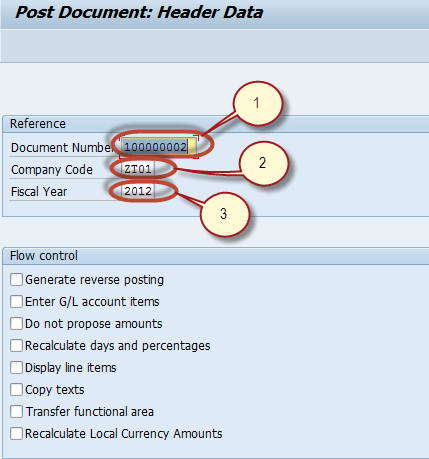
Step 3) In the next screen, enter the following:
- Enter the Reference Document Number.
- Enter the Company Code in which the document was posted.
- Enter the Fiscal Year in which it was posted.
- Press Enter.
Step 4) In the next screen, make appropriate changes in the document.
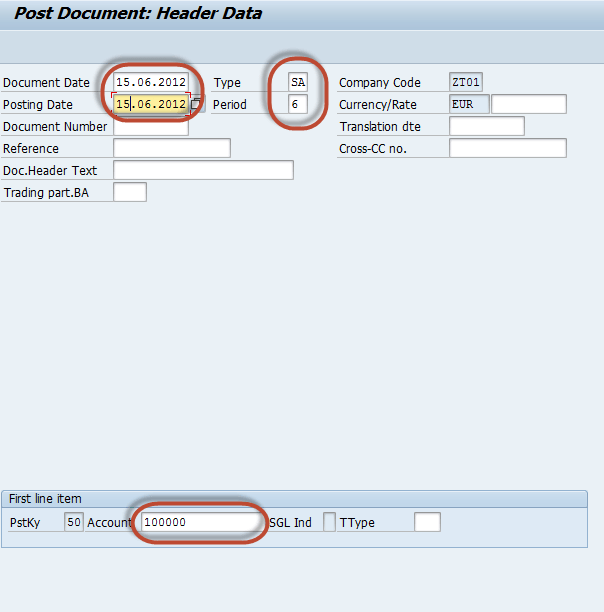
Step 5) Press Enter. In the next screen, check the document.
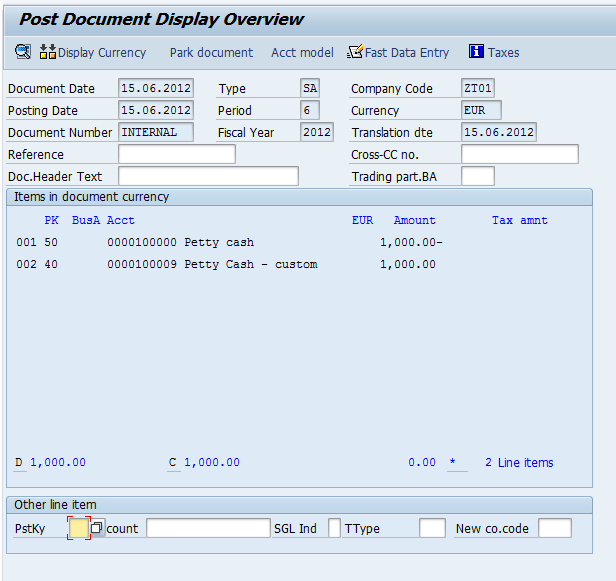
Step 6) Press Save to post the new document.

You have successfully posted a document with reference in SAP.
