
How to Execute Payroll in SAP
 Editorial Team
⚡ Smart Summary
Executing Payroll in SAP calculates employee pay for a period using the country payroll driver PC00_MXX_CALC. This resource explains what payroll execution involves, its prerequisites, the step-by-step foreground run, and how to schedule a background run for large employee populations.
In this tutorial, you will learn how to Execute Payroll in SAP.
What is Payroll Execution in SAP?
Payroll execution is the step where SAP actually calculates each employee’s gross and net pay for a payroll period. When you run payroll, the country-specific payroll driver reads the employee’s master data, time results, and wage types, applies the payroll schema, and produces the payroll results stored in cluster RT and related tables.
You start a live run with a transaction of the form PC00_MXX_CALC, where XX is the country’s Molga (Modifier for Legal Authorities). The run can be executed interactively for a small group or scheduled as a background job for large employee populations.
Before the calculated results become final, most teams first run payroll in simulation, or test mode. Simulation performs the same calculation but does not update the payroll tables, which lets administrators find and fix errors safely. Once the results are clean, the live run writes the official payroll results that feed the pay slip, posting to accounting, and bank transfer.
Prerequisites Before Executing Payroll
Payroll only produces correct results when the data feeding it is complete. Before you execute a live run, confirm the following:
- Control record released: The payroll control record for the payroll area must be set to “Release for Payroll” so the period is open and master data is locked.
- Time evaluation complete: If employees use time management, time evaluation (PT60) must have run without errors so the time wage types are ready.
- Master data maintained: Personal, organizational, pay scale, bank, and tax infotypes should be up to date for every employee.
- Correct schema and Molga: You must know the country’s Molga and select the matching payroll schema.
- No blocking locks: Check infotype 0003 for employees locked out of payroll and clear them if needed.
With these prerequisites met, run payroll first in simulation to catch errors, then execute the live run. This order prevents rework and keeps the pay cycle on time.
How to Execute Payroll in SAP
Before you proceed ahead executing payroll, make sure that the control record is set to released status in your SAP system.
Step 1) In the SAP command prompt, Enter transaction PC00_MXX_CALC, where XX = Molga of the country for which you want to execute payroll.

Step 2) In the next SAP screen,
- Enter Payroll Area
- Select Current Period
- You can also select another period and run payroll for a period other than the current period.

Step 3) Select the correct Schema.

Step 4) Under Log, Flag the Display log checkbox.

Step 5) Under Remuneration statement parameters:
- For a SMALL number of employees, tick the “Display Variant Rem. Statement” field and select the appropriate variant.
- For a LARGE number of employees, tick “No Remuneration Statement” since there is a high chance of an ABAP dump Error.

Step 6) Click Execute and check the Display Log for the results of the Payroll Run. It gives a summary of total number of employees run, employees in error, and employees successful.
If you selected Remuneration statement in the previous selection screen, you can view this by clicking on the Form button.

Step 7) Remuneration Statement.
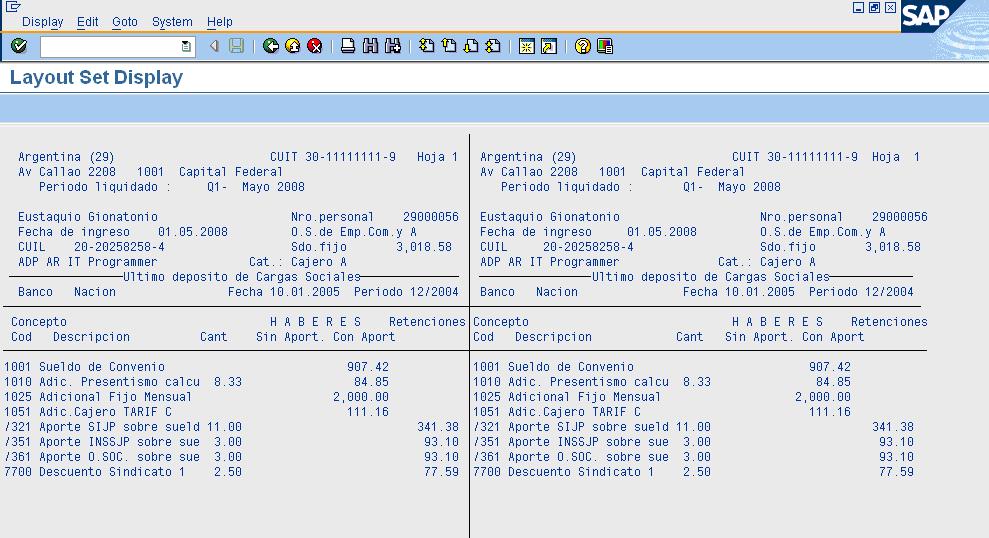
You can also run payroll in Simulation (Test Mode) using transaction PC00_MXX_CALC_SIMU (XX = Molga). Test Mode simulates the actual payroll run but does not update the payroll tables. It is helpful in determining and correcting errors before you perform an actual (live) payroll run.



How to Execute Payroll in Background
When running payroll for a large employee range it is advisable to process it in the background.
Step 1) In SAP Command Prompt, Enter Transaction PC00_MXX_CALC, where XX = Molga of the country for which you want to run the payroll.
Step 2) Enter the Payroll Area and Payroll Schema.

Step 3) In SAP Menu Bar, click:
- Program
- Execute in Background

Step 4) In the SAP -Output Device Dialog Box:
- Enter Device as LOCL (local)
- Click the check mark

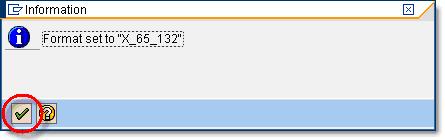
Step 5) An Information message stating Format is set to X_65_132 is shown. Click Check Mark to proceed ahead.
Step 6) Click Immediate and then click the save button so the job is scheduled instantaneously. Alternatively you can also specify a date and time to run the job.

Step 7) Go to Transaction SM37 to check your Job.

