
How to CREATE, COPY & DELIMIT a Position: SAP PPOME
 Editorial Team
⚡ Smart Summary
How to create, copy, and delimit a position in SAP using transaction PPOME is explained as a practical organizational management workflow. This resource walks through each step on the Organization and Staffing screen, from adding a new position to safely retiring one through delimitation.
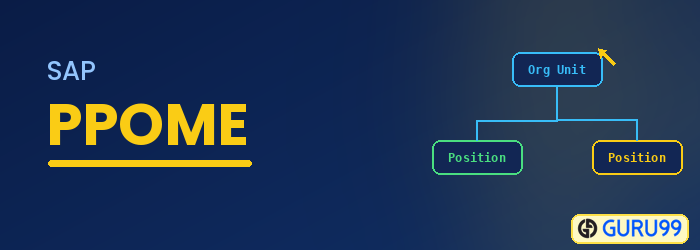
How to Create a New Position
Step 1) In the SAP command prompt, enter transaction PPOME.

Step 2) In the next SAP screen, click the create  button.
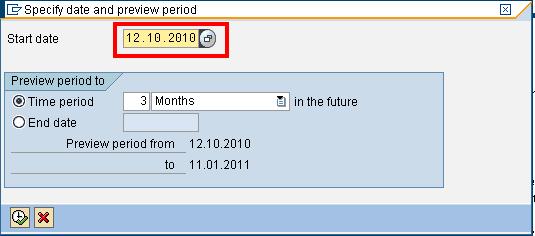
Step 3) In the next SAP screen, enter the start date of the new position.
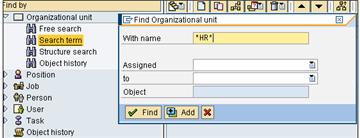
Step 4) Next, search for the organizational unit to which the new position will be added. Enter the name of the organizational unit and click find.
Step 5) In the results window, double click on the desired result.

Step 6) The selected organizational unit will be displayed in the overview section. Select the target org unit and click create.

Step 7) The next SAP pop-up window enables you to choose the relationship between the organizational unit and position. Select “Incorporates”.

Step 8) In the details section, give information about the new position that you are creating and click the save button.

Step 9) In the overview section, you will notice that the new position has been added under the organizational unit.

How to Copy a New Position
Step 1) In the SAP command prompt, enter transaction PPOME.
Step 2) In the next SAP screen, click the create button.
Step 3) In the next SAP screen, enter the start date of the new position.
Step 4) Next, search for the organizational unit to which the new position will be added. Enter the name of the organizational unit and click find.
Step 5) In the results window, double click on the desired result.
Step 6) The selected organizational unit will be displayed in the overview section. Select the position you wish to make copies of and click the copy button.

Step 7) In the next SAP pop-up window, select the number of copies you want to make of the position. Also specify the start date, end date, and description.

Step 8) In the overview section, you can see the position “clerk” is copied thrice.

Now, if required, you can change the details of the position in the Details section.
How to Delimit a Position
If, because of a restructuring, the position should cease to be available, you should NOT delete the position from the system but proceed with delimitation of the position. The prerequisite to be able to delimit a position is that no active employee is linked to it. If that is the case, first the employee should be terminated or moved to another position. Be sure that you really do not need this position before proceeding, because this action is very difficult to roll back.
In order to delimit a position, proceed as follows:
Step 1) While in SAP transaction PPOME.
Step 2) Select the position you want to delimit.

Step 3) Select the button ‘delimit’ and choose the option ‘object’.

Step 4) In the next SAP pop-up window, enter the delimit date. Click the Check Mark button.

The position is Delimited.

