
SAP CRM WebUI Concepts Tutorial: Step by Step Guide
 Mason Garcia
⚡ Smart Summary
SAP CRM WebUI Concepts power a role-driven, browser-based workspace where users access SAP CRM modules through an L-Shape layout. This walkthrough explains the Header, Navigation Bar, Work Area, Search Page, Overview Pages, and Personalize options with practical configuration tips.

Understanding SAP CRM WebClient UI and Business Roles
- CRM WebClient UI is a web-based application for the modules covered in SAP CRM.
- This framework has evolved over time as the successor of different user interfaces provided by SAP for SAP CRM.

Web UI history
- It is a business-role based application:
- Through this interface, users can access only those applications for which they have authorizations.
- If a user is assigned a single role, they will not have to select a role at logon.
- If multiple roles are assigned, the user must pick one to log in to the CRM Web UI.
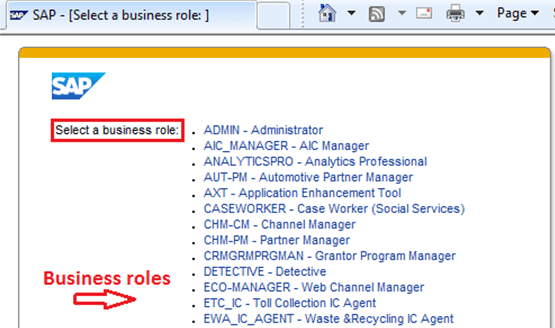
Business Role selection in first page of SAP CRM Web UI
- Regardless of the role selected, the screens of the CRM Web UI are structured in an L-Shape.
- However, the applications and functionalities the user can access depend on the selected role.
L-Shape Layout in SAP CRM Web UI
- Once logged in, users see the Web UI screens in an L-Shape.

L-Shape display in SAP CRM Web UI
- It consists of the following components:
- Header Area
- Navigation Area
- Work Area
- The positions of all L-Shape components are fixed and cannot be changed.
- An administrator can change the skin and logo of the Web Client based on company-specific requirements.
- The Header Area provides access to application-independent URLs and functionality.
- The Navigation Bar lets users access different applications they are authorized for.
- The Work Area updates based on actions taken in the Navigation Bar.
- It also updates for some actions on the Header Area.
Header Area
- The Header Area is static and its position is fixed.
- Its height can be set via CRM customizing, but the position cannot move.
- The Header Area contains the following components:
- System Links
- Saved Searches
- Work Area Title
- History

Components in SAP CRM Web UI Header
Navigation Bar
- The Navigation Bar lets users access applications they are authorized for.
- It also has links for generic pages such as:
- Home
- WorkList
- E-Mail Inbox
- Calendar
- Other links in the Navigation Bar are application-specific and vary across business roles. They are grouped into:
- Application links
- Quick create links
- Recent Items

Navigation Bar in SAP CRM Web UI
- Application links can be configured at two levels.
- First-level links open search, create, and report links for the application.

Levels of navigation via Navigation bar
- Second-level links take the user directly to a particular search page.
- Quick create links provide direct access to the create page for a specific business process document.

Quick create block in the navigation bar
- Recent Items act like a history list and track the last visited business documents or applications.
Work Area and Generic Pages
- The Work Area is where the user actually works.
- It updates based on actions in the Navigation Bar.
- It can include:
- Calendar
- E-Mail Inbox
- Work center groups
- Search result page
- Overview pages
- Sub-overview pages
- The following are common generic pages:
Home Page:
- Depending on the business requirement, the Home Page can be configured with standard (My Open Tasks) or custom (CRM Links) functionality.
- Navigation from the Home Page depends on its content.

Home page
Worklist Page:
- It displays alerts, workflow tasks, and business transactions currently pending with or assigned to the logged-in user.
- You can navigate to different applications or business transactions from the Worklist page.
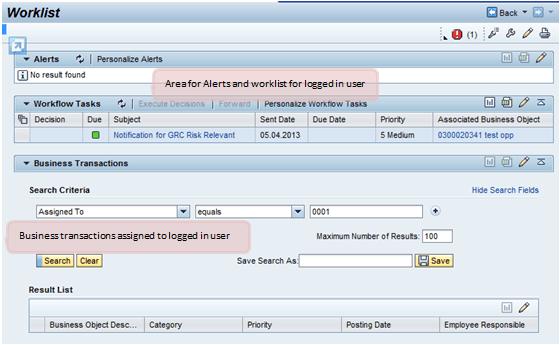
Worklist page
E-Mail Inbox and Calendar
- This page can be configured to sync with the user mailbox.
- CRM middleware settings enable the mailbox to be accessed from within Web UI.
- The Calendar page supports single-day, week, and month views.

Calendar View
- Similarly, the E-Mail Inbox can sync with a Lotus Notes server or Outlook.
Work Area for Applications
- Applications assigned to the logged-in user are accessed in the Work Area.
- Clicking an application in the Navigation Bar displays a Work Center with work area groups containing links to create, search, and report.

Work Area with Work Centre Groups
- From the Work Center, the user can navigate to Create, Search, or Report pages.
- For generic pages such as Home and Worklist, the Work Area layout differs.
- For applications listed in the Navigation Bar, the layout is consistent across applications.
- Implementing a Work Area requires knowledge of both Web UI programming and CRM customizing.
Search Page
- The Search Page is split into search criteria, a result table, and a saved-search area.

Advanced Search Page
- Search criteria let the user define filters to find an element.
- Criteria can be added or removed using buttons next to the criteria fields.
- Criteria fields can use F4 help or dropdown help.
- Multiple operators can be configured per criterion.
- The Search Result shows records returned by the search.
- The result table displays the number of records found, if any.
- Buttons can sit above the result table to launch business actions such as creating new accounts.
- Buttons to create new records are typically placed in the result table header.
- On the right side, the result table includes buttons to export records to an Excel sheet and to personalize the table.
- Records can contain hyperlinks in columns.
- These hyperlinks navigate to the individual record on the Overview page.

Personalization settings pop-up view
- The personalization button on the result table header lets the user change which columns appear and in what order.
- As highlighted above:
- The user can set the row count after which a scroll bar appears.
- The user can set the number of records shown per page.
Overview Pages
- The Overview page is used to work on complete data related to a single record.
- It can display, update, and create new data such as business partners or sales orders.
- Data for a single application or business transaction is organized into assignment blocks.
- The first assignment block holds header or main details; other data is grouped into further assignment blocks.
- Possible views within an assignment block:
- Form view
- Table view
- Tree view
- The header of the Overview page shows the object title and its description.
- The header also includes header buttons for actions and History buttons for navigating back and forward within the Work Area.

Overview Page Search Page – Form and Table View

Tree View
- Like the search result table, the Overview page has a personalization button to choose which assignment blocks appear.
- An assignment block can load expanded or lazy by default, improving application performance.
- All views (form, table, tree) can contain input fields with F4 input help or dropdown help.

Value help Pop-Up using F4
- Date fields display with a date help picker.
- Within form view, data can be grouped using captions.
- Individual assignment blocks can also include header buttons.

Search help Pop-Up
- Table and tree views can have a header with buttons.
- Buttons can also sit in the first column of a table view.
- Hyperlinks are supported in all these view types.
- Hyperlinks let you navigate across applications or business transactions, e.g., from a Sales Order to a Sold-to party.
- As needed, the Overview page can include an Attachments assignment block.

Assignment block for Attachments
- In this block, documents or URLs can be attached.
- Documents can come from content management or the local hard disk:

Pop-up to add attachment
- Once attached, you can view document properties, open it, or delete it.

Assignment block for Attachments
- There is also a region for error messages in the header area:
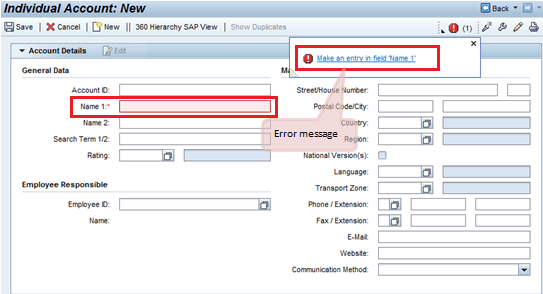
Personalize the CRM Web UI
- The CRM Web UI provides options for personalization.
- Here, you can set values that apply across applications for the logged-in user.
- You can also change the application skin.
- Under “Personalize My Data”, you can set values such as the date format.
- Under the Layout section, you can change the skin of the application.

Personalization Options

Setting skin in personalization
- A separate block exists for Groupware integration settings.
- In this block, the user can configure the integration of CRM with the mailbox for E-Mail and Calendar pages.
