
Smart Identification in QTP/UFT with Example
 Editorial Team
⚡ Smart Summary
Smart Identification is a fallback mechanism in UFT One for locating an object when its learned description no longer matches the application under test, using base and optional filter properties to narrow a list of candidates down to one match.

What is Smart Identification in QTP/UFT?
Smart Identification is a fallback object-recognition mechanism in OpenText UFT One, the tool formerly known as HP QuickTest Professional (QTP). If the normal identification process cannot find a unique match for an object’s learned description, UFT triggers Smart Identification, provided the mechanism is enabled in the Object Identification settings for that object’s class.
Unlike the learned description, Smart Identification does not require an exact match on every stored property. It evaluates two categories of properties to narrow a pool of candidate objects down to exactly one:
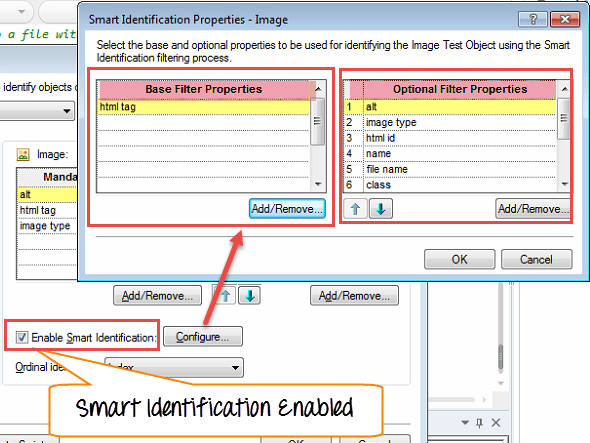
- Base Filter Properties. The most fundamental properties of a test object class; those whose values cannot change without changing the essence of the original object.
- Optional Filter Properties. Supporting properties that help identify an object but are more likely to change over time.
When Smart Identification runs, UFT “forgets” the learned description and rebuilds a fresh candidate list containing every object that matches all of the Base Filter Properties. It then narrows that list further, checking the Optional Filter Properties one at a time, until a single object remains.
If Smart Identification is invoked during a run session, the test results tree logs a warning message confirming that the mechanism was used, and a Smart Identification step is inserted into the results so the deviation from the learned description stays visible.
Smart Identification sits third in UFT’s object identification hierarchy, after the learned description and any Visual Relation Identifier, and before the ordinal identifier used as a last resort. Understanding where it fits explains why disabling it outright, rather than fixing the underlying properties, is rarely the best long-term choice for a script that runs often.
Base Filter Properties vs Optional Filter Properties
Both filters work together, but they play different roles in the elimination process described above. The comparison below clarifies when each one is used and how much elimination power each carries.
| Aspect | Base Filter Properties | Optional Filter Properties |
|---|---|---|
| Role | Build the initial candidate list | Narrow the candidate list to one object |
| Stability | Almost never change without changing the object’s identity | Can change periodically without changing the object’s identity |
| Matching rule | Every candidate must match all base properties | Checked one property at a time; a property is skipped if it would eliminate every candidate |
| Typical example | HTML tag, object class, index | Name, HTML id, alt text, image source |
| Where configured | Object Identification > Configure > Base Filter Properties | Object Identification > Configure > Optional Filter Properties |
Because the same property cannot sit in both lists, plan the split carefully. Properties that define what an object fundamentally is belong in the base list; properties that merely help distinguish it from similar objects belong in the optional list.
How Smart Identification Works: The Step-by-Step Process
Smart Identification only activates after the learned description, and any Visual Relation Identifier, fails to pinpoint a single object. Once triggered, UFT works through a predictable, four-step elimination process:
- Rebuild the candidate list. UFT ignores the learned description and scans the object’s parent for every object that matches all of the Base Filter Properties.
- Apply the first optional property. UFT removes any candidate that does not match the first property in the Optional Filter Properties list.
- Evaluate the result. If more than one candidate remains, UFT repeats the previous step with the next optional property. If a filter would eliminate every remaining candidate, UFT skips that property instead and moves to the next one.
- Stop at one match. UFT repeats the filter-and-evaluate cycle until exactly one object remains, or until it runs out of optional properties to check.
If the elimination process still cannot isolate a single object, UFT falls back to the learned description plus an ordinal identifier, such as index, location, or creation time. When even that combination fails to identify the object, the run session pauses and displays a run-time error.
How to Enable or Disable Smart Identification
Smart Identification is configured per test object class from Tools > Object Identification. Select the environment and the object class, turn on Enable Smart Identification, then click Configure to choose the Base and Optional Filter Properties for that class. The same dialog lets you turn the option off for a class that should always use its learned description instead.
How Smart Identification Works (Video Walkthrough)
The video below walks through the base and optional filter elimination process on a live example.
Click here if the video is not accessible
Advantages and Disadvantages of Using Smart Identification
Smart Identification adds resilience, but that resilience carries a runtime cost. Weigh both sides before leaving it enabled by default across an entire object repository.
- ✅ Survives minor UI changes: A renamed attribute or a shifted position in the page no longer breaks every script that touches the object.
- ✅ Reduces object repository maintenance: Testers spend less time re-recording objects after small front-end releases.
- ✅ Stays visible in results: Every invocation logs a warning, so teams can audit how often the fallback is really needed.
- ⚠️ Slower test execution: Building and filtering a candidate list takes measurably longer than a direct property match, and the cost multiplies across a large suite.
- ⚠️ Can mask real defects: If Smart Identification quietly finds a similar object, a genuine UI regression may pass unnoticed.
- ⚠️ Needs periodic review: Base and Optional Filter Properties still need occasional review as the application evolves.
Most teams leave Smart Identification enabled for exploratory and low-frequency scripts, then disable it selectively on performance-critical objects once the object’s identification properties are stable.
Modify Object Property to Avoid Smart Identification
Smart Identification’s flexibility comes at the runtime cost described above, so many teams prefer to fix the object identification properties themselves rather than repeatedly rely on the fallback. Watch for two signals that a property fix beats a runtime fallback: a Smart Identification warning that appears on nearly every run, and a script that has grown noticeably slower since the fallback started firing. Both point to an object whose default identification properties no longer suit the application, rather than a one-off UI glitch. The video below demonstrates the fix on a real login form.
Click here if the video is not accessible
Video Transcript: Key Takeaways
- Smart identification slows down script execution, which is not desirable for large or frequently run suites.
- To avoid it entirely, change the default object identification properties instead of relying on the fallback.
- In Object Identification, remove “name” from the mandatory properties and replace it with “HTML id” to make the test independent of name changes.
- Re-record the same steps once the mandatory property list has been updated.
- If the name later changes from “Submit” to “Login,” the script now runs without triggering Smart Identification.
- Similarly, if any mandatory or assistive property on an object under test changes frequently, replace it with a more stable property to keep script execution fast.
- Property tweaking is a skill built through experience; it improves the more you work with the tool.
Disable Smart Identification Using VBScript
Smart Identification can also be switched off for an entire run session without touching the object repository, using the DisableReplayUsingAlgorithm run-time setting. This is useful when a script should fail immediately on any property mismatch instead of silently falling back to the elimination process.
' Disable Smart Identification for this run session
Setting("DisableReplayUsingAlgorithm") = 1

Browser("Mercury Tours").Page("Find Flights").WebEdit("userName").Set "mercury"

' Re-enable Smart Identification once the strict steps are done
Setting("DisableReplayUsingAlgorithm") = 0
Keep the disabled window as short as possible. Steps run inside it must match their learned description exactly, so any legitimate drift in the application under test causes an immediate failure rather than a graceful fallback.
Resources
Download the Webpages used in the above tutorial for self-practice
