
Python ZIP file with Example
 Editorial Team
⚡ Smart Summary
Python creates ZIP archives with the built-in shutil and zipfile modules. Here you will learn to zip an entire directory using make_archive(), zip specific files with ZipFile, and extract, list, and read archive contents.
Python allows you to quickly create zip/tar archives.
Following command will zip entire directory
shutil.make_archive(output_filename, 'zip', dir_name)
Following command gives you control on the files you want to archive
ZipFile.write(filename)
How to Zip an Entire Directory in Python
Here are the steps to create Zip File in Python
Step 1) To create an archive file from Python, make sure you have your import statement correct and in order. Here the import statement for the archive is from shutil import make_archive
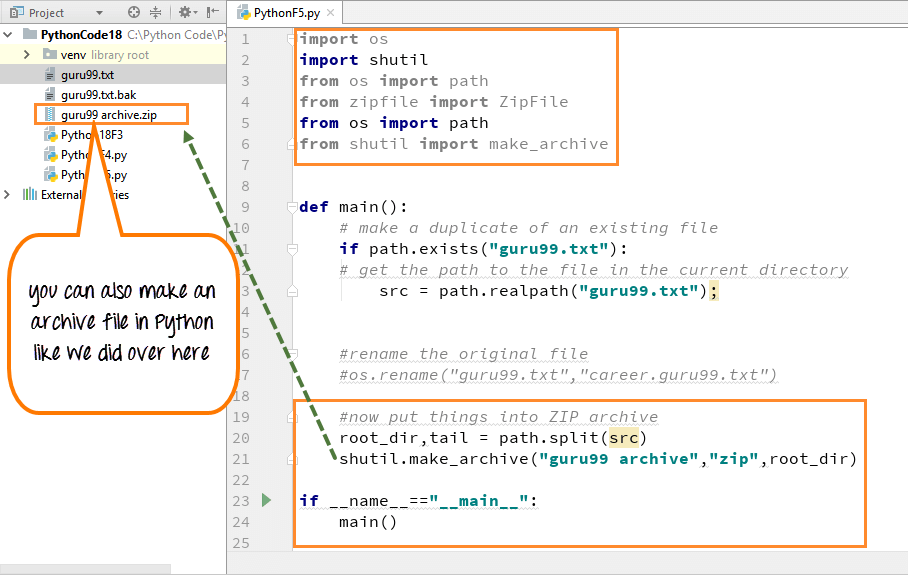
Code Explanation
- Import make_archive class from module shutil
- Use the split function to split out the directory and the file name from the path to the location of the text file (guru99)
- Then we call the module “shutil.make_archive(“guru99 archive, “zip”, root_dir)” to create archive file, which will be in zip format
- After then we pass in the root directory of things we want to be zipped up. So everything in the directory will be zipped
- When you run the code, you can see the archive zip file is created on the right side of the panel.
Step 2) Once your archive file is made, you can right-click on the file and select the O.S, and it will show your archive files in it as shown below
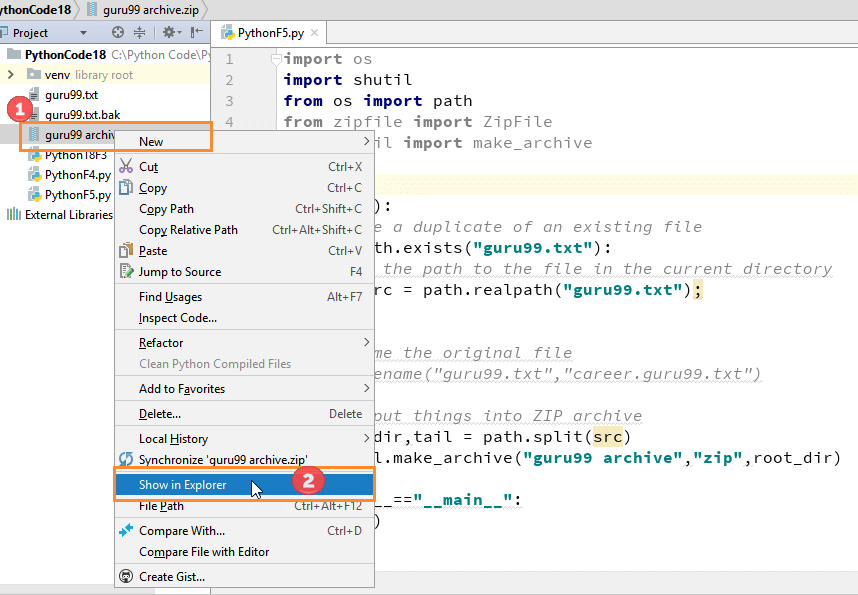
Now your archive.zip file will appear on your O.S (Windows Explorer)

Step 3) When you double-click on the file, you will see the list all the files in there.

How to Zip Specific Files Using ZipFile
Step 4) In Python we can have more control over archive since we can define which specific file to include under archive. In our case, we will include two files under archive “guru99.txt” and “guru99.txt.bak”.

Code Explanation
- Import Zipfile class from zip file Python module. This module gives full control over creating zip files
- We create a new Zipfile with name ( “testguru99.zip, “w”)
- Creating a new Zipfile class, requires to pass in permission because it’s a file, so you need to write information into the file as newzip
- We used variable “newzip” to refer to the zip file we created
- Using the write function on the “newzip” variable, we add the files “guru99.txt” and “guru99.txt.bak” to the archive
When you execute the code you can see the file is created on the right side of the panel with name “guru99.zip”
Note: Here we don’t give any command to “close” the file like “newzip.close” because we use “With” scope lock, so when program falls outside of this scope the file will be cleaned up and is closed automatically.
Step 5) When you -> right click on file (testguru99.zip) and -> select your O.S (Windows Explorer), it will show the archive files in the folder as shown below.

When you double click on file “testguru99.zip”, it will open another window, and this will show the files included in it.

Complete Python Code to Create a ZIP File
Here is the complete code
Python 2 Example
import os
import shutil
from zipfile import ZipFile
from os import path
from shutil import make_archive

def main():
# Check if file exists
	if path.exists("guru99.txt"):
# get the path to the file in the current directory
	src = path.realpath("guru99.txt");
# rename the original file
	os.rename("career.guru99.txt","guru99.txt")
# now put things into a ZIP archive
	root_dir,tail = path.split(src)
    shutil.make_archive("guru99 archive", "zip", root_dir)
# more fine-grained control over ZIP files
	with ZipFile("testguru99.zip","w") as newzip:
	newzip.write("guru99.txt")
	    newzip.write("guru99.txt.bak")
if __name__== "__main__":
	  main()
Python 3 Example
import os
import shutil
from zipfile import ZipFile
from os import path
from shutil import make_archive

    # Check if file exists
       if path.exists("guru99.txt"):
    # get the path to the file in the current directory
        src = path.realpath("guru99.txt");
    # rename the original file
        os.rename("career.guru99.txt","guru99.txt")
    # now put things into a ZIP archive
        root_dir,tail = path.split(src)
        shutil.make_archive("guru99 archive","zip",root_dir)
    # more fine-grained control over ZIP files
        with ZipFile("testguru99.zip", "w") as newzip:
            newzip.write("guru99.txt")
            newzip.write("guru99.txt.bak")
How to Extract (Unzip) a ZIP File in Python
To unzip an archive, open it in read mode with ZipFile and call extractall() to extract every file, or extract() to pull out a single member.
from zipfile import ZipFile

with ZipFile("testguru99.zip", "r") as myzip:
    myzip.extractall("extracted_files")
The extractall() method writes all the archived files into the folder you pass as an argument.
How to List Files in a ZIP Archive
You can inspect an archive without extracting it. The namelist() method returns the names of every file stored inside the ZIP.
from zipfile import ZipFile

with ZipFile("testguru99.zip", "r") as myzip:
    print(myzip.namelist())
This prints a list of the file names contained in the archive.
How to Read a File Inside a ZIP Archive
You can read a member file directly from the archive without unzipping it to disk using the open() method of ZipFile.
from zipfile import ZipFile

with ZipFile("testguru99.zip", "r") as myzip:
    with myzip.open("guru99.txt") as f:
        print(f.read())
This is useful when you only need the contents of one file from a large archive.
