
login/fails_to_session_end – SAP RZ11
 Editorial Team
⚡ Smart Summary
SAP RZ11 is the dynamic profile-parameter maintenance transaction used to limit failed logon attempts in SAP. Setting login/fails_to_session_end and login/fails_to_user_lock protects accounts by ending sessions and locking users after repeated incorrect passwords.
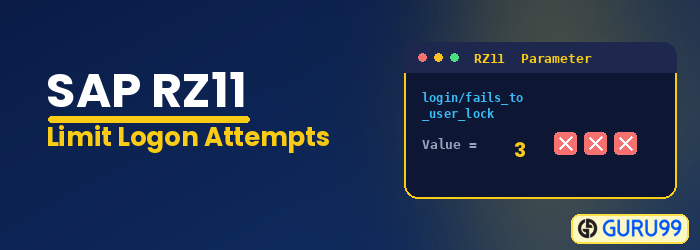
Before we learn to limit logon attempts we need to know parameter –
What is a parameter?
Parameter is the set of keys and values to manage the SAP system. There are two types of parameters –
- Static: – It needs a restart. It doesn’t effect to the system immediately once you set the value for it.
- Dynamic: – It does not need restart. It effects to the system immediately once you set the value for it.
How to view a parameter?
Step 1) Execute T-code RZ11.

Step 2)
- Put parameter name “login/fails_to_session_end” in text-field. You can put any Parameter name.
- Click Display

Step 3) The screen below shows the current value set for the parameter by the admin

In order to change a parameter, click the pencil icon and make desired changes
Important Parameters to limit login attempts
- login/fails_to_session_end: This parameter specifies the number of times that a user can enter an incorrect password before the system ends the logon attempt. The parameter is to be set to a value lower than the value of parameter
- login/fails_to_user_lock: This parameter specifies the number of times that a user can enter an incorrect password before the system locks the user against further logon attempts. SAP system default value is 12. You can set it to any value between 1 and 99 inclusive.
How to Change a Parameter Value in RZ11
Viewing a parameter is only the first step. When you need to tighten logon security, you must edit the value. RZ11 changes a dynamic parameter instantly, but the change is lost after the next restart unless it is also written to the instance profile.
- Execute RZ11, type the parameter name (for example login/fails_to_user_lock), and click Display.
- Click the Change Value (pencil) button on the parameter screen.
- Enter the new value within the permitted range and save. The dynamic switch takes effect immediately for new logons.
- To make the value permanent, maintain the same parameter in the instance profile using transaction RZ10 and activate the profile.
Because both parameters are dynamic, administrators can respond to a brute-force attempt in real time, then persist the value through RZ10 so it survives a system restart. Always test a new value in a non-production client first to confirm that legitimate users are not locked out unexpectedly.
RZ10 vs RZ11: Which Transaction to Use
Both transactions manage profile parameters, but they serve different purposes. RZ11 is best for viewing and quick dynamic changes, whereas RZ10 maintains the persistent instance and default profiles.
| Criteria | RZ11 | RZ10 |
|---|---|---|
| Purpose | Display and change single parameters | Maintain complete profiles |
| Scope | One parameter at a time | All parameters in a profile |
| Persistence | Dynamic, lost on restart | Permanent after activation |
| Best for | Quick checks and hotfixes | Baseline security configuration |
Best Practices to Limit Logon Attempts in SAP
A well-tuned lockout policy stops password-guessing attacks without disrupting genuine users. Apply the following best practices:
- Order the parameters correctly: Set login/fails_to_session_end lower than login/fails_to_user_lock.
- Use sensible limits: A user-lock value of three to five balances security and usability.
- Persist critical values: Save security parameters in the profile through RZ10 so they survive restarts.
- Enable auditing: Log failed logons and lockouts in the Security Audit Log (SM19/SM20) for review.
- Combine with password rules: Pair lockout limits with strong password restrictions for defense in depth.
