
Create JUnit Test Suite with Example: @RunWith @SuiteClasses
 Editorial Team
⚡ Smart Summary
JUnit test suites aggregate test cases from several classes so they run together in a single pass, driven by the @RunWith(Suite.class) and @SuiteClasses annotations and launched through an ordinary test runner class.

In JUnit, a test suite allows us to aggregate all test cases from multiple classes in one place and run them together.
To run the suite test, you need to annotate a class using the below-mentioned annotations:
- @RunWith(Suite.class)
- @SuiteClasses(test1.class, test2.class…) or @Suite.SuiteClasses({test1.class, test2.class…})
With the above annotations, all the test classes in the suite will start executing one by one. The suite class itself stays empty: it is only a holder for the annotations, and the runner reads those annotations to decide what to execute.
Steps to Create Test Suite and Test Runner
The four steps below build the smallest suite that actually runs: two ordinary test classes, a suite class that names them, and a runner that starts the suite from a main method.
Step 1) Create a simple test class (e.g. MyFirstClassTest) and add a method annotated with @Test.
The first class holds a single empty test method, which is enough to prove that the suite picks it up:

Step 2) Create another test class to add (e.g. MySecondClassTest) and create a method annotated with @Test.
The second class follows exactly the same shape, so the suite has two separate classes to aggregate:

Step 3) To create a testSuite you need to first annotate the class with @RunWith(Suite.class) and @SuiteClasses(class1.class, class2.class…).
Notice that the suite class TestSuiteExample declares no test method of its own — the two annotations carry all of the information:
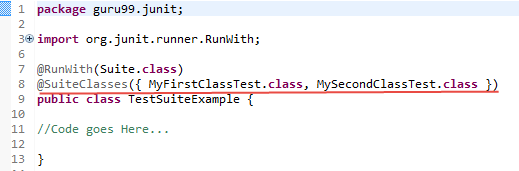
Step 4) Create a Test Runner class to run our test suite as given below:
The runner is a plain Java class with a main method that hands the suite class to JUnitCore:

Code Explanation:
- Code Line 8: Declaring the main method of the class Test which will run our JUnit test.
- Code Line 9: Executing test cases using JUnitCore.runClasses which takes the test class name as a parameter (In the example above, you are using TestSuiteExample.class shown in step 3).
- Code Line 11: Processing the result using a for loop and printing out the failed result.
- Code Line 13: Printing out the successful result.
Output: Here is the output which shows a successful test with no failure trace as given below:

The green bar confirms what a suite is for: one launch, one result view, and both classes reported underneath the suite node rather than in two separate runs.
JUnit Test Suite Example
Consider a more complex example, in which the classes inside the suite actually assert something instead of holding an empty method.
JunitTest.java
JunitTest.java is a simple class annotated with the @RunWith and @Suite annotations. You can list any number of classes in the suite as parameters, as given below:
package guru99.junit;
import org.junit.runner.RunWith;
import org.junit.runners.Suite;

@RunWith(Suite.class)
@Suite.SuiteClasses({
  SuiteTest1.class,
  SuiteTest2.class,
})

public class JunitTest {
			// This class remains empty, it is used only as a holder for the above annotations
}
SuiteTest1.java
SuiteTest1.java is a test class having test methods that print out a message, as given below. You will use this class as a suite member in the class mentioned above. It relies on a helper class named JUnitMessage, which is defined elsewhere in the same package and is not reproduced here.
package guru99.junit;

import static org.junit.Assert.assertEquals;

import org.junit.Test;

public class SuiteTest1 {

    public String message = "Saurabh";

    JUnitMessage junitMessage = new JUnitMessage(message);

    @Test(expected = ArithmeticException.class)
    public void testJUnitMessage() {

        System.out.println("Junit Message is printing ");
        junitMessage.printMessage();

    }

    @Test
    public void testJUnitHiMessage() {
        message = "Hi!" + message;
        System.out.println("Junit Hi Message is printing ");
        assertEquals(message, junitMessage.printHiMessage());
        System.out.println("Suite Test 2 is successful " + message);
    }
}
SuiteTest2.java
SuiteTest2.java is another test class, similar to SuiteTest1.java, having a test method to print out a message as given below. You will use this class as a suite member in JunitTest.java.
package guru99.junit;

import org.junit.Assert;
import org.junit.Test;

public class SuiteTest2 {


    @Test
    public void createAndSetName() {


        String expected = "Y";
        String actual = "Y";

        Assert.assertEquals(expected, actual);
        System.out.println("Suite Test 1 is successful " + actual);
    }

}
Output
After executing JunitTest.java, which contains a suite holding SuiteTest1.java and SuiteTest2.java, you will get the output below. The console prints the messages produced by both classes:

The JUnit view records the same run as three passing test methods grouped under the suite class:

Note: the console labels in this example are crossed over — the string printed by SuiteTest1 reads “Suite Test 2” and the one printed by SuiteTest2 reads “Suite Test 1”. The original listings are reproduced unchanged, so the labels stay as the author wrote them; read the class name in the JUnit view rather than the printed label when you match output to source.
How to Create a Test Suite in JUnit 5
JUnit 5 removes runners altogether, so @RunWith(Suite.class) does not exist in the org.junit.jupiter packages. Suites moved to the JUnit Platform, which ships them in a separate artifact called junit-platform-suite-engine. Add that dependency, then annotate a class with @Suite and one of the selector annotations.
import org.junit.platform.suite.api.SelectClasses;
import org.junit.platform.suite.api.Suite;
import org.junit.platform.suite.api.SuiteDisplayName;

@Suite
@SuiteDisplayName("Guru99 suite")
@SelectClasses({ SuiteTest1.class, SuiteTest2.class })
public class JunitTest {
    // Empty holder, exactly as in JUnit 4
}
The selector annotations replace the single @SuiteClasses list with a small family of options:
| Annotation | What it selects |
| @SelectClasses | Individual test classes named one by one, the direct replacement for @SuiteClasses. |
| @SelectPackages | Every test class in the named package and in all of its sub-packages. |
| @IncludeClassNamePatterns | A regular expression filter applied on top of the selection. |
| @SuiteDisplayName | A readable name shown in the report instead of the class name. |
Two further differences matter in practice. A JUnit 5 suite class may declare @BeforeSuite and @AfterSuite methods, which run once around the whole suite, and the JUnit 4 example above still executes on the JUnit Platform through the vintage engine, so the original code on this page does not have to be rewritten to keep working.
Advantages and Limitations of JUnit Test Suites
A suite is a grouping mechanism, not a test framework of its own, and that shapes both what it does well and where it stops being useful.
Advantages
- One launch runs related classes together, so a smoke set or a regression set is started with a single command.
- The result view groups every class under one suite node, which makes a shared failure easier to spot.
- The membership list lives in code, so it is reviewed and versioned like any other source file.
- The same suite class can be launched from an IDE, from a runner such as JUnitCore, or from a build tool.
Limitations
- @SuiteClasses is a hard-coded list, so a new test class is silently left out until somebody edits the suite.
- The suite gives no ordering guarantee beyond the order in which the classes are listed.
- Nothing is shared between the member classes, so a suite is not a substitute for a fixture or a base class.
- Build tools already discover test classes by naming convention, which makes a suite redundant on many projects.
Common Errors When Creating a JUnit Test Suite
Most suite problems produce a short, unhelpful message. The table maps the messages you are likely to meet to their cause and fix.
| Message or symptom | Cause | Fix |
| initializationError: No runnable methods | The class is run as an ordinary test class, but it holds only annotations. | Add @RunWith(Suite.class) so the suite runner takes over instead of the default runner. |
| cannot find symbol: class Suite | The Suite import is missing. | Import org.junit.runners.Suite alongside org.junit.runner.RunWith. |
| Suite runs, but a class is skipped | The class was never added to the @SuiteClasses list. | Add the class explicitly, or move to @SelectPackages in JUnit 5. |
| Class name is not accepted by the compiler | @Runwith or @suiteClasses was typed with the wrong casing. | Java annotations are case-sensitive: write @RunWith and @SuiteClasses exactly. |
| Tests in the suite class itself never run | A @Test method was added to the suite holder. | Keep the holder empty and move the test method into a member class. |
Writing the suite once and keeping it accurate is the real work. If the list drifts away from the classes on disk, the suite reports green while part of the unit test set never executes at all, one of the quietest failure modes in software testing.
