
ABAP Query Tutorial in SAP: SQ01, SQ02, SQ03
 Editorial Team
⚡ Smart Summary
ABAP Query in SAP builds reports without ABAP programming through the transactions SQ01, SQ02, and SQ03. This page explains the four components, the three output list types, a step by step query in SQ01, InfoSet creation in SQ02, and the key transaction codes.
What is ABAP Query?
The ABAP Query application is used to create reports not already present in SAP system. It has been designed for users with little or no knowledge of the ABAP programming. ABAP Query offers users a broad range of ways to define reports and create different types of reports such as basic lists, statistics, and ranked lists.
The ABAP Query comprises four components:
- Queries
- InfoSets
- User Groups
- Translation of Query
Lets look into them in detail:-
Queries
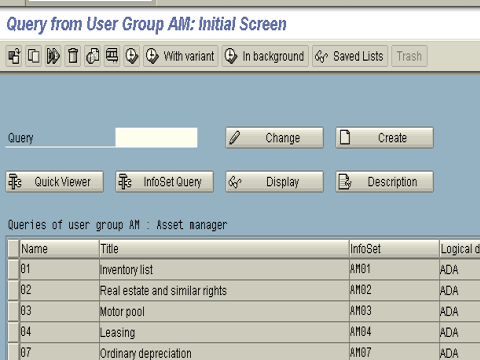
The Queries component is used by end users to maintain queries. One can create queries,change queries and execute queries. Transaction SQ01
InfoSets
InfoSets are special views of data sources. An InfoSet describes which fields of a data source can be reported on in queries. An InfoSet can be assigned to several roles or user groups.
Advantages–
- By creating InfoSets and assigning them to roles or user groups, the system administrator determines the range of reports that the individual application departments or end-users are able to generate using the SAP Query.
- End-users are able to work only with those InfoSets that are relevant to their particular area, as designated by the role or user group that they are assigned to.
USER Groups
The User Groups component is used to maintain user groups (from a security standpoint).
Users working in the same application are assigned to the same user group.It does not matter who actually defined a query in a user group. Every user assigned to the user group is able to execute the query.
Users in a user group need to have the necessary authorizations before they are able to change or redefine a query. Every user in a system can be assigned to several user groups.
Translation/QUERY Component
A lot of texts are generated when defining queries, InfoSets, and user groups. These texts are displayed in the language that we chose when we log on to the SAP system. We can compare the text/languages using this component.
Data processing in Queries
Data can be processed and presented in 3 ways:-
- BASIC LIST – Presents data in the order defined by the functional area ( supports sorting and summation ).
- STATISTIC – Shows the statistical figures calculated from the basic data.
- RANKED LIST – A ranked list is a specialization of a statistic. E.x. Top ten customers of a travel agency.
A query can have one basic list , upto nine statistics and upto nine ranked lists.
| List type | What it shows | Maximum per query |
|---|---|---|
| Basic list | Detail rows in the order of the functional area, with sorting and totals | One |
| Statistic | Aggregated figures such as counts, averages, and sums | Up to nine |
| Ranked list | A statistic limited to the top or bottom N records | Up to nine |
Prerequisite: Create an InfoSet in SQ02
A query can only report on the fields offered by an InfoSet, so the InfoSet is built first in transaction SQ02. The steps below create one over a logical database or a table join.
- Open SQ02: Enter the transaction, type an InfoSet name, and choose Create.
- Choose the data source: Select a table, a table join, a logical database, or a data retrieval program as the source of the fields.
- Build the field groups: Assign the fields of the source into field groups, because a query later selects the columns from these groups.
- Generate and save: Generate the InfoSet so that it becomes usable, then save it.
- Assign the user group: Link the InfoSet to one or more user groups in SQ02 or SQ03, so the members of those groups can build queries on it.
💡 Tip: Use a table join in the InfoSet when the report needs fields from two related tables, for example the sales header VBAK and the sales item VBAP. A logical database is better when the data already has a standard read program.
Once an InfoSet exists and is assigned to your user group, the query itself is created in SQ01, as shown next.
CREATING A QUERY
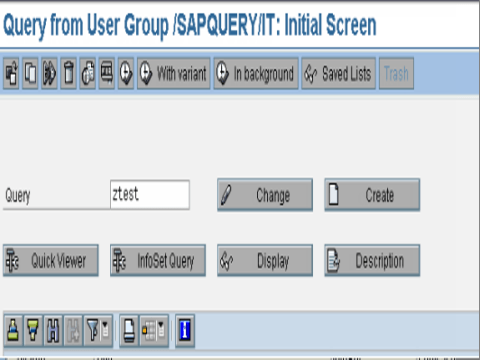
Step 1) Goto SQ01. Give a name to the query and click on the Create button.
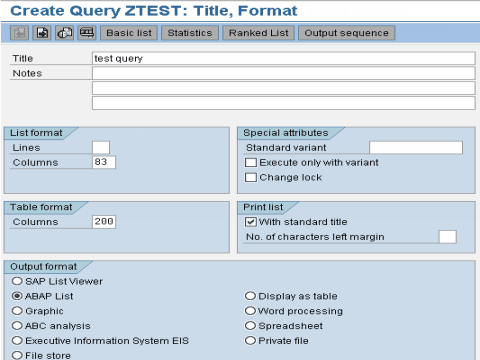
Step 2) Give the description of the query in the next screen. Specify the output length and select the processing option from the Further Processing Options box. The data can be displayed in various formats such as table, download to a file, and display in Word etc.
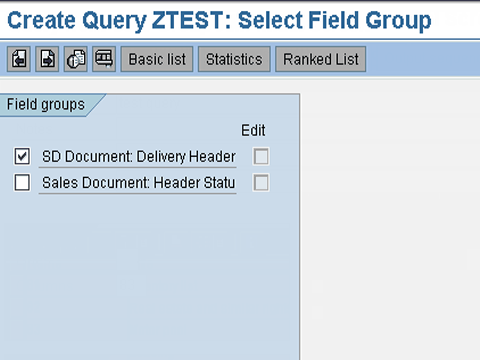
Step 3) Click on the next screen, select the field group to be used.
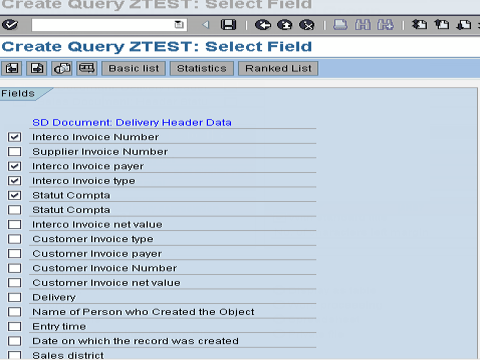
Step 4) Click on the next screen, select the fields you want displayed
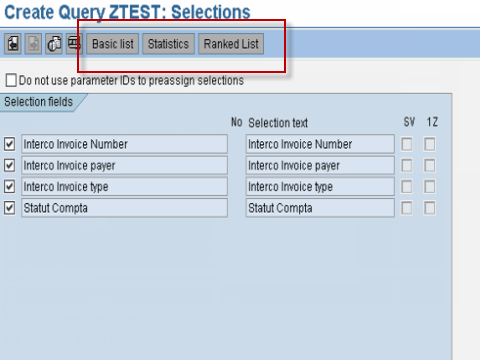
Step 5. On the next screen, select the selection fields and then chose one of the output types ( basic, statistics, ranked ).
In each of the lists, you can select various options.( eg. Sort order of fields, change output length, column color,totals,page header, page footer etc.).
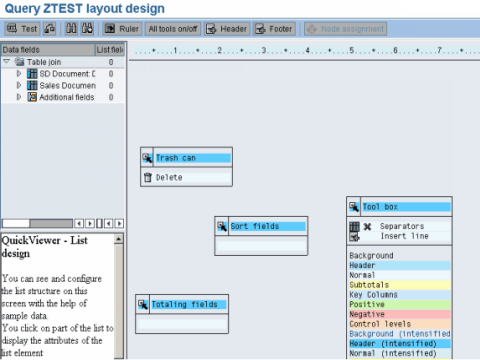
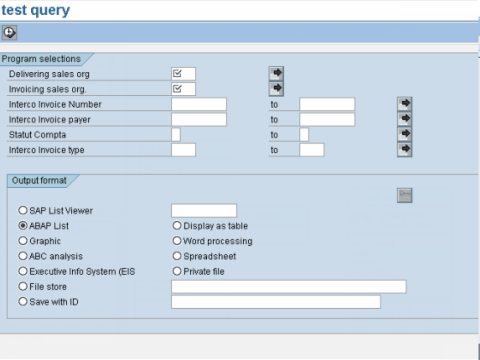
Step 6) After providing all the above options you can save the query and execute it .
Note:
Transaction to Create/Maintain Infoset –SQ02
Transaction to Create/Maintain UserGroup –SQ03
ABAP Query Transaction Codes
The three core transactions correspond to the three main components, and a few extra codes cover the global and standard query areas.
| Transaction | Purpose |
|---|---|
| SQ01 | Create, change, and run queries |
| SQ02 | Create and maintain InfoSets and field groups |
| SQ03 | Create and maintain user groups and their assignments |
| SQVI | QuickViewer, a single user query that needs no user group |
| SQ07 | Maintain the language and translation of query objects |
⚠️ Warning: Query objects belong to either the standard area, which is client specific, or the global area, which is cross client and transportable. Choose the global area for objects that must move through the transport landscape, because standard area objects stay in one client.
