
What is OSS Notes? SAP SNOTE Tutorial
 Jessica Blake
⚡ Smart Summary
OSS Notes are official SAP corrections that deliver bug fixes, patches, and enhancements to installed systems. Administrators check whether a specific SAP Note is already deployed in the landscape using transaction SNOTE and the SAP Note Browser.

Before starting any correction work, an SAP Basis administrator often needs to confirm whether a specific SAP Note is already applied. This article explains what OSS Notes are and how to verify a note’s deployment status using transaction SNOTE.
What is OSS Notes?
OSS NOTES is an online SAP service portal that provides up to date information on SAP notes. It frequently releases bug fixes, patches, new program developments or enhancements and other miscellaneous updates by SAP. It provides a list of correction notes for SAP objects. OSS stands for “Online SAP Support.“
How to Check if an OSS Note is Deployed in SAP
At times before you begin work, it will be required to check whether a particular note is present in your SAP system
To ensure that a particular OSS note is present in your SAP system, execute the following steps:
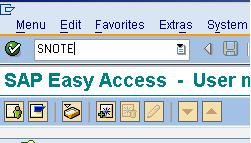
a)In SAP command prompt, Enter TCode # SNOTE
b) In the next screen, Click SAP Note Browser

c) Type in your SAP Note Number in the corresponding text field and click execute

d) Next Screen shows status of the SAP note

SAP Note Implementation Statuses
For a background, a SAP note could have any of the following seven statuses. The SAP Note Browser displays the current status so you know whether further action is required:
| Status | Meaning |
|---|---|
| Can be implemented | The note is valid for your system but has not yet been applied. |
| Cannot be implemented | The note does not apply to your release or support-package level. |
| Completely implemented | All corrections in the note are fully applied. |
| Incompletely implemented | Only part of the note is applied; manual steps may remain. |
| Obsolete | The note has been superseded by a newer correction or support package. |
| Obsolete version implemented | An older version is applied and a newer version now exists. |
| Undefined Implementation State | The system cannot determine the status and it needs manual review. |
How to Implement an OSS Note using SNOTE
Once you confirm that a note “can be implemented”, SNOTE applies it in a controlled, guided sequence. This avoids the manual coding changes that older correction methods required.
- Execute SNOTE and choose Download SAP Note to fetch the latest version from the SAP support backbone.
- Select the note and read the prerequisites, side-effect notes, and any required support-package level.
- Choose Implement SAP Note; SNOTE applies the automatic corrections and lists any manual activities.
- Complete the manual steps, then activate the affected objects.
- Confirm the status changes to Completely implemented in the SAP Note Browser.
Best Practices for Applying SAP Notes
SAP Notes touch live coding and configuration, so a careful process protects system stability. Follow these best practices:
- Test first: Always implement and validate a note in the development system before transporting it.
- Check prerequisites: Review prerequisite and side-effect notes to avoid partial or conflicting corrections.
- Keep SNOTE current: Update the SNOTE download tool so it can read the latest note formats.
- Document changes: Record every applied note and its transport for audit and troubleshooting.
- Review regularly: Periodically scan for security and legal-change notes relevant to your release.
