
Create Fiscal Year Variant & Assign to Company Code in SAP
 Editorial Team
⚡ Smart Summary
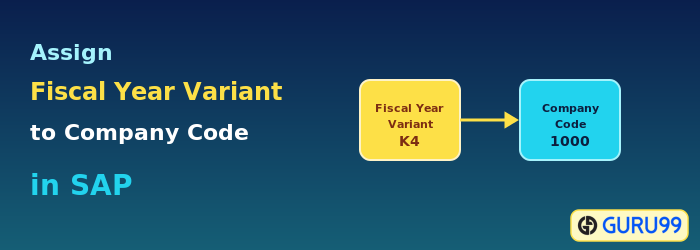
Fiscal year variants in SAP define how a financial year is divided into posting periods and special periods, determining whether the year follows the calendar or a custom schedule before assignment to each company code.
What is a Fiscal Year Variant in SAP?
A fiscal year variant defines how a financial year is structured in SAP. It sets the number of posting periods, the number of special periods, and whether the year matches the calendar year or follows a custom schedule. The variant is then assigned to each company code.
Year-Dependent vs Year-Independent Fiscal Year Variants
SAP supports two ways of defining the period structure:
| Type | Behaviour |
|---|---|
| Year-independent | The same period structure repeats every year. Used when the calendar is stable, including calendar-year variants. |
| Year-dependent | Period dates are defined per year. Used for shortened fiscal years or calendars that change year to year. |
A calendar-year variant runs from January to December with twelve periods, so SAP uses the calendar months automatically without individual period dates.
How to Create a Fiscal Year Variant
The following steps create a fiscal year variant using the SPRO customizing path (transaction OB29).
Step 1) Enter the Transaction code SPRO in the SAP Command Field and press Enter.

Step 2) In the next screen, select SAP Reference IMG.

Step 3) In the next screen, “Display IMG”, navigate the following menu path: SAP Customizing Implementation Guide -> Financial Accounting -> Financial Accounting Global Settings -> Fiscal Years -> Maintain Fiscal Year Variant (Maintain Shortened Fiscal Year).

Step 4) In the next screen, select “New Entries” from the Application Toolbar.

Step 5) In the next screen, enter the following data:
- Enter a two-digit unique fiscal year variant key.
- Enter a description for the variant created.
- If the fiscal year is year-dependent, that is, if the start and end dates change between years, select this option (normally used for a shortened fiscal year).
- If the fiscal year is the same as the calendar year, that is, January to December, select this option.
- Enter the number of posting periods for this fiscal year.
- Enter the number of special posting periods used for closing activities.

Step 6) After entering all required data, press Save from the standard toolbar.

Step 7) In the next screen, enter the customizing request number, and you have created a new fiscal year variant.

Step 8) To maintain the period dates, that is, if the fiscal year variant is not the calendar year, maintain the posting periods by:
- Select the fiscal year variant for which you want to maintain the period.
- Select the Periods folder.

Step 9) In the next screen, maintain the periods for the fiscal year in ascending order.

Step 10) After maintaining the periods, press “Save” on the SAP Standard Toolbar.

How to Assign Company Code to a Fiscal Year Variant
Step 1) Enter the Transaction code SPRO in the SAP Command Field and press Enter.

Step 2) In the next screen, select SAP Reference IMG.

Step 3) In the next screen, “Display IMG”, navigate the following menu path: SAP Customizing Implementation Guide -> Financial Accounting -> Financial Accounting Global Settings -> Fiscal Years -> Assign Company Code to a Fiscal Year Variant.

Step 4) In the next screen, assign the company code in the list with the corresponding fiscal year variant.

Step 5) After the assignment, press “Save” from the SAP Standard Toolbar.

Step 6) In the next screen, enter the customizing request number.

You have successfully assigned the company code to the fiscal year variant. You can also assign the fiscal year variant in the company code through the Company Code Global Parameters settings.
