
QTP/UFT Automation Framework: Data Driven, Keyword & Hybrid
 Thomas Hamilton
⚡ Smart Summary
Automation frameworks in QTP/UFT organise test scripts, data and reusable functions so one test can cover many cases. Data-driven, keyword-driven and hybrid designs each suit a different mix of inputs and reusable logic.
Data-Driven Framework
Data-Driven Framework is a framework which is driven by the different combinations of input and output data.
One way of passing different combinations of data is by Parameterization. In this method, we use different features of QTP.
However, in DDF, scripts are written to do parameterization. This kind of framework is useful when the AUT’s functionality must be tested with several inputs and capture the respective outputs. These inputs can be read from an external file such as Database, Excel, Outlook, Text file etc and the respective outputs are written back to the corresponding external source, as illustrated below.

The general steps involved in the Data-Driven Framework are:
- Prepare the Test Case for the Application Under Test
- Add the Objects from AUT to OR
- Write the scripts based on the Test Case
In this UFT tutorial, we will develop a Data-Driven Framework design for a sample test case by using Excel as an external source for the Test data.
Step 1) Prepare the Test Case for the Application under Test
Test Case: Open the order number and get the customer name for that order. Repeat the same process for different Order numbers
External Source: Excel File

The External source for this sample is an Excel file. The VB script in OpenText Functional Testing (UFT One, formerly Micro Focus UFT) must be written to open an Excel file in order to read the test data. This can be achieved in a hierarchical manner.
1. An Excel file is first opened an as Application
2. Then the workbook must be opened from the specified location
3. The sheet where the test data are present.
4. Finally, the cell must be read.
Step 2) Add the Objects from AUT to OR
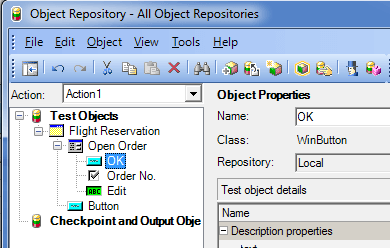
Once the Test case is ready, start adding all the required objects to the repository. In our test case, the objects need to be added are as follows
1. “Open Folder” icon in the Flight Reservation application:

2. “Order No” Checkbox which can be obtained when the “Open Folder” icon is clicked:

3. The WinEdit box of the Order no (where the numbers are entered):

4. The OK button:

5. The “Name” field which is a WinEdit box. This field will be populated with a name once the OK button is clicked for a particular Order number:

Once all the required objects have been added, the object repository will appear as follows:
Step 3) Write the scripts based on the Test Case
Before running the script, ensure that the Excel file containing the test data has been saved and is closed.
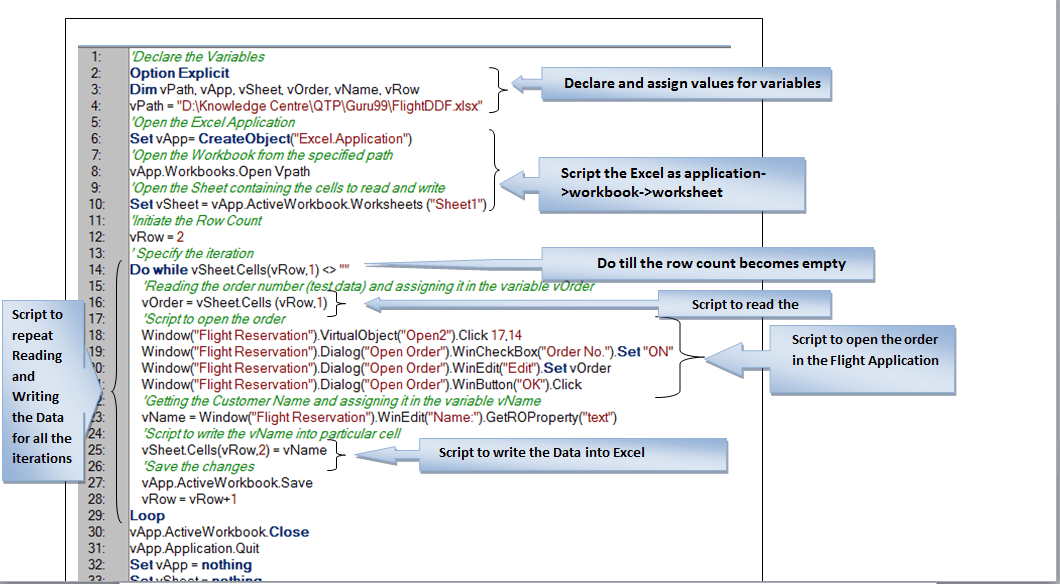
Below script is to read the order number from the Excel and assign it into the application through variable “vOrder” and write the customer name from the application through variable “vName”.
Excel Name: FlightDDF.xlsx
Sheet Name: Sheet1
Output
Once the above script is run, the output can be obtained from the Excel as follows:

The Data-Driven Framework can also be developed by writing descriptive programming.
Using Database as an External Source for DDF
The same test case can be executed if the external source is a Database using the following steps
- Write VBScript to establish the database connection
- VBScript to open a recordset or a table.
- VBScript to open the desired field
- The particular cell is read from the field.

Script
To Establish a Microsoft Database connection
Driver = {Microsoft Access Driver (*.mdb)}; DBQ = <Path of the database>
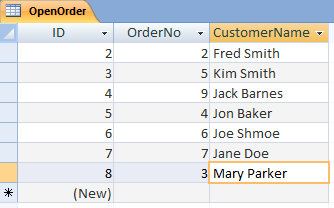
Record Set Name : OpenOrder
Fields Name: OrderNo, CustomerName
P.S: Microsoft Access 2010 cannot be connected using the below script.

Output
Advantages of DDF
- A large number of test data can be read and written into the external file in a single test
- Loop statement is used to repeat the same steps for several iterations. Hence coding effort is reduced
- Since the data are read and written directly into the external file, there is no need to copy, paste or export data in order to use them
- Test Data can be read from an external file and the outputs can be written into any other external file
Disadvantages of DDF
- Scripting knowledge is required to develop this framework
- Sometimes number or combinations of data from an external source like Database may slow down or even crash the QTP
Keyword-Driven Framework
Keyword-Driven Framework is a framework where keywords drive the test. Here keyword refers to the user-defined functions. In this framework, keywords are created in order to perform a particular test step or a test case. These keywords are then called into the driver test to run several test cases in the same test.
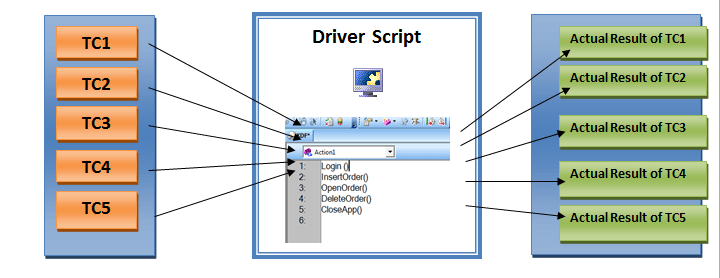
In general, the frameworks can be developed in three ways in order to run to the test.
- Record and run the test
- Add objects to the local repository and write the scripts for all test steps
- Write descriptive programming for all test steps
In this tutorial, The KDF is developed by recording and running the test.
Our aim is to run a single test for five different test cases such as login into the application, insert an order, open an order, delete an order and close the application. Hence, we will record the test steps for these test cases and create the functions with keywords Login, InsertOrder, OpenOrder, DeleteOrder and CloseApp respectively.
Test Case1: Login into the application
Keyword: Login ()
Recorded Script:

Test Case2: Insert the Order
Keyword:InsertOrder()
Recorded Script:

Test Case3: Open the Order
Keyword:OpenOrder()
Recorded Script:

Test Case4: Delete the Order
Keyword:DeleteOrder()
Recorded Script:

Test Case5: Close the application
Keyword:CloseApp()
Recorded Script:

The functions that are created for different test cases are saved in a function library and are associated with the main test. It is enough to call the keywords for the needed test cases in the main test thereby reducing the size of the driver script in the main test.
The Driver Script for this simple framework looks as:

By running the above script, the actual result for all the five test cases can be obtained from a single test.
Advantages
- Any number of test cases can be run on a single test just by calling their respective keywords
- Writing general descriptive programming for all web/ windows objects & calling them as keywords will help in running the same test for different dynamic applications
- Reduces the size of the driver script
Disadvantages
- Time taken to develop these frameworks is very high if there are very few numbers of test cases to run
- Recording the steps is not always used when designing KDF for many applications on the same test.
Hybrid Framework
A hybrid framework is a combination of Data-Driven Framework (DDF) and Keyword-Driven Framework (KDF) where several test cases with several inputs can be executed in the same test.
In this article, the same test cases that are used in KDF will be executed in a single test. The Keywords and the scripts for all the test cases are same as in KDF. However, TC3: Open the order has been parameterized. Hence the script for this test case is written to receive the order number from an Excel file and to write the customer name into the Excel file
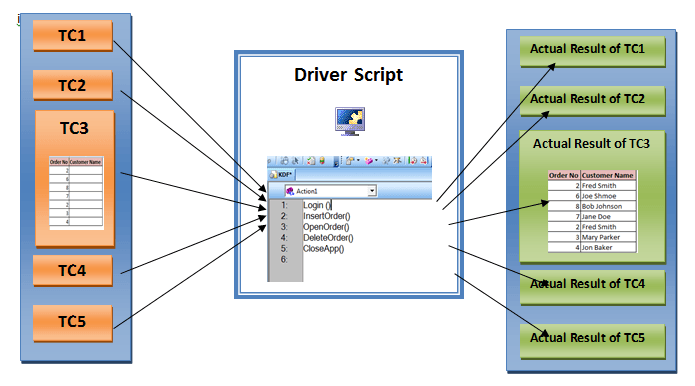
Test Case1: Login into the application
Keyword: Login ()
Test Case2: Insert the Order
Keyword:InsertOrder()
Test Case3: Open the Order for several order numbers
Keyword:OpenOrder()
Description: Here the same script used to develop a DDF is used, thereby achieving the test case for several iterations.
Script:

Test Case4: Delete the Order
Keyword:DeleteOrder()
Test Case5: Close the application
Keyword:CloseApp()
By following this simple method, the parameterization of TC3 is achieved. If applicable, all the other test cases can also be parameterized in the same test.
The example above is a very simple way of designing a hybrid framework. The same framework can also be achieved with descriptive programming.
Advantages
- The time taken to run the test designed with a hybrid framework is relatively less compared to other frameworks
- This can be used when we need all the test cases and inputs that are associated with a particular test case, in the same test suite.
Disadvantage
- Clear knowledge on the combining different framework is required.
