
How to Create Quotation: SAP VA21
 Jessica Blake
⚡ Smart Summary
Quotation creation in SAP, using transaction VA21, produces a binding offer to deliver a specific quantity at a specific price and time. This resource explains what a quotation is, creating it with or without an inquiry, and managing it.
What Is a Quotation in SAP SD?
A quotation is a sales document in SAP Sales and Distribution that informs the customer that the company will deliver a specific quantity of a product at a specific price and by a specific time. Unlike an inquiry, which only requests information, a quotation is a firm offer, so it commits the company to the terms it states for as long as the quotation remains valid.
A quotation can be created in two ways: after receiving an inquiry from the customer, or directly, without an inquiry. When it follows an inquiry, the data already captured can be copied forward, which reduces effort and keeps the details consistent. Because the quotation stands as an offer, it usually carries validity dates and agreed prices, and it can later be copied into a sales order once the customer accepts. The transaction code used to create a quotation is VA21. In the sales document flow, the quotation therefore acts as the bridge between an early inquiry and a confirmed sales order.
Quotation With vs Without Reference to Inquiry
When a quotation follows an inquiry, SAP lets you create it in two ways. The right choice depends on whether an inquiry already exists and how much data you want to copy forward.
| Basis of comparison | With reference to inquiry | Without reference |
|---|---|---|
| Starting point | An existing inquiry document | A blank quotation |
| Data entry | Copied from the inquiry, then adjusted | Entered manually from scratch |
| Best when | An inquiry was already raised | The customer wants a direct offer |
| Speed | Faster, with less re-keying | Slower, all data entered by hand |
| Consistency | High, data carried forward | Depends on manual accuracy |
Creating with reference is the usual choice when an inquiry exists, because it saves time and avoids mistakes. Creating without reference suits cases where the customer skips the inquiry stage and asks for a quotation directly. Whichever method you use, the finished quotation looks the same to the customer; the difference lies only in how the data was entered.
Steps to Create Quotation in SAP
The following demonstration creates a quotation with reference to an inquiry. The T-code to create a quotation is VA21.
Step 1) Open VA21 and enter the header data.
- Enter T-code VA21 in the command field.
- Enter the quotation type.
- Enter the Sales Organization, Distribution Channel, and Division in the organizational block.
- Select the “Create with reference” button.

Step 2) Copy from the inquiry.
- Enter the Inquiry Number.
- Click on the copy button.

Step 3) Complete the quotation details.
- Enter the Ship-To Party.
- Enter the PO Number, if any.
- Enter the “Valid from” and “Valid to” dates (the date until which this quotation is valid).
- Enter the Quantity of material.
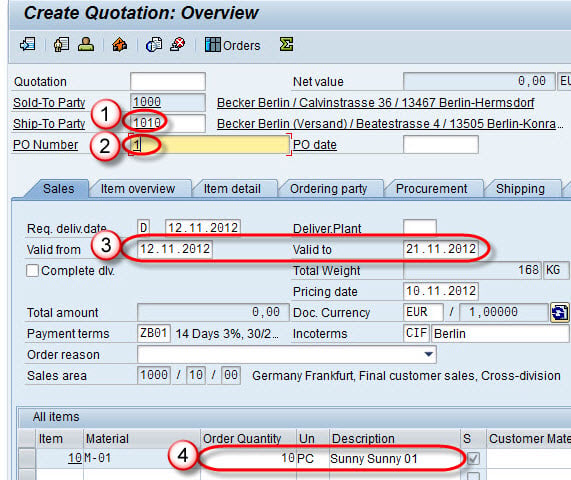
Step 4) Click on the Save  button.
A message “Quotation 20000076 has been saved” is displayed.

Managing Quotations: VA21, VA22, and VA23
SAP manages a quotation through its life with a family of transaction codes, so you can create, edit, and review it in a controlled way.
- VA21 – Create Quotation: Raises a new quotation, with or without reference to an inquiry.
- VA22 – Change Quotation: Updates an existing quotation, for example to extend validity or change the quantity.
- VA23 – Display Quotation: Opens the quotation in read-only mode for review.
To see many quotations at once, use the list report VA25. Keep an eye on the validity dates, because an expired quotation should be reviewed before it is copied into a sales order. Displaying a quotation with VA23 before editing it with VA22 helps you confirm the current terms first. Because all three transactions work on the same quotation number, a change saved in VA22 is instantly visible in VA23, which keeps review and approval simple.
