
How to Convert CSV File to Excel
 Editorial Team
⚡ Smart Summary
Importing a CSV file into Excel turns a plain text file of comma separated values into a formatted worksheet. This page explains what a CSV file is, imports one with the Text Import Wizard, handles other delimiters such as the slash, and compares the ways to open a CSV.
A CSV file is one of the most common ways to move data between programs, because almost every application can read and write it. Excel opens a CSV in a few clicks and, with the Text Import Wizard, gives full control over how each column is read.
What is a CSV File?
CSV stands for Comma Separated Values. It is a plain text file in which every line is one record, and the values inside a record are separated by a comma. Because it holds only text and separators, and no formatting, a CSV can be created and read by databases, web applications, and every spreadsheet program.
The limitation is that a CSV keeps no fonts, colours, formulas, or multiple sheets. It stores the raw data only, which is exactly why it is a reliable format for moving records from one system into Excel, where the formatting and formulas are added afterwards.
How to Import/Convert CSV to Excel
In this tutorial, We will import external data from a simple CSV file containing customer payments. You can download the CSV file for this exercise.
- Open a new workbook
- Click on DATA tab on the ribbon
- Click on From Text button
- You will get the following window

- Browse to the folder where you downloaded the CSV file
- Select da.csv file
- Click on Import button
- You will get the following import text file wizard

- Click on Next button

- Select Comma on the Delimiters panel
- Click on Next button

- Click on Finish button

- Click on OK button
- You will get the following data

Importing Other Delimiter Separated Files
In some cases you may not get comma separated file, it could be Slash (\), Pipe (|) or other delimiter separated files. Let’s take a look at how to deal with them.
Here is sample Slash (\) separated value file that you can download.
Download the Slash (\) separated CSV File
- Open a new workbook
- Click on DATA tab on the ribbon
- Click on From Text button
- Browse to the folder where you downloaded the file and Import it
- You will get the following import text file wizard

- Click on Next button

- Now instade of selecting the Comma Delimiter, Select Other and set Slash (\) as delimiter on the Delimiters panel
- Then click on Next Button.
- Then click on Finish Button
- Now Import data in Existing worksheet
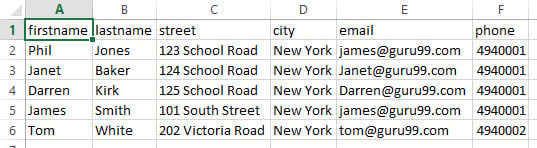
You will get the folliwing data
💡 Tip: The same wizard handles a Tab, a Semicolon, or a Pipe. Whenever the preview in the wizard shows every value squeezed into one column, the wrong delimiter is selected, so switch to Other and type the correct character.
Open vs Import: Two Ways to Bring a CSV into Excel
A CSV can reach a worksheet in two ways, and the right choice depends on how much control the columns need. The table below compares them.
| Method | How | Best for |
|---|---|---|
| Open directly | Double click the file, or File then Open | A clean, comma separated file where the default column types are fine |
| Text Import Wizard | DATA tab, From Text, then choose the delimiter | A file with an unusual delimiter, or columns that must be set as text or date |
| Power Query (Get Data) | DATA tab, Get Data, From Text/CSV on newer Excel | A file that must be cleaned, filtered, and refreshed repeatedly |
⚠️ Warning: Opening a CSV directly can change the data. A long number such as a phone number or an ID may lose its leading zero, and a value that looks like a date may be converted. Use the Text Import Wizard and set that column to Text to keep the value exactly as it is.
