
How to Install and Configure HIVE Metastore with MYSQL
 Editorial Team
⚡ Smart Summary
Hive metastore stores every table definition, column name and data type behind Apache Hive, and moving that repository from the default Derby database to MySQL is what allows several users to connect at once.

What is HIVE Metastore?
Hive metastore is a repository that stores metadata (column names, data types, comments, etc.) related to Apache Hive using MySQL or PostgreSQL. This Hive metastore is implemented using tables in a relational database.
Nothing in the metastore holds the rows themselves. The records stay on HDFS, and the metastore only records where each table lives and what its columns are called, which is why losing it costs the schema rather than the data.
Why to Use MySQL in Hive as Metastore
The metastore backend is a choice, not a fixed part of Hive, and the shipped default is deliberately minimal. Three limits push almost every installation away from it.
- By default, Hive comes with the Derby database as metastore.
- Derby can support only a single active user at a time.
- Derby is not recommended in a production environment.
So the solution here is
- Use MySQL as meta storage at the backend to connect multiple users with Hive at a time
- MySQL is the best choice for the standalone metastore
How to Install and Configure Hive Metastore to MySQL Database
The nine steps below run in order on a machine that already has Hadoop and Hive installed. Each step ends with a screenshot of the actual terminal or shell output.
Step 1) Install MySQL Server
In this step, we are going to perform two tasks
- Installation of mysql-server
- Checking the mysql-server and its process
Using the sudo apt-get install mysql-server command, we can download MySQL server. Install MySQL as shown in the screenshot below.

After successful installation, MySQL will run as shown in the screenshot below, where the process check confirms the service is up.

Step 2) Install MySQL Java Connector
Installing the MySQL Java connector. This is for Java dependencies and connection purposes, because Hive reaches MySQL over JDBC. The next screenshot shows the package installation.

Step 3) Create soft link for connector
Creating a soft link for the connector in the Hive lib directory. This is the soft link between Java and MySQL, and it is what puts the driver JAR on the Hive classpath. The command and its result appear below.

Step 4) Configuring MySQL storage in Hive
The MySQL shell has to be opened as the root account before any Hive user can be created, as shown next.

- Type mysql –u root –p followed by the password
- Here –u represents the root username and –p denotes the password
- After entering the above command, the user has to enter a valid password and then press enter
- Then it will enter into MySQL shell mode
Step 5) Create username and password
Creating a username and password for MySQL, and granting privileges. The screenshot below shows the three statements running inside the MySQL shell.

We have to execute the commands as shown below,
mysql> CREATE USER 'hiveuser'@'%' IDENTIFIED BY 'hivepassword';
mysql> GRANT all on *.* to 'hiveuser'@localhost identified by 'hivepassword';
mysql>  flush privileges;
On MySQL 8 the combined form of the second statement no longer parses, because IDENTIFIED BY was removed from GRANT. Create the account first and then grant to it, and repeat the CREATE USER line for the localhost host as well as for the wildcard host.
Step 6) Configuring hive-site.xml
- After Step 5 assigns a username and password to the MySQL database and grants privileges.
- Here we will configure some properties in Hive to get a connection with the MySQL database.
The configuration file is opened from the Hive conf directory, as the next screenshot shows.

The screenshot that follows shows the finished file with all four properties in place.

From the above screenshot, we observe the following. Here we are defining 4 properties that are necessary to establish MySQL as the metastore in Hive.
These are as follows:
- This property is for the connection URL. Here we are defining ConnectionURL in this property. It acts as the JDBC connection string and it represents the metastore location as well
- This property is for the connection driver name. Here com.mysql.jdbc.Driver is the value we have to mention in the value tag
- This property is used for defining the connection user name. In this, we defined “hiveuser” as the user name
- This property is used for mentioning the connection password. In this, we defined “hivepassword” as the user password
Once the properties are placed in hive-site.xml we have to manually save (Ctrl+S) and close the file. After closing this file, we have to create a Hive table and check the table details in MySQL storage.
Place this code in hive-site.xml
hive-site.xml
<configuration>
	<property>
		<name>javax.jdo.option.ConnectionURL</name>
		<value>jdbc:mysql://localhost/metastore?createDatabaseIfNotExist=true</value>
		<description>metadata is stored in a MySQL server</description>
	</property>
	<property>
		<name>javax.jdo.option.ConnectionDriverName</name>
		<value>com.mysql.jdbc.Driver</value>
		<description>MySQL JDBC driver class</description>
	</property>
	<property>
		<name>javax.jdo.option.ConnectionUserName</name>
		<value>hiveuser</value>
		<description>user name for connecting to mysql server</description>
	</property>
	<property>
		<name>javax.jdo.option.ConnectionPassword</name>
		<value>hivepassword</value>
		<description>password for connecting to mysql server</description>
	</property>
</configuration>
Two values above depend on the connector version in use. MySQL Connector/J 8 renamed the driver class to com.mysql.cj.jdbc.Driver, and it also expects an explicit port and SSL setting, so a modern URL usually reads jdbc:mysql://localhost:3306/metastore?createDatabaseIfNotExist=true&useSSL=false. Because the password sits in clear text, the file should be readable only by the Hive service account.
Step 7) Create table
Create table “guru99” in Hive, as shown in the Hive shell below.

From the above screenshot, we can observe the following
- Creation of a table named “guru99” with two column names
- The column names are mentioned with their data types, one an integer and the other a string
In the next step, we are going to check whether it is stored in MySQL or not.
Step 8) Enter into MySQL shell mode
The metastore database is selected first, and the table listing that follows is shown below.

From the above screenshot, we can observe the following
- First we have to select the database with “use metastore”
- Once the metastore is chosen we can check the tables present in it by using the “show tables” command as shown in the screenshot
- Whatever tables are created in Hive, the metadata corresponding to those tables is stored under TBLS in the MySQL database
- The “guru99” table is created in Hive, so the corresponding metadata is stored in MySQL under TBLS
Step 9) Enter select * from TBLS
Checking whether the created table is present in MySQL or not. The query and its result appear in the screenshot below.
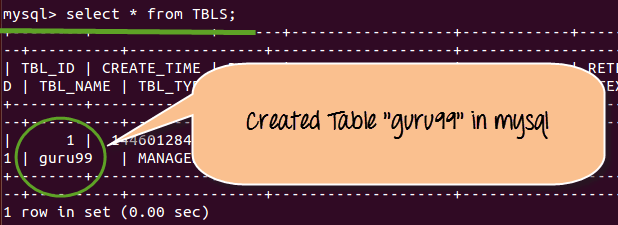
By entering select * from TBLS, it is going to display the tables that we created in Hive shell mode
From the above screenshot we can observe following things:
- The table name “guru99” that was created in Hive can be displayed in MySQL shell mode
- Beside this, it will also provide information like table creation time, accessed time and other properties as shown in the screenshot above
How to Initialize the Hive Metastore Schema with schematool
The createDatabaseIfNotExist flag in the connection URL creates an empty metastore database, but it does not create the roughly seventy tables that Hive expects inside it. On Hive 1.x and later that job belongs to the schematool utility, and skipping it is the single most common reason a freshly configured metastore refuses to start.
$HIVE_HOME/bin/schematool -dbType mysql -initSchema
The command reads the same four properties from hive-site.xml, connects with the hiveuser account, and runs the bundled SQL script that matches the Hive version. A successful run ends with a completion message, after which the state can be confirmed at any time.
$HIVE_HOME/bin/schematool -dbType mysql -info
The flags below cover the whole life of a metastore schema.
| Option | What it does |
|---|---|
| -dbType | Names the backend, such as mysql, derby, postgres, oracle or mssql |
| -initSchema | Creates the metastore tables for the current Hive version |
| -info | Reports the schema version recorded in the database |
| -upgradeSchema | Migrates an existing schema after a Hive upgrade |
| -validate | Checks the schema for missing tables and version mismatches |
One related property is worth knowing before the first start. When hive.metastore.schema.verification is true, Hive compares the schema version in MySQL against its own and refuses to run on a mismatch. That check is a safeguard, so the correct response is to run the upgrade rather than to switch it off. The same MySQL backend is used by the Hive installation covered in install Hive on Ubuntu.
Common Hive Metastore Errors and How to Fix Them
Most failures at this stage produce one of a handful of messages, and each points at a specific step above rather than at Hive itself.
| Symptom | Cause and fix |
|---|---|
| Version information not found in metastore | The schema was never created. Run schematool with -initSchema against the same database named in the connection URL |
| ClassNotFoundException for the JDBC driver | The connector JAR is missing from the Hive lib directory, or Connector/J 8 is in use and the class is now com.mysql.cj.jdbc.Driver. Recheck the soft link from Step 3 |
| Access denied for user hiveuser | Privileges were granted to one host only. Create the account for both localhost and the wildcard host, then run flush privileges |
| Syntax error near IDENTIFIED BY | MySQL 8 removed IDENTIFIED BY from the GRANT statement. Issue CREATE USER first and GRANT afterwards |
| Public key retrieval is not allowed | Connector/J 8 refuses an unencrypted handshake by default. Add useSSL=false and allowPublicKeyRetrieval=true to the JDBC URL on a trusted network |
| Tables are missing after a Hive upgrade | The schema still matches the old version. Run schematool with -upgradeSchema instead of disabling schema verification |
Once the metastore answers reliably, the table definitions it records are created with the statements described in Hive create, alter and drop table.
