
Smart Forms in SAP ABAP
 Sophia Mitchell
⚡ Smart Summary
Smart Forms in SAP ABAP create and maintain forms for mass printing, with output to a printer, a fax, e-mail, or the Internet. This page explains the architecture, the Form Builder nodes, windows, tables, templates, styles, and the generated function module.

What are Smart Forms in SAP ABAP?
SAP Smart Forms is used to create and maintain forms for mass printing in SAP Systems.As output medium SAP Smart Forms support a printer, a fax, e-mail, or the Internet (by using the generated XML output).
SAP introduced SmartForms in 1998 to overcome the limitations in SAP Scripts. SmartForms are easier to develop, maintain and transport than SAP Script.
Smart Forms and SapScripts Comparison
- Multiple page formats are possible in SmartForms which is not the case in SAP Scripts
- It is possible to have a SmartForm without a main window.
- Routines can be written in SmartForms tool.
- SmartForms generates a function module when activated.
- Labels cannot be created in SmartForms.
| Criteria | Smart Forms | SAPscript |
|---|---|---|
| Page formats | Several page formats in one form | One page format per form |
| Main window | Not mandatory | Exactly one main window is required |
| Routines | Written inside the form itself | Written in the separate print program |
| Activation | Generates a function module | No function module is generated |
| Labels | Cannot be created | Can be created |
Advantages of Smart Forms
- They help adapting forms without any programming knowledge due to entirely graphical user interface
- When activating the smart form the system automatically generates the function module and at the runtime .
- To make any changes we have to use the Drag & Drop, Cut & Paste. These actions do not include writing of coding lines or using a script language.
- We can insert static and dynamic tables. These include the line feeds in the individual table cells, triggering events for table headings and subtotals and sorting data before output.
- The smart forms allow the user to include graphics, which can be displayed as a part of the form or as background graphics. During printout the user can suppress the background graphic as and when necessary.
- Web Publishing is possible using the generated XML output
Architecture of SAP Smart Form

The architecture diagram shows the three layers involved. The form is designed in the Form Builder, activation generates the function module, and the print program calls that module with the application data. The design steps of the first layer are covered next.
Smartforms Guide
Lets go through it in SAP system–
- Enter transaction SMARTFORMS in the transaction code box.
- In the next screen , enter a Form name and click create

The next screen is divided into three sections-

Navigation window consist of nodes and sub nodes. They contain all the elements (text, window etc) that belong to sap forms
- Maintenance window shows attributes of the elements
- Form printer window shows the layout of the page
Whenever we create smart forms, SAP creates/generates a function module.Unlike SAPscripts , SAP FORMS allow you to change language.
In the navigation window you will find
Global Data Declarations : The Data defined here can be used throughout the smartform for coding purposes.
Form Interface : Here all the data which will be passed to the smartform from the Print program is defined.

Right-Clicking on the Pages will allow creation of New Page, Window, Graphic or Address.

Printing will take place on the basis of ‘next page’ field.
But processing will happen as per the sequence in navigation window!

For background picture and graphics you can pick up either black and white or color bitmap images and are stored in the form of standard texts. You may take a detour from the smartform screen and open Form Graphics screen. Transaction code: Se78

Setting in the Graphics in Smart Form Window-

Windows in Smart Forms

There are two types of Windows
- Main
- Secondary
Important Points to Note
- You cannot have more than 1 main window in a page. You can have multiple secondary windows
- Whatever you print in secondary window…it has to be static. (If u have 20 lines in a PO and there is page constraint the lines get carried forward to next page in the main window. i.e. In a predecessor and successor type of content, they will be printed in sequence in main window. This is not allowed in Secondary windows.

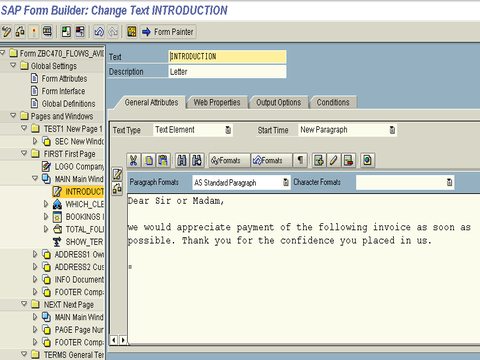
Inside the main window we can add text as introduction to customize the form output.
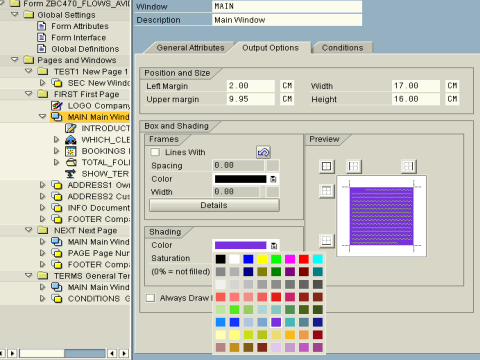
The Output options on each window determine the Line size, Width, Colors and background to be put.
Smartforms gives the option of giving the address number which is maintained in the central address management. The address will be directly taken from ADRC table and will be populated in the form.

The two different editors are available in Smartforms viz. Normal Editor
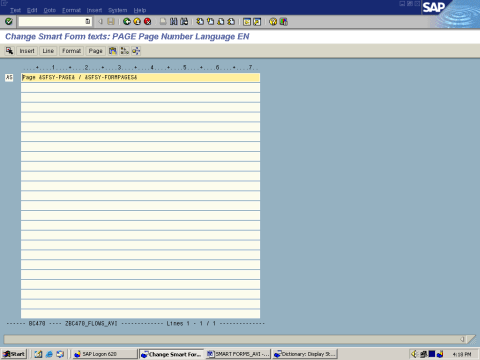
and the Graphics Editor.

This setting can be changed using the Configure editor in Utilities.
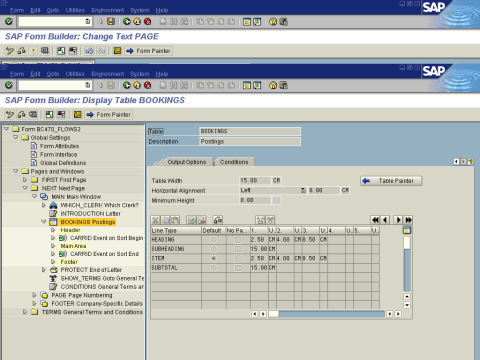
Tables in a window
In Table painter, you can draw the format as per client requirement (e.g. Heading, Sub Heading, Item, Sub Total, Grand Total etc.)
You can use the table layout to determine:
- The number of lines and cells
- The height of each line
- The width of each cell
- The alignment of the table in the window
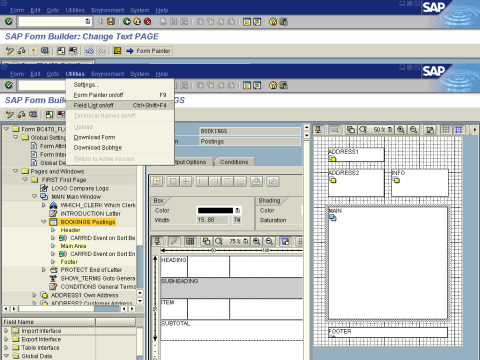
The Table shows the different line types which will be used in the table. The Line types define the size of each cell and the number of cells in each line.
Smart Forms Programming Flow
When an SAP Smart Form template is created, a user creates the form layout, defines the required fields, conditions, and special programming instructions in the Smart Form template using the Smart Form Builder.
After the form design is complete, the form needs to be activated before it can be tested or accessed by the print programs.Activating the form initiates the generation of a function module that handles all of the form’s processing.
This function module interacts with the application program/print program to create the output in the user-defined output media for the specified device.
In case of smart forms, we use 2 function modules for the processing of the smart form. To the first function module , we pass the name of the smart form as the import parameter. This then returns the name of the dynamically generated function module which will actually call the smartform.
The smartform name can be passed on to the function Module – ‘SSF_FUNCTION_MODULE_NAME’

This will return the Function module name of the smartform which is referenced.

The Print program will be calling the FM ‘SSF_FUNCTION_MODULE_NAME’ to get the Function module name at Runtime. Therafter it will call the Function module thus obtained to execute the smartform.

How to Call a Smart Form from a Print Program
The two step call described above is always written in the same way. The program first resolves the generated name, then executes it with the application data.
- Resolve the function module name: Pass the form name to SSF_FUNCTION_MODULE_NAME. The generated name changes with every system, so it must never be hard coded.
- Call the generated module dynamically: Use CALL FUNCTION with the variable that holds the resolved name, and pass the data through the parameters defined in the form interface.
- Control the output: Fill the control structure SSFCTRLOP to suppress the print dialog or to request a preview, and fill SSFCOMPOP with the output device.
- Handle the exceptions: The generated module raises FORMATTING_ERROR, INTERNAL_ERROR, SEND_ERROR, and USER_CANCELED, so SY-SUBRC has to be checked after the call.
DATA: lv_fm_name TYPE rs38l_fnam,
      ls_control TYPE ssfctrlop,
      ls_output  TYPE ssfcompop.

* 1. Get the name of the generated function module
CALL FUNCTION 'SSF_FUNCTION_MODULE_NAME'
  EXPORTING
    formname           = 'Z_SMART_INVOICE'
  IMPORTING
    fm_name            = lv_fm_name
  EXCEPTIONS
    no_form            = 1
    no_function_module = 2
    OTHERS             = 3.

IF sy-subrc <> 0.
  MESSAGE e001(zsf).          " Form not found
ENDIF.

* 2. Call the generated module with the form data
ls_control-no_dialog = 'X'.
ls_control-preview   = 'X'.

CALL FUNCTION lv_fm_name
  EXPORTING
    control_parameters = ls_control
    output_options     = ls_output
    is_header          = ls_header
  TABLES
    it_items           = lt_items
  EXCEPTIONS
    formatting_error   = 1
    internal_error     = 2
    send_error         = 3
    user_canceled      = 4
    OTHERS             = 5.
⚠️ Warning: The generated function module name, for example /1BCDWB/SF00000123, is different in every system. Always resolve it with SSF_FUNCTION_MODULE_NAME, otherwise the program fails after transport.
Templates
Template can be used when you know the exact size of the output or the output is in a fixed format.
E.g. Tax form/ cheques /airline form/railway ticket: all these use templates.
The big difference between table and template is that in a Table the height changes dynamically.We call a row a ‘line’ in template.

SMART Styles
A Smart Style contains:
- Header data containing the default values of a Smart Style
- Paragraph formats including indents and spacing, font attributes, tabs, and outline and numbering
- Character formats including effects (superscript, subscript), barcode and font attributes
- Colors and underlines for a paragraph or character format
You can use the transaction ‘smartforms’ / ‘smartstyles’ to create a smart style.

💡 Tip: Assign the Smart Style in the form attributes rather than on each text node. One change in the style then reaches every paragraph of the form.
That’s all to this tutorial
