
ME23N in SAP: Service PO (Purchase Order)
 Olivia Turner
⚡ Smart Summary
Service Purchase Order in SAP procures work rather than stock. Document type FO Framework Order with item category D and account assignment K books the cost directly to a cost center, and no goods receipt is required.
What is Service Purchase Order?
Service purchase orders are entered for services that are procured internally or externally. These purchase orders are different from standard ones as they don’t require a goods receipt since they have no stock. Other than that, there are a few small differences in PO creation. First is the document type for these orders. It should be FO – Framework Order. To procure a service directly for a cost center, we will follow the below procedure.
Step 1) Go to transaction ME21N.
- Choose document type FO – Framework Order.
- Choose vendor.
- Choose validity start for PO.
- Choose Account Assignment Category – K and Item Category – D.
- Enter the description for the service.
- Enter the quantity and unit of measure.
- Enter the price for the service (e.g. 900 EUR per 1 AU – activity unit).

Step 2) On item level, there are few fields you need to maintain in order to create a valid PO for service. On the “Services” tab, enter the information about your service, quantity and price.

You might be prompted for Account assignment information.
Step 3) Here, you can enter the G/L account (it will be proposed in most cases), and cost center for service cost to be assigned.
- G/L account.
- Cost Center.

Step 4) On the Limits tab, you can enter the limit for unplanned services. Expected value that services should not exceed.

Step 5) Now choose the Delivery tab and uncheck the Goods Receipt check box. Services do not have goods receipt as they are not relevant for inventory management (they don’t have stock).

Step 6) Account assignment tab shows the information we were asked to enter in pop-up window. If you are not asked to enter via pop-up you can enter information here.

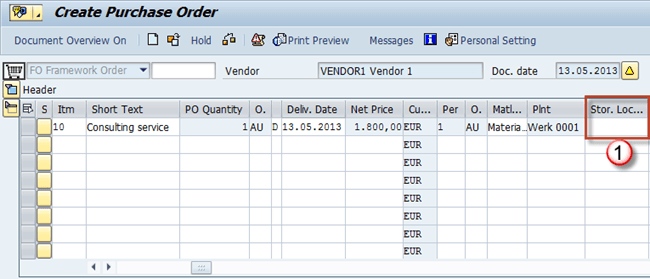
Step 7) We don’t need storage location for our item as it’s not stock relevant.
You can save your changes and get the document number.

Change and display mode are accessed through the same transactions as for a standard purchase order, ME22N and ME23N.
Item Category D and Account Assignment K Explained
These two single letter fields do most of the work on a service order, and entering the wrong combination is the usual reason the Services tab never appears.
Item category D – Service. Setting D tells SAP the item describes work rather than material. Three things change immediately: the Services tab becomes available for entering individual service lines, the Limits tab becomes available for unplanned work, and inventory management is switched off for the item.
Account assignment category K – Cost center. Because a service is consumed the moment it is performed, it never enters stock and therefore has no stock account to post to. K directs the cost to a cost center and demands a G/L account. Other categories serve different receivers:
- K – Cost center: Routine services such as maintenance, cleaning, and consultancy.
- F – Order: Work belonging to an internal order or maintenance order.
- P – Project: Services charged to a WBS element in Project System.
- A – Asset: Work capitalised onto a fixed asset rather than expensed.
The pairing matters. Item category D without an account assignment category leaves SAP with no receiver for the cost, and the order cannot be saved. Cost center master data is covered in creating a cost center.
How a Service PO Differs from a Standard PO
Most of the ME21N screen looks familiar, but six behaviours change once item category D is used.
| Parameter | Standard purchase order | Service purchase order |
|---|---|---|
| Document type | NB, no validity period | FO Framework Order with validity start and end |
| Item category | Blank, standard | D, service |
| Material master | Usually required | Not used; a short text and service lines instead |
| Receipt of performance | Goods receipt in MIGO | Service entry sheet in ML81N |
| Stock effect | Increases inventory | None, cost is expensed on acceptance |
| Storage location | Required | Not relevant |
| Unplanned spend | Not applicable | Controlled by the overall limit on the Limits tab |
The validity period on an FO order is what makes it a framework. Services can be called off repeatedly against it until either the validity date passes or the limit value is consumed.
Service Entry Sheet: Confirming Services Received
The article above ends at saving the order, but the order alone commits nothing to accounting. Because there is no goods receipt, the service entry sheet is what records that work was actually performed and releases the cost. Skipping it leaves the invoice with nothing to match against.
- Open transaction ML81N. Enter the service purchase order number and, where the order has several lines, the item to be confirmed.
- Create a new entry sheet. Give it a short text describing the period or the work completed, for example the month being billed.
- Adopt the planned services. Use Service Selection to pull the lines already specified on the order, then enter the quantity actually delivered. Partial confirmation is normal for a framework order.
- Add unplanned services if required. Work not foreseen when the order was raised is entered directly on the entry sheet. The total is checked against the overall limit and rejected if it exceeds it.
- Check the account assignment. The cost center and G/L account default from the order item and can be split across several receivers if the work benefited more than one department.
- Accept the entry sheet. Acceptance is the moment the cost posts. It creates a material document and an accounting document that debits the cost center and credits the GR/IR clearing account, exactly as a goods receipt would for material.
Acceptance can be subject to its own release strategy, in which case ML85 handles collective release before the cost is posted. Only after acceptance does invoice verification find a quantity to match, and any variance blocks the document until someone can release the invoice. Related material is covered across the SAP MM tutorial series.
