
How to Create a Purchase Order ME21N in SAP
 Olivia Turner
⚡ Smart Summary
Creating a Purchase Order ME21N in SAP standardizes procurement across internal transfers, external goods, services, subcontracting, third-party, and consignment processes. This tutorial walks through the ME21N transaction step-by-step, explains every header and item-level tab, and shows how master data populates each field automatically.
What is a Purchase Order in SAP?
A Purchase Order in SAP is the formal procurement document that confirms a buyer’s intent to purchase materials or services from a vendor at agreed terms. Purchase Orders are used across many procurement scenarios: internal procurement (from one plant to another), external procurement of goods (direct consumption or stock), and services. They also drive subcontracting, third-party, and consignment processes. Each Purchase Order can be created from scratch or with reference to an existing purchase requisition, RFQ, quotation, another purchase order, contract, or sales order, which keeps the procurement chain auditable end-to-end.
Why Use ME21N to Create a Purchase Order?
Transaction ME21N is the modern “enjoy-style” screen for creating Purchase Orders, and it has become the standard interface for procurement in SAP. Choosing ME21N over the legacy ME21 transaction gives buyers a single screen with header and item areas, drag-and-drop tab navigation, and automatic master-data population.
- Faster Data Entry: Header, item overview, and item detail are visible on one screen, reducing screen switches.
- Master Data Reuse: Vendor, material, and purchase info record data fill the document automatically, lowering the risk of typos.
- Better Validation: Status fields surface delivery, invoice, and confirmation states the moment a PO is saved.
- Reference Documents: ME21N lets you copy from requisitions, contracts, RFQs, or older POs in just a few clicks.
How to Create a Purchase Order in SAP ME21N
Purchase Orders are created using the standard transaction ME21N (or ME21, the legacy version of the transaction). Follow the four steps below to create, verify, and save a complete Purchase Order.
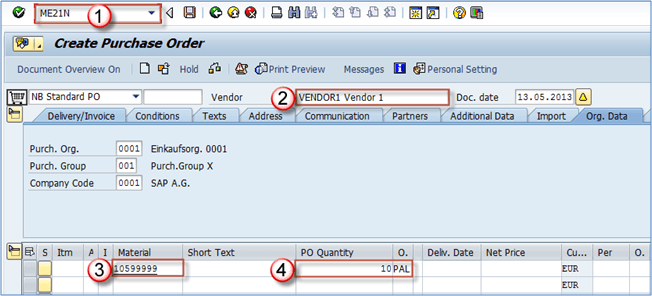
Step 1) Enter Header and Item Data
- Enter transaction code ME21N.
- Enter the vendor.
- Enter the material number that needs to be procured.
- Enter the quantity and unit of measure (optional — the system uses the UoM from the purchase info record).
- Press ENTER to confirm the data you have entered.
The Purchase Order item is now populated with information from the purchase info record and material master, combined with the vendor master data. This can be seen on the next few screens.
Delivery date and net price are populated from the information supplied in master data.

In the screenshot below, blocks 1 and 2 were populated from the purchase info record, while block 3 was populated from the vendor master.

Default texts populated via purchase info record master data:
- Info Record PO Text — text populated from the info record master.
- Info Record Note — populated from the info record master.
- The text in this field matches the text stored in our info record.

Step 2) Review the Status Tab
- The Purchase Order contains several tabs at the header level. On the Status tab, you can find information about the current state of the Purchase Order.
- In this block, you can find the general status (Active) as well as Purchase Order confirmation (Not Yet Sent), delivery status, and invoice status.
- The status block also shows quantities and values: ordered quantity and value, delivered quantity and value, still-to-deliver quantity and value, invoiced quantity and value, and finally down-payment information.

Other header tabs contain information about Organizational Data, Import, Additional Data, Partners, Communication, Address, Texts, Conditions, and Delivery/Invoice settings.
Step 3) Set Delivery and Invoice Terms
The Delivery/Invoice tab holds data about payment terms and trading terms. You can insert payment terms here (such as =D06 — payment 30 days after delivery) and trading terms (in two Incoterms fields — for example EXW Wien).

Step 4) Configure Organizational Data
The Organizational Data tab holds information on the purchasing organization, purchasing group, and company code. You can choose a different purchasing group here if needed.

Other Header-Level Tabs
- The Conditions tab shows data about prices and conditions at header level.
- The Texts tab is used to maintain header-level texts.
- The Address tab holds the vendor address data.
- The Additional Data tab contains the collective number and VAT registration number of the vendor.
Item-Level Tabs in the Purchase Order
At item level, the Purchase Order contains additional information about each line:
- On the Delivery Schedule tab, you can enter the desired delivery schedule and quantities to be delivered on each date.

- The Material Data tab contains information about the vendor material number, batch, vendor batch, EAN code, and similar attributes. Some of this data is populated from the purchase info record.
- On the Delivery tab, you can set delivery tolerance percentages (over and under delivery), delivery status, delivery reminder settings, and other delivery options.
- The Invoice tab holds invoice-related data and a “Tax” field that must be filled if applicable (in our example, the tax code is V1 for both items).
- The Conditions tab is used to specify conditions at item level.
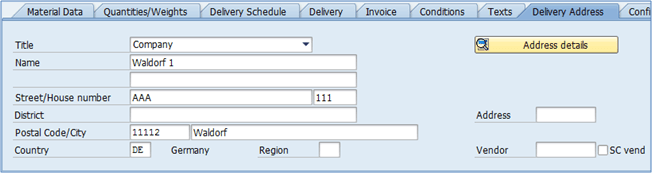
- The Delivery Address defaults to our company address but can be changed if the material should be delivered elsewhere.
- The Confirmation tab holds data specific to the item confirmation control and rejection indicator.

Once all data is double-checked for errors and entered accurately, save the Purchase Order to commit it to the SAP system.

