
FB50 Tcode in SAP: Journal Entry Posting Guide
 Editorial Team
⚡ Smart Summary
Journal entry posting in SAP records a balanced general ledger document using transaction code FB50, where debit and credit lines are entered on a single screen and can carry cost center assignments for controlling.
What is Journal Entry Posting in SAP?
A journal entry posting records a balanced financial document in the general ledger, with at least one debit line and one credit line that net to zero. In SAP FI, transaction code FB50 is the dedicated single-screen entry point for posting these G/L documents.
FB50 is an enjoy transaction, which means the header and all line items appear on one screen, and the user selects Debit or Credit instead of entering numeric posting keys.
Why Use FB50 for Journal Entries?
FB50 is preferred for quick, balanced G/L postings such as cash movements, accruals, and corrections. Because cost centers and other Controlling assignments can be entered on the same line, the document updates Financial Accounting and Controlling together.
The transaction enforces double-entry rules, so the total debit must equal the total credit before the document can post.
G/L Posting in SAP Using FB50
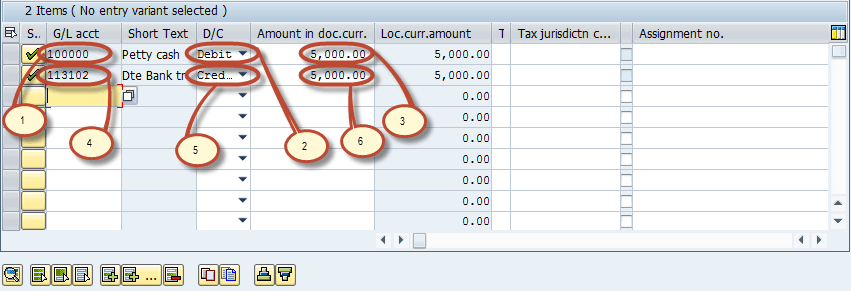
This example posts a sample transaction: 5,000 units of local currency are drawn from the house bank account in cash and put into petty cash.
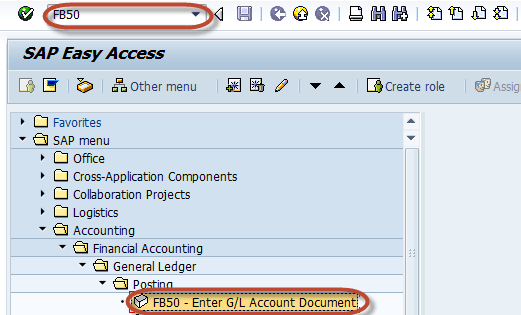
Step 1) Enter the transaction code FB50 in the SAP Command Field.
Step 2) In the next screen, enter the document date in the header part.
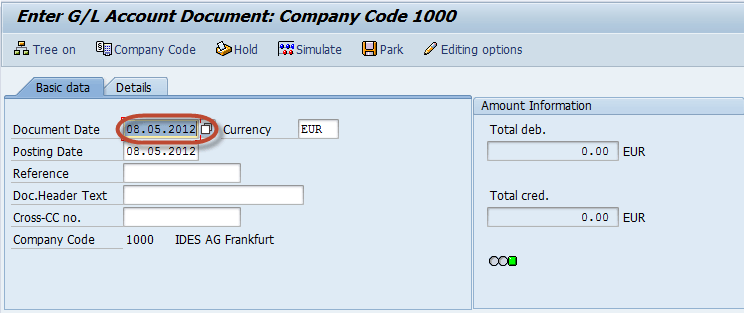
Step 3) Next, select the Company Code button.

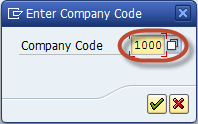
Step 4) Enter the Company Code for the transaction.
In the Item Details part, enter the following:
- Enter the Cash Account to be debited.
- Select Debit.
- Enter the amount to be debited.
- Enter the Bank account to be credited.
- Select Credit.
- Enter the amount to be credited.
Step 5) Now check the status of the document in the Amount Information section.

Step 6) In the status bar, a document number is generated, which confirms the document posting.

Post to a Cost Center in SAP
The same FB50 screen can route an expense to a cost center, posting to Financial Accounting and Controlling in one step.
Step 1) Enter Transaction Code FB50 in the SAP Command Field.
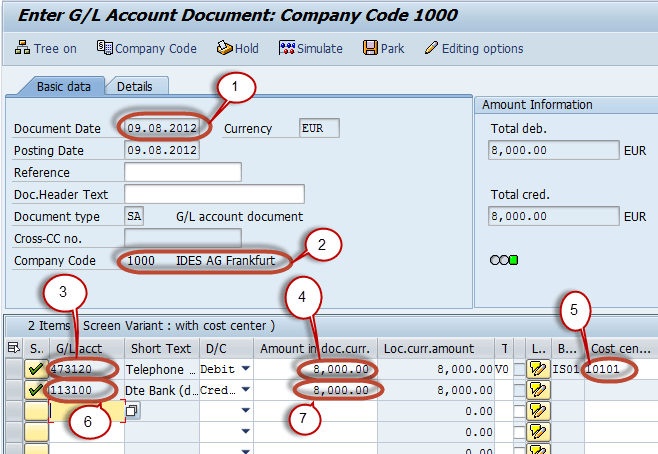
Step 2) In the next screen, enter the following:
- Enter the Document date.
- Enter the Company code.
- Enter the G/L Account for the debit entry to be posted to the cost center.
- Enter the Debit Amount.
- Enter the Cost Center in which the amount is to be posted.
- Enter the G/L Account for the credit entry.
- Enter the Credit Amount.
Step 3) Press the ‘Save’ button on the SAP Standard Toolbar to post the document.

Step 4) Check the status bar for the document number of the successful entry.

