
SAP PPOCE: How to create an Organizational Unit
 Editorial Team
⚡ Smart Summary
SAP PPOCE is the Organization and Staffing transaction used to create an organizational unit. This user-friendly interface, with its Object Manager and Work Area, lets HR users build and maintain the organizational plan without deep technical knowledge of SAP.

Introduction to Organization and Staffing Transaction
The Organization and Staffing transaction is the easiest way to manage SAP HR – OM(Organization Management) for an end-user who does not have an in-depth, technical knowledge of SAP.
This is a user-friendly transaction accessible via Human Resources > Organizational Management > Organizational Plan > Organization and Staffing > Create, Change, Display.
SAP Transaction Codes
- Create – PPOCE
- Change – PPOME
- Display – PPOSE
For all three transactions the main screen is divided into two areas Object Manager & Work Area.
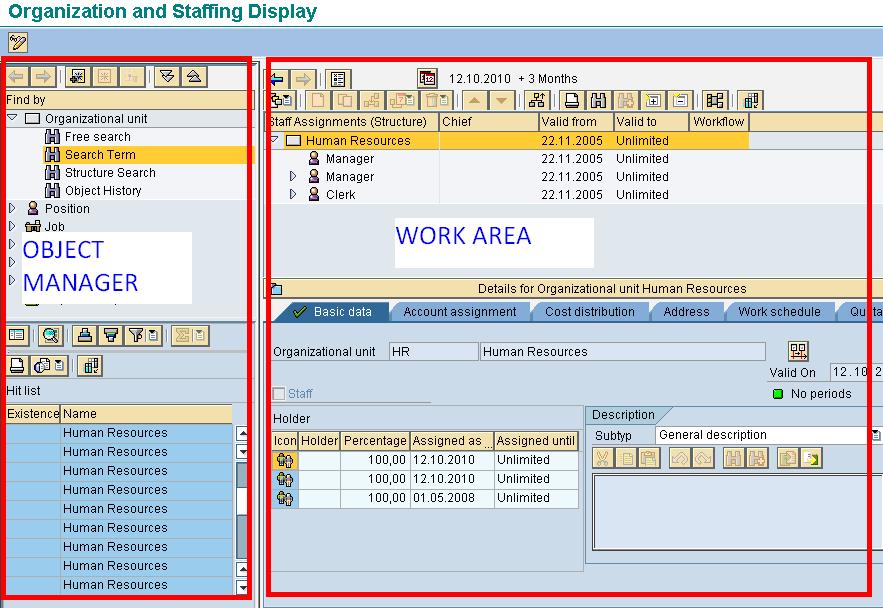
Each of the two main areas is subdivided into panes:
- Object Manager – Comprising a search area and a selection area. The Object Manager is available in numerous HR user interfaces.
- Work Area – Comprising an overview area and a detail area.
The four areas in the Organization and Staffing interface enable you to navigate for information and remain on the same screen. The following is a graphic depiction of the screen:
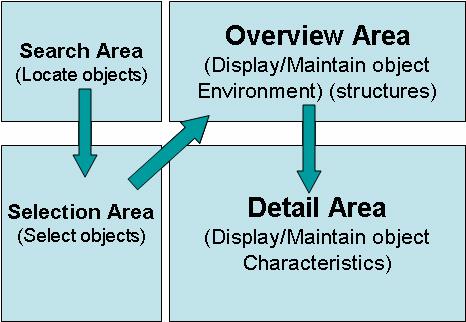
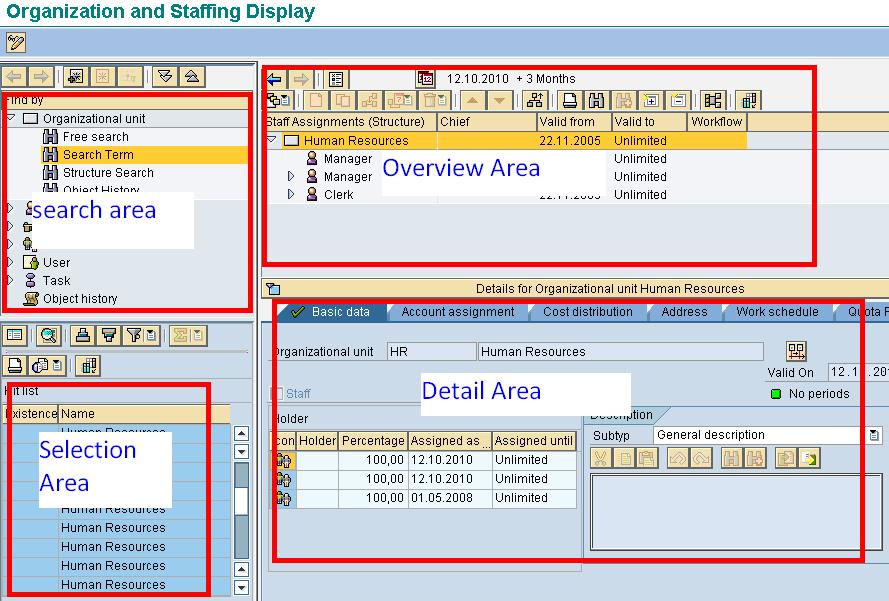
- Search Area – Gives you a wide array of search options to locate your SAP OM objects
- Selection Area – The results of your search appears in the Selection Area.
- Overview Area – The search result selected in the Selection Area appears in Overview Area. The overview area gives you an icon based view of your OM object’s hierarchy.
- Detail Area – Attributes related to the selected OM object can be edited in the detail area.
How to create an Organizational Unit
Step 1) In the SAP command prompt, Enter transaction PPOME
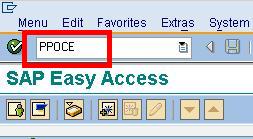
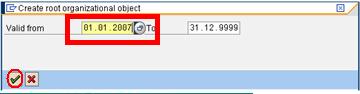
Step 2) In the next SAP screen, enter the start date of the Organizational Unit and click the check mark
Step 3) The New Organizational Unit will displayed in both the Overview and Detail screen areas
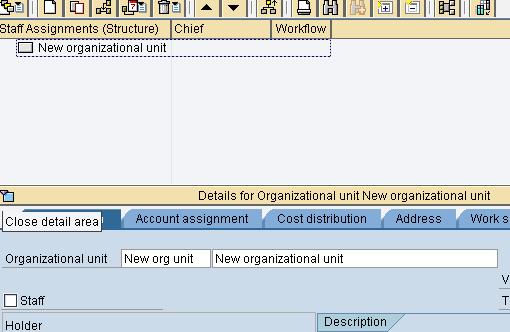
Step 4) In the details section , enter details in accordance with the Business Blueprint.

Step 5) Click the Save the Button. The Overview Area will also change as follows

Imp Note: Create mode can only be used for a new root organizational unit. To create additional organizational units within the structure, change mode is used.
How to create an Org Unit within Existing Structure
Step 1) In the SAP command prompt , Enter transaction PPOME

Step 2) In the next SAP screen, click the  button.
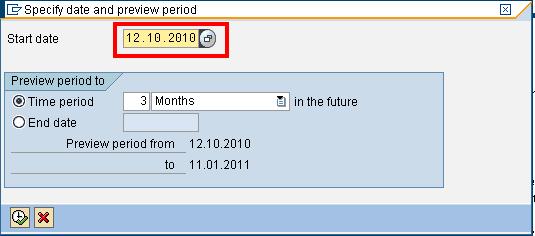
Step 3) In the next SAP screen, Enter the start date of the new organizational unit.
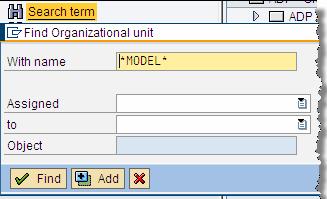
Step 4) Next , search for the organizational unit to which new organizational unit will be added. Enter the name of the organizational unit and click find.
Step 5) In the results window , double click on the desired result.

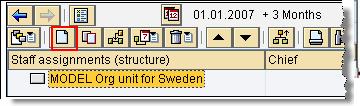
Step 6) The selected organizational unit will be displayed in the overview section. Select the target org unit and click create.
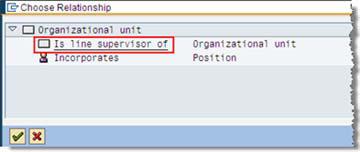
Step 7) The next SAP pop-up window enables you to choose the relationship between the existing Org Unit and the one that you are creating. In this case, click “Is the Line Supervisor of”
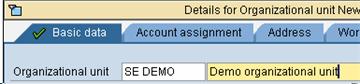
Step 8) In the details section , give information of the new organizational unit you are creating and Click the save button.
Step 9) In the overview section , you will notice that the subordinate Org Unit (‘Demo’) has now been added underneath the higher-level Org Unit

