
Environment Variable in QTP (UFT) with Example
 Thomas Hamilton
⚡ Smart Summary
Environment variables in QTP and UFT One store values that every action, function library and recovery scenario can read, letting one test carry URLs, credentials, paths and language strings without hard coding them anywhere.
What is Environment Variable?
Environment variables are dynamic “object” on a computer that can store a value, which in turn can be referenced by one or more software programs in Windows.
Environment variables are dynamic in nature, and it can be changed. There are a number of environment variables that can be referenced by programs and can be useful in finding information about their computing environment. The testing tool keeps its own list alongside the ones Windows provides.
UFT One Environment Variables
Micro Focus UFT environment variables can be accessed by all actions, function library, and recovery scenarios.
⚠️ Version note: This product shipped as HP QuickTest Professional, was renamed Unified Functional Testing, and is sold today as OpenText Functional Testing (UFT One). The Environment object and the screens below are unchanged — only the product name moved on. The official Environment object reference carries the current syntax.
Types of QTP environment variables
Environment variables are those variables that can be used globally in the tests. There are two types of environment variables
- Built-in variables
- User-defined variables (Has 2 sub-types)
- Internal
- External
Built-in variables describe the machine and the test run and are read-only. User-defined variables carry your own data, and only the internal ones can be written to from a script.
Built-in Variables
In QTP, built-in variables are pre-defined variables. It enables the user to retrieve the information about the test that is executing and to get information about the O.S (Operating Systems) on which the test is executing. Some of the built-in variables are Action iteration, Operating system, Test directory, local hostnames, Operating system version etc.
Go to file -> Settings -> Environment tab to view the environment variable section to see the list of environmental variables. The pane opens on the built-in list, as shown below.

The values from environment variables can be obtained and used wherever necessary during the run session. These are the names testers reach for most often.
| Built-in variable | What it returns |
|---|---|
| OS | Operating system family of the machine running the test |
| OSVersion | Operating system version |
| TestName | Name of the test currently running |
| TestDir | Folder the test is stored in |
| ActionName | Name of the action currently running |
| ActionIteration | Iteration number of the current action |
| LocalHostName | Host name of the local machine |
| ResultDir | Folder the run results are written to |
Example:
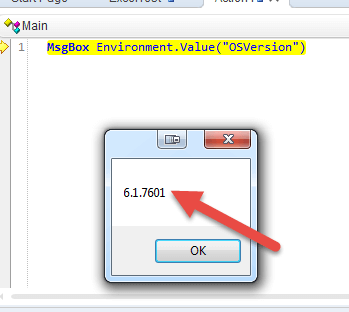
MsgBox Environment.Value("OSVersion")
That single line pops the operating system version straight out of the run session.
User-defined Variables
Before the execution of the test, these are the variables that are defined by the user. It can be used globally across different tests, or they can also be restricted to one test.
User-defined variables were classified into two types
- Internal
- External
- User defined – Internal Variables: These variables are defined by the user before executing the test and these are available only to a particular test.
- User defined- External Variables: These variables are defined by the user and it can be used globally across different tests.
External variables can be loaded in two ways. It can be done manually before executing the test through environment tab or user-defined screen by inspecting the load variables check box and then by selecting the XML file. The second route is a script command, covered further down this page.
You can create a user-defined variable as follows. Switch the variable type to user-defined and add a name and value row.

The finished row then appears in the user-defined list.

You can access the variable as follows
MsgBox Environment.Value("Guru99")
The message box returns the value stored against that variable name.

Environment Object Methods and Properties
Both lists are reached through one VBScript object called Environment. It exposes one property, one method and one read-only property, and that is the whole API surface.
| Member | Type | What it does |
|---|---|---|
| Value | Property | Retrieves any environment variable, and sets user-defined ones |
| LoadFromFile | Method | Loads an external environment variable XML file at run time |
| ExternalFileName | Property | Returns the external file selected in the Environment pane, or an empty string |
Reading is allowed everywhere. Writing works only on user-defined internal variables, because built-in variables and variables loaded from a file are read-only.
' Read any variable
strVersion = Environment.Value("OSVersion")

' Write a user-defined internal variable
Environment.Value("Guru99") = "SecondValue"

' Check which external file is active
If Environment.ExternalFileName = "" Then
    MsgBox "No external environment file is loaded"
End If
The same statement behaves identically in an action, a function library or a recovery scenario.
How to Create and Load an External Environment Variable XML File
An external file turns the variable list into a shareable asset, so one test can run against development, staging and production without an edited step.
- Define the values first as internal user-defined variables in the Environment pane.
- Use the Export button on that pane, which writes the correct XML structure for you.
- Save one file per environment, for example EnvDev.xml and EnvProd.xml.
- Point the test at a file with the load variables check box, or load it from the script.
The file is a flat list of variable and value pairs in the syntax below.
<Environment>
  <Variable>
    <Name>This is the first variable name</Name>
    <Value>This is the first variable value</Value>
  </Variable>
</Environment>
Loading from code is a two-line guard: check whether a file is already active, and load one only if it is not.
fileName = Environment.ExternalFileName
If fileName = "" Then
    Environment.LoadFromFile "C:\testEnv.xml"
End If
Best Practices and Common Errors
Most problems come from scope and spelling rather than syntax. The table lists the failures testers hit most often.
| Symptom | Cause | Fix |
|---|---|---|
| The variable returns an empty value | The name is misspelled, or was never added to this test | Names match exactly; re-check the spelling in the Environment pane |
| Run error on an assignment line | The script writes a built-in or externally loaded variable | Only user-defined internal variables can be assigned |
| The external file is ignored | The check box is not ticked and LoadFromFile was never called | Tick the box, or load the file from the script |
| A shared variable is missing elsewhere | The variable was defined as internal | Move it to an external XML file so every test can load it |
- Adopt one naming convention so the pane stays readable as the list grows.
- Keep the XML files under source control, and never store real passwords in them.
- Reserve environment variables for values that stay constant through a run, and leave row-by-row data to the Data Table.
