
How to Download and Install UFT [Latest Version]
 Editorial Team
⚡ Smart Summary
Installing UFT (Unified Functional Testing), formerly QTP, downloads the Micro Focus automation tool, runs the installation wizard with the required add-ins, and activates the license, preparing the environment for functional and regression test automation.
Installing the trial version of HP UFT or QTP from the Micro Focus site is a 2-step process.
Tutorial to Download and Install UFT or QTP
We will go through the steps one by one
Step 1) Go to https://www.microfocus.com/en-us/signup. Enter Data and Click Sign Up
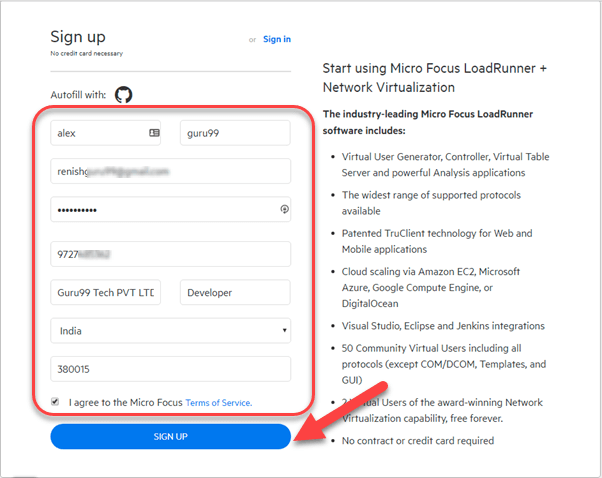
Step 2) In the next screen, you will see a message registration was successful.

Step 3) Check your Inbox and confirm your email.

Step 4) Go to Login Page – https://login.saas.microfocus.com/msg/actions/showLogin
- Enter your email
- Click continue
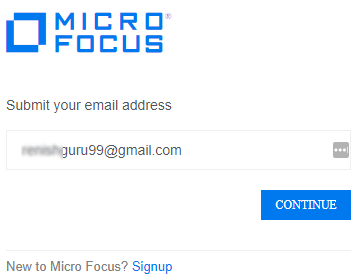
Step 5) In the next screen,
- Enter your Password
- Click “Sign In” button.

Step 6) You will be taken to your Dashboard.
- Click on EXPLORE menu.
- Click on a Unified Functional Testing (UFT).

Step 7) Click a Free Trial button.

Step 8) Click on Next Button

Step 9) Click on the button “Go to My account”

Step 10) You will be taken to your Dashboard. Click the download button

Step 11) In the next screen, Click on UFT_14.01_Setup.exe

Step 12) UFT Download process is started.

Step 1) Click UFT_14.01_Setup.exe downloaded in your PC

Step 2) Click on next button

Step 3) Installation process starts

Step 4) In the next screen,
- Select Microsoft Office Access database engine 2010
- Click OK button

Step 5) Microsoft Office Access database engine 2010 Setup installation will begin

Step 6) Microsoft Visual C++ 2010 Redistributable Setup starts
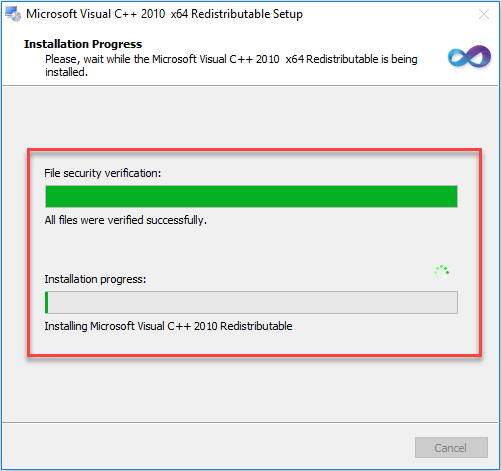
Step 7) Once dependency installation is complete, on the welcome screen click on next button.

Step 8) In the next screen,
- Select all checkbox.
- Click on next button

Step 9) Let the options remain default and click on Next Button

Step 10) In the next screen,
- Select all checkbox.
- Click on next button

Step 11) Installations Process starts.

Step 12) Installations Process is complete and click on finish button.

Step 13) In Restart confirmation box, select on Yes

Step 14) After reboot, Click on HPE UFT Icon on a desktop

Step 15) Click on Continue Button.

Step 16) In Next Screen click on ok button.

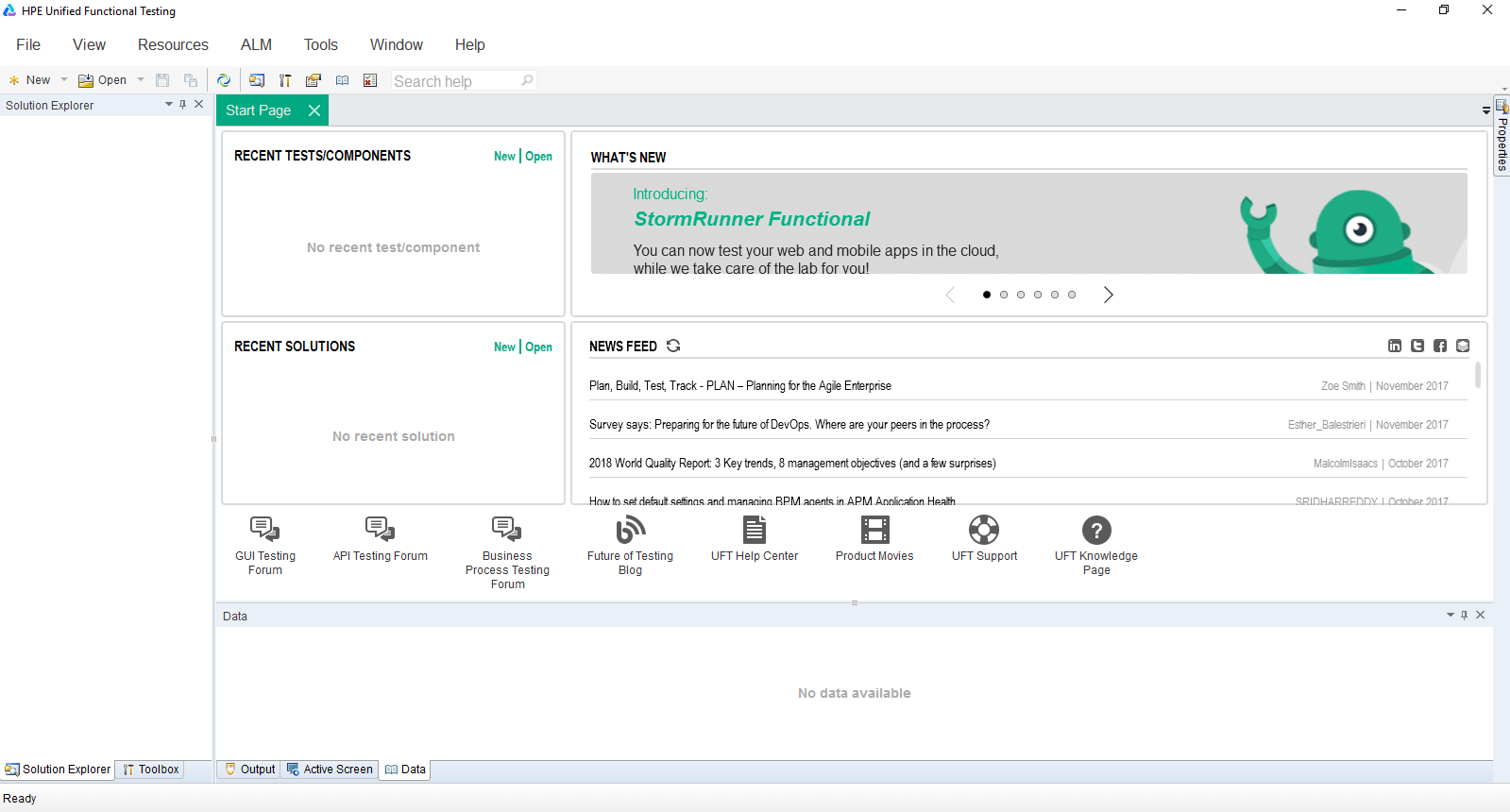
Step 17) HPE UFT Dashboard is shown.
QTP/UFT Versions History
| Version | Release date |
|---|---|
| 10.0 | Released in 2009 |
| 11.0 | Released in 2010 |
| 11.5 | Released in 2012 [renamed Unified Functional Testing] |
| 12.0 | Released in 2014 |
| 12.5 | Released in 2015 |
| 14.0 | Released in 2017 |
| 14.03 | Released in 2018 |
| 15.0 | Released in 2019 – The software was rebranded as UFT One |
| 26.1 | Released in 2026 – The latest version of OpenText Functional Testing (UFT One) |
