
How to Handle SSL Certificate in Selenium
 Krishna Rungta
⚡ Smart Summary
SSL certificate errors stop a Selenium test the moment a browser refuses an untrusted or expired certificate, so every WebDriver script needs a browser-specific capability that accepts the certificate and lets automation continue.
SSL Certificate in Selenium
SSL (Secure Sockets Layer) is a standard security protocol for establishing a secure connection between the server and the client which is a browser.
An SSL certificate protects data moving between the server and the client application with strong encryption and a digital signature. The site owner installs either an SSL certificate or a code signing certificate.
Benefits of SSL Certificate
There are number of benefits of using SSL certificate like,
- One can increase their users’ and customer’s trust in order to enhance the business’ growth rapidly
- These certificates help to secure online transactions and customers sensitive information like credit-card/debit-card data, etc.
- Signing certificate tends to get a maximum number of downloads and good reviews from users.
SSL-secured websites begin with https:// and you can see a lock icon or green address bar if the connection is securely established.
For example, if you want to do some transaction via net banking or want to purchase a Mobile phone through e-commerce site such as Flipkart or Amazon.
What happens between the Web Browser and Server
- A browser tries to connect with a website secured with SSL. The browser requests the webserver to identify itself
- The server sends the browser a copy of its SSL certificate
- The browser verifies whether the SSL certificate is genuine. If so, it sends a message to the server
- The server sends back a digitally signed acknowledgment to start an SSL encrypted session
- The encrypted data is shared between the server and the browser
Card numbers and login credentials travel over that session, so the exchange has to stay encrypted end to end and cannot be intercepted.
For example, the padlock and address bar below confirm that the certificate was accepted.
- Type https://netbanking.hdfcbank.com/netbanking/ .
- Hit Enter.
- You will see a green address bar in the browser as below :-

How Does the SSL Certificate Create a Secure Connection
The diagram below traces the handshake, and the numbered steps that follow explain each exchange.

- Browser sends HTTPS request to the server.
- Now Server must provide some identification to Browser to prove that it is trusted. This can be done by sending a copy of its SSL certificate to the browser.
- Each Browser has its own list of Trusted CA’s. Browser checks the certificate root against its list of trusted CAs and that the certificate is unexpired, unrevoked, and that the common name is valid for the website that it is connecting to.
- If the browser trusts the certificate, an encrypted session is created between the server and the browser.
- Server and Browser can send encrypted messages
Types of SSL Certificates
Browser and the server use SSL Certificate mechanism to be able to establish a secure connection. This connection involves verification of three types of certificates.
- Root
- Intermediate
- Server Certificate
Process of getting SSL Certificate
The process of getting SSL certificate includes below steps:-
- First, you must create CSR (create a Certificate Signing Request) request.
- CSR request creates CSR data file, which is sent to SSL certificate issuer known as CA (Certificate Authority).
- The CA uses the CSR data files to create SSL certificate for your server.
- After receiving the SSL certificate, you have to install it on your server.
- An intermediate certificate is also needed to be installed which ties yours SSL certificate with CA’s root certificate.
The below image represent all the three certificate- Root, Intermediate, and Server Certificate.

How SSL certificates are verified
SSL works through a combination of programs and encryption/decryption routine that exist on the web server computer and web server browser.
SSL certificate basically contains below information.
- Subject which is the identity of the website owner.
- Validity information- a public and a private key.
The Private and public key are two uniquely related cryptographic keys (numbers). Whatever is encrypted by a public key may only be decrypted by a private key. A browser shows those fields when the certificate is inspected, as below.

When a secure connection is not established between the server and client due to the certificate, following SSL certificate error will be manifested.
Types of SSL Certificate Error
Suppose you type an https request and the browser answers with “This connection is Untrusted” or “The site’s security certificate is not trusted”. The browser could not establish a secured connection with the certificate presented, so it stops and asks the user to take appropriate action.
The types of error you likely to see due to certificate in different browsers may be somewhat like this
- FireFox – This connection is untrusted
- Google Chrome – This site security is not trusted
- Internet Explorer ( IE) – This security certificate presented by this website was not trusted by a trusted certificate authority (CA)
The screenshot below shows the interstitial an untrusted certificate produces.

How to handle SSL Certificate Error using Selenium Webdriver
Suppose the test script hits the “Untrusted Connection” page above. The script has to be adjusted so that it takes care of the SSL exception by itself, purely through automation.
The change depends on the browser instance in use, and this is where desired capabilities come into the picture. Desired Capabilities configures the driver instance of Selenium Webdriver, including ChromeDriver, FirefoxDriver and Internet Explorer.
The steps below can be added to a Selenium script to clear the “Untrusted Connection” situation for each browser.
⚠️ Selenium 4 note: the DesiredCapabilities class was removed in Selenium 4. The browser Options classes now carry the same setting through a single W3C capability, acceptInsecureCerts.
| Browser | Selenium 4 class | Call |
|---|---|---|
| Chrome | ChromeOptions | setAcceptInsecureCerts(true) |
| Firefox | FirefoxOptions | setAcceptInsecureCerts(true) |
| Edge | EdgeOptions | setAcceptInsecureCerts(true) |
| Safari | JavascriptExecutor | temporary bypass script |
ChromeOptions options = new ChromeOptions();
options.setAcceptInsecureCerts(true);
WebDriver driver = new ChromeDriver(options);
SSL Certificate Error Handling in Firefox
For handling SSL certificate error in Firefox, we need to use desired capabilities of Selenium Webdriver and follow the following steps.
Step 1) First we need to create a new Firefox profile say “myProfile“.
Step 2) Now access myProfile in the script as below and create the FirefoxProfile object.
ProfilesIni prof = new ProfilesIni()
FirefoxProfile ffProfile= prof.getProfile ("myProfile")
Step 3) Now we need to set “setAcceptUntrustedCertificates” and “setAssumeUntrustedCertificateIssuer” properties in the Fire Fox profile.
ffProfile.setAcceptUntrustedCertificates(true)
ffProfile.setAssumeUntrustedCertificateIssuer(false)
Step 4) Now use the FireFox profile in the FireFox driver object.
WebDriver driver = new FirefoxDriver (ffProfile)
Note: “setAcceptUntrustedCertificates“ and “setAssumeUntrustedCertificateIssuer“ are capabilities to handle the certificate errors in web browsers.
⚠️ Version note: the profile-based code above targets Selenium 2 and Selenium 3. On Selenium 4 a profile is attached through FirefoxOptions, and Firefox accepts insecure certificates by default.
SSL Certificate Error Handling in Chrome
For handling SSL error in Chrome, the DesiredCapabilities object below accepts every SSL certificate, so the user sees no certificate warning during the run.
We need to create instance of DesiredCapabilities class as below:-
DesiredCapabilities handlSSLErr = DesiredCapabilities.chrome ()
handlSSLErr.setCapability (CapabilityType.ACCEPT_SSL_CERTS, true)
WebDriver driver = new ChromeDriver (handlSSLErr);
⚠️ Version note: CapabilityType.ACCEPT_SSL_CERTS belongs to the old JSON Wire Protocol. Replace it with the ChromeOptions snippet shown earlier when running Selenium 4.
SSL Certificate Error Handling in IE
Unlike handling SSL certificates in Chrome browser and Firefox, in IE, you may have to handle it using javascript.
To handle SSL certificate in IE, you can handle this situation in two ways.
Method 1) Click the link “Continue to this website (not recommended)” on the interstitial. That link carries the ID “overridelink”, which you can confirm in the HTML pane opened with F12, as the screenshot below shows.
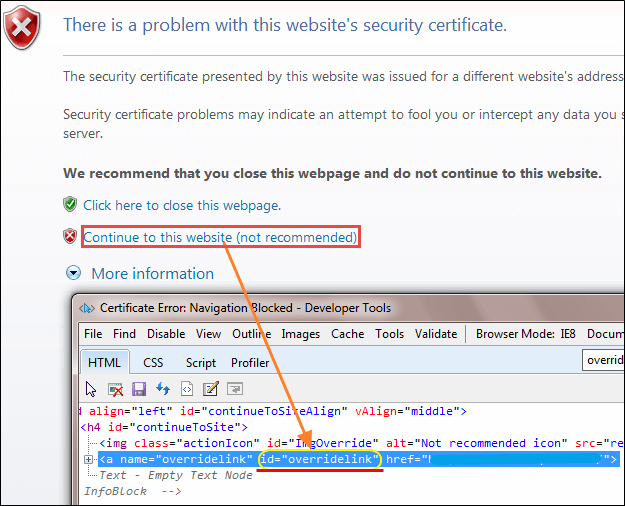
Click on the link using driver.navigate() method with JavaScript as below :-
driver.navigate ().to ("javascript:document.getElementById('overridelink').click()");
Method 2) The second method is quite similar to chrome SSL Handling code.
DesiredCapabilities capabilities = new DesiredCapabilities();
capabilities.setCapability(CapabilityType.ACCEPT_SSL_CERTS, true);
System.setProperty("webdriver.ie.driver","IEDriverServer.exe");
WebDriver driver = new InternetExplorerDriver(capabilities);
The above code will help to handle SSL certificate error in IE.
⚠️ Version note: Internet Explorer 11 was retired in June 2022. Run the same scenario against Microsoft Edge with EdgeOptions, or drive Edge in IE mode where a legacy application still requires it.
