
How to Install Selenium WebDriver
 Krishna Rungta
⚡ Smart Summary
Installing Selenium WebDriver requires four sequential steps: setting up Java JDK, installing Eclipse IDE, downloading the Selenium WebDriver Java client, and configuring Eclipse with WebDriver libraries before writing your first test.
Selenium WebDriver Installation
Selenium installation is a 4-step process:
Step 1: Install Java SDK
Step 2: Install Eclipse
Step 3: Install Selenium WebDriver Files
Step 4: Configure Eclipse IDE with WebDriver
In this tutorial, we will learn how to install Selenium WebDriver. Below is the detailed process.
NOTE: The versions of Java, Eclipse, and Selenium will keep updating with time. But the installation steps will remain the same. Please select the latest version and continue the installation steps below.
Step 1 – Install Java Software Development Kit (JDK)
Download and install the Java Software Development Kit (JDK) here.

This JDK version comes bundled with Java Runtime Environment (JRE), so you do not need to download and install the JRE separately.
Note: Download the latest available version of the JDK when accessing the download page. The specific version is not critical. As of the writing of this tutorial, the current version is 24.
Once installation is complete, open a command prompt and type java. If you see the following screen, you are good to move to the next step.

Step 2 – Install Eclipse IDE
Download the latest version of “Eclipse IDE for Java Developers” here. Be sure to choose correctly between the Windows 32-bit and 64-bit versions.

You should be able to download an exe file named eclipse-inst-win64 for setup.
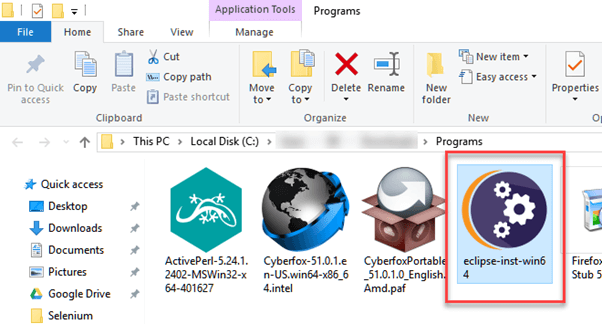
Double-click the file to start the Eclipse installer. A new window will open. Click Eclipse IDE for Java Developers.

A new window will open. Click the path button (marked 1) and change the install path to C:\eclipse. Then click the Install button (marked 2).

After successful installation, a window will appear. Click Launch.
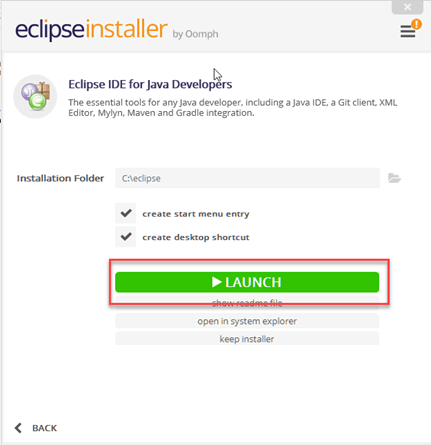
This will start the Eclipse IDE for you.
Step 3 – Selenium WebDriver Installation
Download the Selenium WebDriver Java Client Driver here. You will find client drivers for other languages on that page, but select only the one for Java.

This download comes as a ZIP file named selenium-4.30.0. For simplicity, extract the contents of this ZIP file to your C drive so that you have the directory C:\selenium-4.30.0\. This directory contains all the JAR files that you will later import into Eclipse.
Step 4 – Configure Eclipse IDE with WebDriver
- Launch the
eclipse.exefile inside theeclipsefolder. If you followed step 2 correctly, the executable is atC:\eclipse\eclipse.exe. - When asked to select a workspace, accept the default location.

3. Create a new project through File > New > Java Project. Name the project newproject.

A new pop-up window will open. Enter the following details:
- Project Name
- Location to save the project
- Select an execution JRE
- Select the layout project option
- Click Finish

4. In this step:
- Right-click on the newly created project.
- Select New > Package and name the package
newpackage.

A pop-up window will open. Enter the package name and click Finish.

5. Create a new Java class under newpackage by right-clicking it and selecting New > Class. Name it MyClass. Your Eclipse IDE should look like the image below.

When you click Class, a pop-up window will open. Enter the class name and click Finish.

This is how the workspace looks after creating the class.

Now you need to add the Selenium WebDriver libraries to the Java Build Path. In this step:
- Right-click on
newprojectand select Properties. - In the Properties dialog, click Java Build Path.
- Click the Libraries tab.
- Click Add External JARs…

When the file browser opens:
- Select the JAR files downloaded from the Selenium website in Step 3.
- Click Open.
- The files will be added to the library list.

6. Add all JAR files from inside and outside the libs folder. Your Properties dialog should now look similar to the image below.

7. Finally, click OK. Selenium libraries are now imported into your project.
Browser Driver Servers
HTMLUnit is the only browser that WebDriver can automate directly — no separate component is required. For all other browsers, a separate program called a Driver Server is needed.
A driver server is specific to each browser. You can download these drivers from the Selenium official site.
| Browser | Driver Server Name | Remarks |
|---|---|---|
| HTMLUnit | HtmlUnitDriver | WebDriver drives HTMLUnit natively using HtmlUnitDriver — no additional server needed. |
| Firefox | Mozilla GeckoDriver | Required for Firefox 45 and above; created and maintained by Mozilla. |
| Internet Explorer | Internet Explorer Driver Server | Available in 32-bit and 64-bit versions. Use the version matching your IE architecture. |
| Chrome | ChromeDriver | Functions as a full driver server. Supports Chrome v21 and higher. |
| Opera | OperaDriver | Functions as a full driver server for Opera browser. |
| PhantomJS | GhostDriver | PhantomJS is a headless browser, similar to HTMLUnit. |
| Safari | SafariDriver | Functions as a full driver server for Safari browser. |
