
How Object Identification works in QTP/UFT?
 Editorial Team
⚡ Smart Summary
Object identification in QTP/UFT determines how the tool recognizes every GUI element during a test run, comparing stored Test Object properties against live Run-Time Object properties so scripts keep working even when a screen layout changes.

What is Object Identification in UFT/QTP?
Object identification is the mechanism UFT/QTP uses to recognize a GUI element on screen so that a script can act on it reliably, run after run. During a record session, UFT studies a small set of properties for the object under the mouse pointer and stores them; during replay, it compares those stored values against the properties of every object actually present and picks the one that matches uniquely, regardless of where that object now sits on the screen.
The stored object, together with the properties UFT remembers for it, is called the Test Object. The corresponding element that exists on screen while the test runs is the Run-Time Object. Comparing the two at every step is the foundation of what Micro Focus calls the Test Object Model, and it is why a UFT script keeps working even after a button moves a few pixels or a page gets restyled.
Object Repository and Add-ins
UFT keeps every learned Test Object, along with its stored properties, inside the Object Repository. Add-ins tell Quick Test in advance which technology a screen belongs to, so the tool already knows which property set applies and does not have to guess, which cuts down the time it takes to learn an object.
Click here if the video is not accessible
Every object UFT records can carry dozens of properties. In a web environment alone, a single button may expose its name, HTML tag, type, class, index, and more. Recording all of them for every object is technically possible but rarely useful, as the next image shows for a typical Object Repository entry.
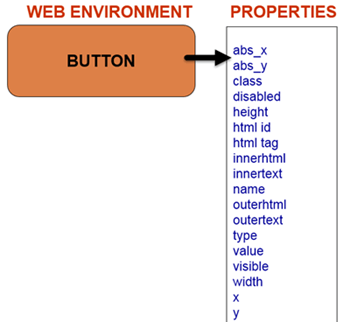
If UFT tried to remember every available property for each object, the Object Repository would balloon in size and script execution would slow down noticeably. To avoid that, QTP does not save every property by default — it saves a small, typical set for each object type, one chosen to make unique identification possible without the overhead. This shortlist of properties, decided separately for each environment and object class, is configured in the Object Identification settings, covered next.
Object Description: Mandatory and Assistive Properties
An object’s property and its value together form what UFT calls the Object Description — the exact combination the tool uses to pick out one element from every other object on the page. For a WebButton, for example, the property name with the value Login is by itself often enough to form a usable Object Description.
To review or change this behavior, open Tools > Object Identification inside UFT. The Object Identification dialog lists every environment currently loaded; selecting one auto-populates the object classes UFT supports for it, and the panel on the right shows exactly which properties get stored for objects of that class. The list is divided into two groups:
- Mandatory properties are stored for every object of that class by default, whether or not they are actually needed to tell it apart from its neighbors.
- Assistive properties are stored only when the mandatory properties alone cannot build a unique description — UFT works down this list one property at a time until the object becomes unique.
A Web Image makes the rule easier to see in practice.

- UFT always stores the alt text, HTML tag, and image type for a Web Image, even when the alt text alone is already unique.
- If the mandatory properties cannot create a unique description, UFT adds the class property from the assistive list.
- Once a property makes the description unique, UFT stops adding more — it skips file name and height if class was already enough, skips height if file name was needed, and so on.
- Suppose only the class property ends up recorded at record time. At run time, UFT no longer distinguishes which properties were mandatory and which were assistive — it simply compares every property in the saved description against the run-time object.
- If even one stored property fails to match, the step fails — a unique description is binary, not a best-effort match.
| Aspect | Mandatory Properties | Assistive Properties |
|---|---|---|
| When stored | Always, for every object of that class | Only when mandatory properties cannot form a unique description |
| Configured in | Object Identification dialog, Mandatory list | Object Identification dialog, Assistive list |
| Order of use | Learned first, unconditionally | Added one at a time until the object is unique |
| Run-time treatment | Compared the same as assistive properties | Compared the same as mandatory properties |
The video below walks through this mandatory-versus-assistive workflow end to end.
The Object Identification Dialog Box and Object Spy
The Object Identification dialog is not just a viewer — it is where a tester tunes how aggressively UFT identifies objects for an entire environment. Reordering, adding, or removing a property here changes what gets learned for every object of that class from that point forward, not just the one currently being recorded. The typical workflow looks like this:
- Open UFT and go to Tools > Object Identification.
- Pick an environment (Web, Windows, Java, and so on) from the dropdown.
- Select an object class, such as WebButton or WinEdit, from the list on the left.
- Move properties between the Mandatory and Assistive lists, or reorder the Assistive list to control which property UFT tries first.
- Enable or disable Smart Identification for that class using the checkbox at the top of the panel.
Changes made here apply the next time UFT learns an object of that class — entries already saved in the Object Repository keep their original description until the object is re-recorded or updated manually.
Using Object Spy to Inspect Properties
Before editing the mandatory or assistive list, most testers check what an object’s properties actually look like with Object Spy. Pointing the spy cursor at any control on the application under test lists both its test-object and run-time properties side by side, along with the methods UFT can call on it — useful when a mandatory property keeps changing between builds and needs to be swapped for a steadier one.
Ordinal Identifiers: Index, Location, and Creation Time
Sometimes even every mandatory and assistive property still leaves two or more objects looking identical — three checkboxes with the same name, class, and label, for instance. For exactly this situation UFT falls back on an ordinal identifier, a backup value that ranks otherwise-identical objects by their position instead of their properties.
| Ordinal Identifier | Property | Order Assigned | Applies To |
|---|---|---|---|
| Index | Index | Order the object appears in the underlying source code, starting at 0 | Any object class |
| Location | Location | Top-to-bottom, then left-to-right position on screen, starting at 0 | Any object class |
| Creation Time | CreationTime | Order the browser window was opened, starting at 0 | Browser objects only |
UFT only learns an ordinal identifier when the mandatory and assistive properties genuinely cannot separate two objects, because the value is relative and can shift if the page layout changes even though the object itself has not. The VBScript snippet below uses Index to click the second of two identically named links.
Dim objBrowser, objPage
Set objBrowser = Browser("title:=Guru99 Bank")
Set objPage = objBrowser.Page("title:=Guru99 Bank")
' Index:=1 clicks the second Link named "Manage Order" (index starts at 0)
objPage.Link("name:=Manage Order", "index:=1").Click
Index and Location values are specific to the object class named in the statement, so Index:=3 on a WebEdit searches only among WebEdit objects, while the same value on a generic WebElement counts across every web object on the page regardless of type.
Where Smart Identification Fits In
Object identification in UFT does not stop at the learned description. When a unique match cannot be found, UFT works through the process in a fixed order: it first checks the learned mandatory and assistive properties, then any visual relation identifier, then Smart Identification if that mechanism is enabled for the class, and only as a last resort an ordinal identifier.
Smart Identification sits between the learned description and the ordinal identifier deliberately. It rebuilds a candidate list using a class’s core properties and narrows it with optional ones, so it can often recover an object whose learned description broke — a renamed button, for example — without ever touching the Object Repository. Because that extra search step costs time, most teams enable it for identification-fragile classes and lean on ordinal identifiers only where position genuinely is the only differentiator left, such as a bank of unlabeled radio buttons.
