
How to Download & Install SQLite on Windows
 Marcus Allen
⚡ Smart Summary
SQLite delivers a lightweight, serverless database engine that runs across Windows, Linux, and macOS. This walkthrough explains how to download installer packages, set up the command-line shell, install a graphical manager, and build a sample database.
SQLite offers many installation packages depending on the operating system. It also provides APIs for a wide range of programming languages.
Download & Install SQLite Package Installer
Installation packages available for Windows 10 users:
From the SQLite official website, open the download section. The following screenshot shows the different SQLite installation packages for Windows:

The command line shell program:
The highlighted download package is called the Command-Line Program (CLP). CLP is a command line application that lets you access the SQLite database management system and all the features of SQLite. Using CLP, you can create and manage the SQLite database, and it is the tool used throughout this walkthrough.
- 32-bit DLL (x86): The SQLite database system core library for x86 platforms.
- 64-bit DLL (x64): The SQLite database system core library for x64 platforms.
Installing the Command-Line Program (CLP) on your machine
The following steps show how to install the Command-Line Program (CLP) on your machine:
Step 1) Download the highlighted package from the previous image to your PC. It is a zip file.
Step 2) Extract the zip file. You will find sqlite3.exe in the extracted folder, as shown below:

Step 3) Open My Computer, and double-click partition “C” to navigate to it:

Step 4) Create a new directory named sqlite:

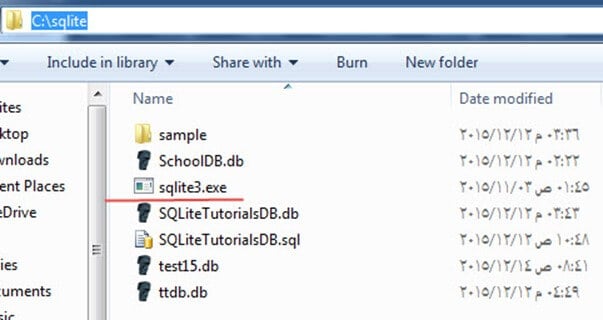
Step 5) Copy sqlite3.exe into it. This is the executable used to run SQLite queries:
There are additional packages for different purposes. They are not required, but you might need them on operating systems other than Windows. You can obtain the Linux or Mac OS version of SQLite as needed.
You can also fetch the documentation or source code from the same page. APIs are available for Windows Phone 8, .NET, and other programming languages.
Here are some additional packages for different purposes:
- The Source Code and alternative Source Code Formats – the complete source that makes up SQLite.
- The documentation – SQLite documentation as HTML pages. It is the same online documentation, but downloadable so you can read it offline.
- Precompiled Binaries for Linux.
- Precompiled Binaries for Mac OS X (x86).
- Precompiled Binaries for Windows Phone 8 – SDK and components for building Windows Phone 8 applications that use SQLite databases.
- Precompiled Binaries for Windows Runtime – SDK and components for building Windows Runtime applications that connect to SQLite databases.
- Precompiled Binaries for .NET – a set of DLLs and .NET libraries that you can use from .NET applications to connect to SQLite databases.
SQLite Studio – Manager and Administration
Many SQLite management tools make working with SQLite databases easier. Instead of creating and managing databases from a command line, these tools provide a graphical interface for database creation and administration.
SQLite Studio: a portable application that does not require an installation. It supports both SQLite3 and SQLite2. You can easily import and export data to formats such as CSV, HTML, PDF, and JSON. It is open source and supports Unicode.

Introducing Sample Database
The following steps create the sample database that is referenced throughout the series:
Step 1) Open a text file and paste the following commands into it:
CREATE TABLE [Departments] (
    [DepartmentId] INTEGER  NOT NULL PRIMARY KEY,
    [DepartmentName] NVARCHAR(50)  NULL
);
INSERT INTO Departments VALUES(1, 'IT');
INSERT INTO Departments VALUES(2, 'Physics');
INSERT INTO Departments VALUES(3, 'Arts');
INSERT INTO Departments VALUES(4, 'Math');

CREATE TABLE [Students] (
    [StudentId] INTEGER  PRIMARY KEY NOT NULL,
    [StudentName] NVARCHAR(50) NOT NULL,
    [DepartmentId] INTEGER  NULL,
    [DateOfBirth] DATE NULL,
    FOREIGN KEY(DepartmentId) REFERENCES Departments(DepartmentId)
);
INSERT INTO Students VALUES(1, 'Michael', 1, '1998-10-12');
INSERT INTO Students VALUES(2, 'John', 1, '1998-10-12');
INSERT INTO Students VALUES(3, 'Jack', 1, '1998-10-12');
INSERT INTO Students VALUES(4, 'Sara', 2, '1998-10-12');
INSERT INTO Students VALUES(5, 'Sally', 2, '1998-10-12');
INSERT INTO Students VALUES(6, 'Jena', NULL, '1998-10-12');
INSERT INTO Students VALUES(7, 'Nancy', 2, '1998-10-12');
INSERT INTO Students VALUES(8, 'Adam', 3, '1998-10-12');
INSERT INTO Students VALUES(9, 'Stevens', 3, '1998-10-12');
INSERT INTO Students VALUES(10, 'George', NULL, '1998-10-12');

CREATE TABLE [Tests] (
    [TestId] INTEGER NOT NULL PRIMARY KEY,
    [TestName] NVARCHAR(50) NOT NULL,
    [TestDate] DATE NULL
);
INSERT INTO [Tests] VALUES(1, 'Mid Term IT Exam', '2015-10-18');
INSERT INTO [Tests] VALUES(2, 'Mid Term Physics Exam', '2015-10-23');
INSERT INTO [Tests] VALUES(3, 'Mid Term Arts Exam', '2015-10-10');
INSERT INTO [Tests] VALUES(4, 'Mid Term Math Exam', '2015-10-15');

CREATE TABLE [Marks] (
    [MarkId] INTEGER NOT NULL PRIMARY KEY,
    [TestId] INTEGER NOT NULL,
    [StudentId] INTEGER  NOT NULL,
    [Mark] INTEGER  NULL,
    FOREIGN KEY(StudentId) REFERENCES Students(StudentId),
    FOREIGN KEY(TestId) REFERENCES Tests(TestId)
);

INSERT INTO Marks VALUES(1, 1, 1, 18);
INSERT INTO Marks VALUES(2, 1, 2, 20);
INSERT INTO Marks VALUES(3, 1, 3, 16);
INSERT INTO Marks VALUES(4, 2, 4, 19);
INSERT INTO Marks VALUES(5, 2, 5, 14);
INSERT INTO Marks VALUES(6, 2, 7, 20);
INSERT INTO Marks VALUES(7, 3, 8, 20);
INSERT INTO Marks VALUES(8, 3, 9, 20);
Step 2) Save the file as TutorialsSampleDB.sql in the directory C:\sqlite.
Step 3) Open the Windows Command Line tool (cmd.exe) from the Start menu by typing cmd and pressing Enter.
Step 4) It opens in the default path, so navigate to the C:\sqlite folder created earlier by running the command cd “C:\sqlite”:

Step 5) Run the following command:
sqlite3 TutorialsSampleDB.db < TutorialsSampleDB.sql
The command should complete successfully with no output, as shown in the following screenshot:

Step 6) The database file TutorialsSampleDB.db now appears in the directory C:\sqlite:

