
Selenium - Cucumber (BDD 框架教程)
 Krishna 伦塔
⚡ 智能摘要
Selenium - Cucumber 它形成了一个强大的行为驱动开发(BDD)框架,该框架结合了纯英语 Gherkin 语法和 Selenium WebDriver 自动化。本教程解释了先决条件,通过三个实践场景演示了如何集成功能文件、步骤定义和 TestRunner 类来执行浏览器测试。
在本教程中,您将学习如何集成 Cucumber - Selenium 使用 WebDriver 构建可读、可维护、数据驱动的行为驱动开发 (BDD) 框架。
什么是 Cucumber?
Cucumber 是一款支持行为驱动开发 (BDD) 的测试工具。它使用 Gherkin 语言,以简洁的英文文本描述应用程序的行为,使非开发人员无需学习编程语言即可参与测试规范的编写。了解更多信息,请访问我们的 Cucumber 教程.
什么是 Selenium?
Selenium 是一款用于自动化的工具 功能测试 基于网络的应用程序。 Selenium 支持多种编程语言,包括 Java, 红宝石, Python它支持 C# 和 C#,因此非常适合拥有不同技术背景的团队。了解更多信息,请访问我们的 Selenium 教程.
为何使用 Cucumber - Selenium?
Cucumber 和 Selenium 是两种应用最广泛的测试技术。大多数组织已经在使用它们。 Selenium 用于功能测试,并且希望分层 Cucumber 在最上面,因为 Cucumber 使应用程序流程易于阅读和理解。.
Cucumber 它基于行为驱动开发框架,该框架 充当桥梁 以下角色之间:
- 软件工程师和业务分析师。
- 手动测试仪和自动化测试仪。
- 手动测试员和开发人员。
此 Cucumber BDD 框架也 帮助客户理解应用程序代码 因为它使用纯文本的 Gherkin 语言。组织中的任何人都可以了解软件的运行情况。Gherkin 语法采用简单易懂的英语,这使得非技术读者也能理解规范。

使用前提条件 Cucumber - Selenium
在我们开始之前 Cucumber-Selenium 集成时,您需要以下物品:
Selenium jar文件:
- Selenium-服务器独立
您可以从以下网址下载它们: https://www.selenium.dev/downloads/.

Jar 文件 Cucumber:
- Cucumber-core
- Cucumber-html
- Cobertura 代码覆盖率
- Cucumber-java
- Cucumber-junit
- Cucumber-jvm-依赖项
- Cucumber-reporting
- 汉姆克雷斯特核心
- 小黄瓜
- JUnit
您可以从以下网址下载它们: https://mvnrepository.com/search?q=Cucumber您需要逐个搜索并下载每个 jar 文件。
例如,以下是如何下载其中一个 jar 文件的方法,即“Cucumber-core”库。
点击上面的下载链接。它会跳转到 Maven 仓库网站。现在搜索特定的 jar 文件(在本例中为“Cucumber 核心”),如下图所示:

在下一页,点击版本 1.2.2:

在下一个屏幕上,点击“下载”按钮获取文件。 Cucumber 核心 jar 文件:

注意: 为方便起见,我们已将所需的 Maven jar 文件打包在一起。 开始随着时间的推移,这些 jar 文件可能会过时且不兼容,因此我们建议您使用上述方法自行下载。
使用自动化测试 Cucumber - Selenium
让我们一起来看看如何使用 Cucumber - Selenium 循序渐进。这里我们将介绍三种情况:
- 场景一:在控制台中打印文本。
- 场景 2:输入登录凭据并重置值。
- 场景 3:输入登录凭据 Guru99 并重置该值 - 对 3 组数据重复此操作。
场景 1:在控制台中打印文本
在这种情况下,我们只需在控制台中打印文本即可。 Cucumber.
步骤1) 在……中创建一个项目 Eclipse.
创建一个 Java 项目名称 “Cucumber与Selenium= 如下面的截图所示。


步骤2) 将 jar 文件添加到项目中。
右键单击项目 > 属性 > Java 构建路径。添加之前下载的所有库。

步骤3) 创建功能文件。
要创建功能文件,首先创建 Features 文件夹,如下图所示。

输入文件夹名称“Features”,然后单击“完成”。


现在在 Features 文件夹中创建一个名为“features”的功能文件 我的测试功能这个过程类似于创建文件夹。

注意: 您可能需要安装 Cucumber Eclipse 首先安装插件。转到“帮助”→“安装新软件”,粘贴链接。 http://cucumber.github.io/cucumber-eclipse/update-site/,然后安装它。
步骤4) 写出场景。
下面几行是用以下语言写的: 我的测试功能 使用 Gherkin 语言:
Feature: Reset functionality on login page of Application

Scenario: Verification of Reset button

Given Open the Firefox and launch the application

When Enter the Username and Password

Then Reset the credential
Code 说明
第 1 行) 定义业务功能。
第 2 行) 定义一个待测试的场景。
第 3 行) 定义前提条件(Given)。
第 4 行) 定义要执行的操作(何时)。
第 5 行) 定义预期结果或结果(然后)。
步骤5) 写 Selenium TestRunner脚本 Cucumber 框架设计。
创建一个 测试运行器 包裹,然后是一个 Runner.java 它下面的类文件。
package TestRunner;

import org.junit.runner.RunWith;
import cucumber.api.CucumberOptions;
import cucumber.api.junit.Cucumber;

@RunWith(Cucumber.class)
@CucumberOptions(features = "Features", glue = {"StepDefinition"})
public class Runner
{

}
在上面 Cucumber Java 例如,我们运行 黄瓜测试 使用以下注释:
@RunWith() 告诉 JUnit 关于开始执行我们测试的测试运行器类。
@Cucumber选项() 设置测试属性,例如特征文件路径和步骤定义粘合包。
TestRunner 文件截图:

步骤6) 创建步骤定义脚本。
现在创建一个 步骤定义 包裹,然后是一个 步骤.java 它下面的脚本文件。在 Steps.java 文件中,我们编写了以下内容: Selenium 与 Gherkin 每个步骤对应的逻辑。
package StepDefinition;

import cucumber.api.java.en.Given;
import cucumber.api.java.en.Then;
import cucumber.api.java.en.When;

public class Steps {

    @Given("^Open the Firefox and launch the application$")
    public void open_the_Firefox_and_launch_the_application() throws Throwable
    {
        System.out.println("This Step open the Firefox and launch the application.");
    }

    @When("^Enter the Username and Password$")
    public void enter_the_Username_and_Password() throws Throwable
    {
        System.out.println("This step enter the Username and Password on the login page.");
    }

    @Then("^Reset the credential$")
    public void Reset_the_credential() throws Throwable
    {
        System.out.println("This step click on the Reset button.");
    }
}
该类名为 步骤和 Cucumber 注解将每个方法映射到一个功能文件步骤:
@Given 定义打开方法 Firefox 并启动应用程序。
@什么时候 定义输入用户名和密码的方法。
@然后 定义重置凭据的方法。
每种方法都只是向控制台打印一条消息。
下图显示了 Steps.java 脚本和项目树:
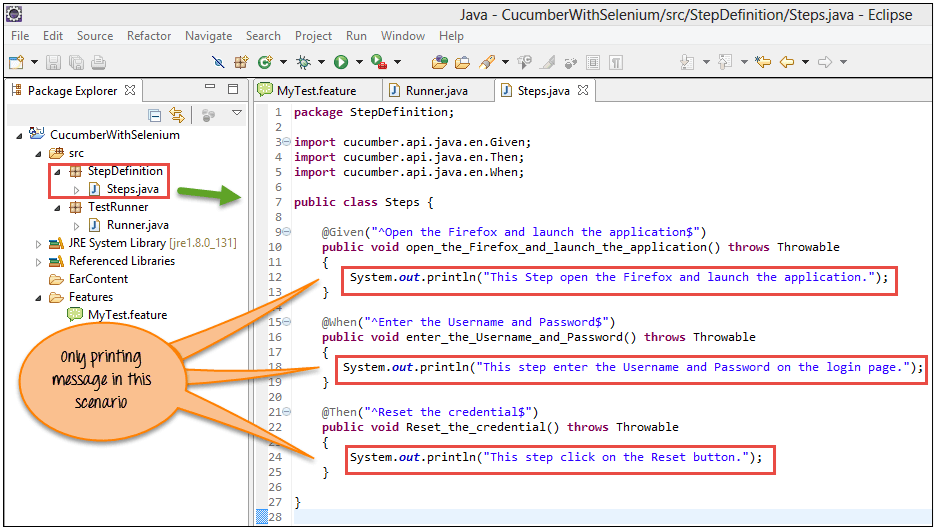
注意: 步骤定义就是你想要的代码。 Cucumber 当它与功能文件步骤匹配时执行。
步骤7) 执行脚本。
从 TestRunner 文件 (Runner.java) 中运行此脚本,如下所示。
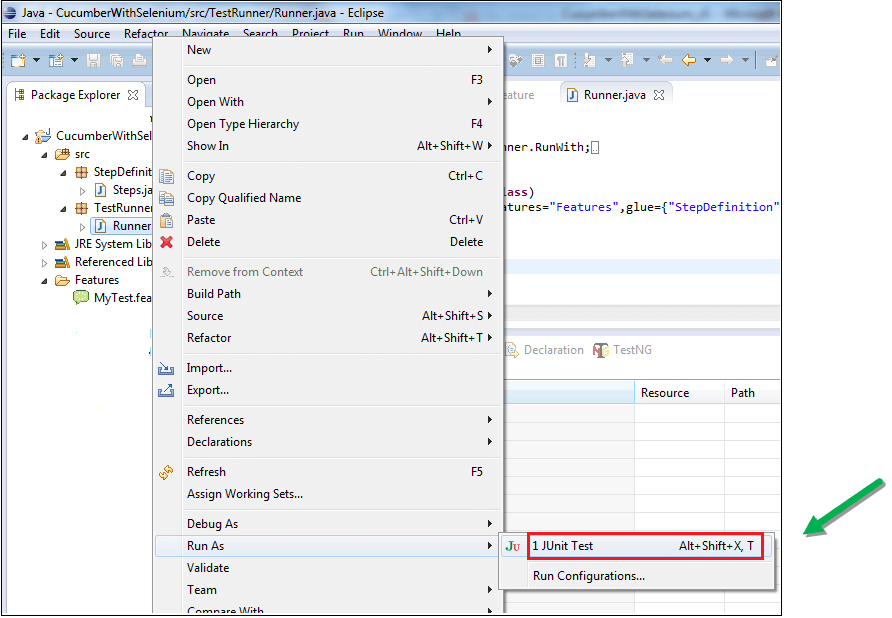
步骤8) 分析输出。
执行 Runner.java 时, Cucumber 将 Steps.java 中定义的相同文本打印到控制台。

场景 2:输入登录凭据并重置值
在这里我们输入凭据 Guru99 演示登录页面并重置值。
对于方案 2,我们只需要更新 步骤.java这里我们添加真实的 Selenium 代码。首先,请确保 Selenium jar 文件已添加到项目中。

步骤1) 按照以下所示更新 Steps.java 脚本。
package StepDefinition;

import org.openqa.selenium.By;
import org.openqa.selenium.WebDriver;
import org.openqa.selenium.firefox.FirefoxDriver;

import cucumber.api.java.en.Given;
import cucumber.api.java.en.Then;
import cucumber.api.java.en.When;

public class Steps {

    WebDriver driver;

    @Given("^Open the Firefox and launch the application$")
    public void open_the_Firefox_and_launch_the_application() throws Throwable
    {
        System.setProperty("webdriver.gecko.driver", "E://Selenium//Selenium_Jars//geckodriver.exe");
        driver = new FirefoxDriver();
        driver.manage().window().maximize();
        driver.get("http://demo.guru99.com/v4");
    }

    @When("^Enter the Username and Password$")
    public void enter_the_Username_and_Password() throws Throwable
    {
        driver.findElement(By.name("uid")).sendKeys("username12");
        driver.findElement(By.name("password")).sendKeys("password12");
    }

    @Then("^Reset the credential$")
    public void Reset_the_credential() throws Throwable
    {
        driver.findElement(By.name("btnReset")).click();
    }
}
以上内容的截图 Selenium 脚本:

步骤2) 执行脚本。
更新 Steps.java 后,运行 Runner.java。
步骤3) 分析输出结果。您将在输出结果中看到以下内容:
- 浏览器已启动。
- Guru99家银行的演示网站开放。
- 在登录页面输入用户名和密码。
- 重置按钮会清除所有数值。

场景 3:使用 3 组数据运行登录和重置流程
这里我们需要更新两者。 步骤.java 以及用于驱动同一流程并支持三组凭据的功能文件。
步骤1) 按如下所示更新功能文件。
我们使用 场景概要 和 例子 所以语法如此 Cucumber 对每一行数据重复相同的场景。
Feature: Reset functionality on login page of Application

Scenario Outline: Verification of reset button with multiple credentials

Given Open the Firefox and launch the application

When Enter the Username <username> and Password <password>

Then Reset the credential

Examples:
    | username | password  |
    | User1    | password1 |
    | User2    | password2 |
    | User3    | password3 |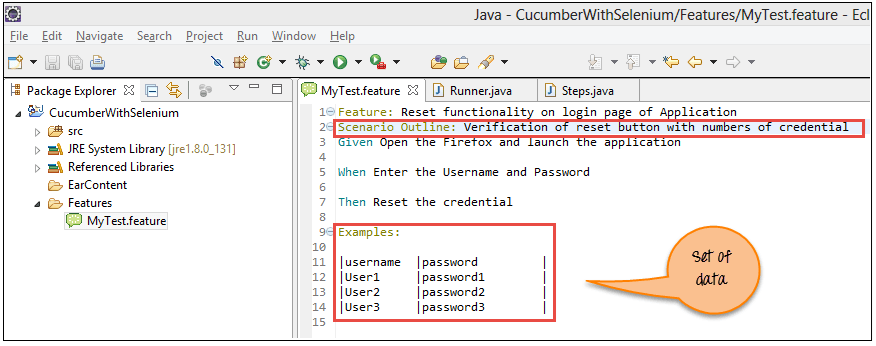
步骤2) 更新 Steps.java 脚本。
在这里,我们更新方法签名,使其能够接受来自示例表的参数。
package StepDefinition;

import org.openqa.selenium.By;
import org.openqa.selenium.WebDriver;
import org.openqa.selenium.firefox.FirefoxDriver;

import cucumber.api.java.en.Given;
import cucumber.api.java.en.Then;
import cucumber.api.java.en.When;

public class Steps {

    WebDriver driver;

    @Given("^Open the Firefox and launch the application$")
    public void open_the_Firefox_and_launch_the_application() throws Throwable
    {
        System.setProperty("webdriver.gecko.driver", "E://Selenium//Selenium_Jars//geckodriver.exe");
        driver = new FirefoxDriver();
        driver.manage().window().maximize();
        driver.get("http://demo.guru99.com/v4");
    }

    @When("^Enter the Username \"(.*)\" and Password \"(.*)\"$")
    public void enter_the_Username_and_Password(String username, String password) throws Throwable
    {
        driver.findElement(By.name("uid")).sendKeys(username);
        driver.findElement(By.name("password")).sendKeys(password);
    }

    @Then("^Reset the credential$")
    public void Reset_the_credential() throws Throwable
    {
        driver.findElement(By.name("btnReset")).click();
    }
}
步骤3) 执行更新后的脚本。
下图显示了成功执行的结果以及每个数据集所花费的时间。

步骤4) 分析输出结果。以下步骤对3组数据分别重复执行:
- 浏览器已启动。
- Guru99家银行的演示网站开放。
- 在登录页面输入用户名和密码。
- 重置按钮会清除所有数值。

