
JavaScriptExecutor 中的 Selenium WebDriver(示例)
 Krishna 伦塔
⚡ 智能摘要
JavaScriptExecutor 中的 Selenium WebDriver 运行 Java当定位器无法正常工作时,浏览器内部会执行脚本。 Lessons 涵盖 executeScript、executeAsyncScript、滚动、点击、警报和表单输入示例。
什么是 Java脚本执行器?
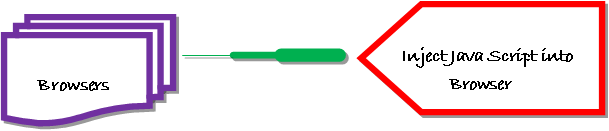
JavaScriptExecutor 是一个帮助执行的接口 Java脚本通过 Selenium 网络驱动程序。 JavaScriptExecutor 提供两种方法“executescript”和“executeAsyncScript”来在选定的窗口或当前页面上运行 javascript。
我们为什么需要 Java脚本执行器?
In Selenium Webdriver、XPath、CSS等定位器用于识别网页并执行操作。
如果这些定位器不起作用,你可以使用 JavaScriptExecutor。您可以使用 JavaScriptExecutor 对 Web 元素执行所需的操作。
Selenium 支持 javaScriptExecutor。无需额外的插件或附加组件。您只需导入 (org.openqa.selenium。Javascript执行者)在脚本中使用 Java脚本执行器。
JavaScriptExecutor 中的方法 Selenium
执行脚本
此方法执行 JavaScript 在当前选定的框架或窗口的上下文中 Selenium。该方法中使用的脚本在匿名函数(没有名称的函数)体内运行。我们还可以向其传递复杂的参数。
脚本可以返回值。返回的数据类型包括
- 布尔
- 长
- 串
- 列表
- Web元素。
Javascript执行器语法:
JavascriptExecutor js = (JavascriptExecutor) driver;
js.executeScript(Script,Arguments);
- 脚本 –这是 Java需要执行的脚本。
- 参数 – 这是脚本的参数。它是可选的。
执行异步脚本
使用异步脚本,您的页面渲染速度会更快。无需强迫用户等待脚本下载后再渲染页面。此函数将执行一段异步 Java在当前选定的框架或窗口上下文中编写脚本 Selenium这样执行的JS是单线程的,带有各种回调函数,这些回调函数是同步运行的。
使用方法 JavaScriptExecutor 中的 Selenium
以下是如何使用 JavaScriptExecutor 中的 Selenium:
步骤1) 导入包。
import org.openqa.selenium.JavascriptExecutor;
步骤2) 创建参考。
JavascriptExecutor js = (JavascriptExecutor) driver;
步骤3) 调用 Javascript执行器方法。
js.executeScript(script, args);
使用以下示例单击元素 JavaScripExecutor 中 Selenium
对于executeScript,我们将逐一看到三个不同的例子。
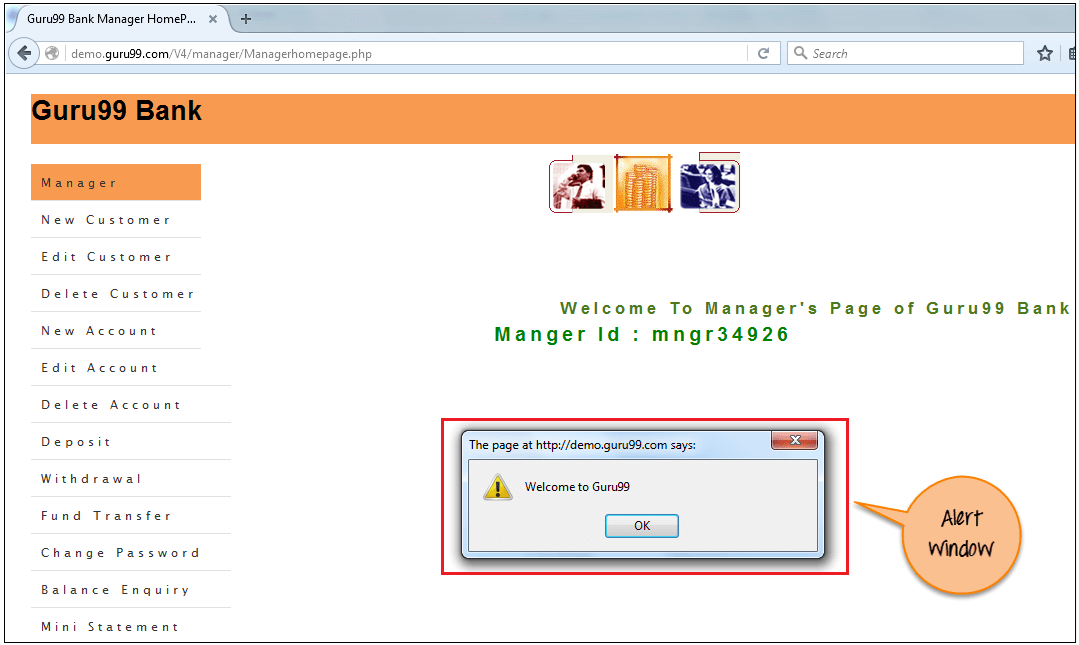
1)示例:单击按钮登录并使用以下方式生成警报窗口 Java脚本执行器。
在这种情况下,我们将使用“Guru99”演示网站示例 JavaScriptExecutor。在此示例中,
- 启动网络浏览器
- 打开网站 https://demo.guru99.com/V4/ 和
- 使用凭证登录

- 登录成功后显示警告窗口。
import org.openqa.selenium.By;
import org.openqa.selenium.JavascriptExecutor;
import org.openqa.selenium.WebDriver;
import org.openqa.selenium.WebElement;
import org.openqa.selenium.firefox.FirefoxDriver;
import org.testng.annotations.Test;

public class JavaSE_Test {


    @Test
    public void Login()
    {
        WebDriver driver= new FirefoxDriver();

        //Creating the JavascriptExecutor interface object by Type casting
        JavascriptExecutor js = (JavascriptExecutor)driver;

        //Launching the Site.
        driver.get("https://demo.guru99.com/V4/");

        WebElement button =driver.findElement(By.name("btnLogin"));

        //Login to Guru99
        driver.findElement(By.name("uid")).sendKeys("mngr34926");
        driver.findElement(By.name("password")).sendKeys("amUpenu");

        //Perform Click on LOGIN button using JavascriptExecutor
        js.executeScript("arguments[0].click();", button);

        //To generate Alert window using JavascriptExecutor. Display the alert message
        js.executeScript("alert('Welcome to Guru99');");

    }
}
输出: 当代码成功执行时,你将观察到
- 成功点击登录按钮,然后
- 将显示警报窗口(见下图)。
2)示例:使用以下方法捕获抓取数据并导航到不同页面 Java脚本执行器。
执行以下 selenium 脚本。在此示例中,
- 启动该网站
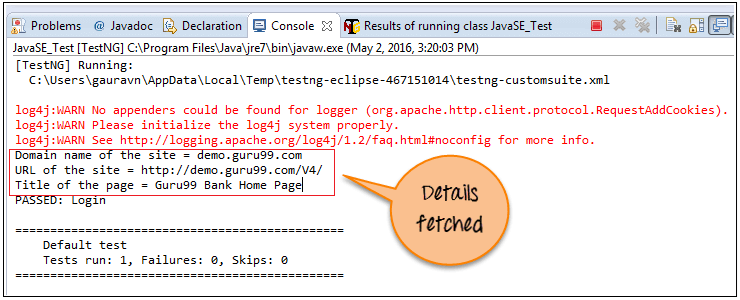
- 获取网站的详细信息,例如 URL 网站名称、标题名称和域名。
- 然后导航到另一个页面。
import org.openqa.selenium.JavascriptExecutor;
import org.openqa.selenium.WebDriver;
import org.openqa.selenium.firefox.FirefoxDriver;
import org.testng.annotations.Test;

public class JavaSE_Test {

    @Test
    public void Login()
    {
        WebDriver driver= new FirefoxDriver();

        //Creating the JavascriptExecutor interface object by Type casting
        JavascriptExecutor js = (JavascriptExecutor)driver;

        //Launching the Site.
        driver.get("https://demo.guru99.com/V4/");

        //Fetching the Domain Name of the site. Tostring() change object to name.
        String DomainName = js.executeScript("">return document.domain;").toString();
        System.out.println("Domain name of the site = "+DomainName);

        //Fetching the URL of the site. Tostring() change object to name
        String url = js.executeScript("">return document.URL;").toString();
        System.out.println("URL of the site = "+url);

       //Method document.title fetch the Title name of the site. Tostring() change object to name
       String TitleName = js.executeScript("">return document.title;").toString();
       System.out.println("Title of the page = "+TitleName);


      //Navigate to new Page i.e to generate access page. (launch new url)
      js.executeScript("window.location = 'https://demo.guru99.com/'");
    }
}
输出: 当上述代码成功执行时,它将获取网站的详细信息并导航到不同的页面,如下所示。
[TestNG] Running:
  C:\Users\gauravn\AppData\Local\Temp\testng-eclipse-467151014\testng-customsuite.xml

log4j:WARN No appenders could be found for logger (org.apache.http.client.protocol.RequestAddCookies).
log4j:WARN Please initialize the log4j system properly.
log4j:WARN See http://logging.apache.org/log4j/1.2/faq.html#noconfig for more info.
Domain name of the site = demo.guru99.com
URL of the site = https://demo.guru99.com/V4/
Title of the page = Guru99 Bank Home Page
PASSED: Login

===============================================
    Default test
    Tests run: 1, Failures: 0, Skips: 0
===============================================

3)示例:使用 Java脚本执行器。
执行以下 selenium 脚本。在此示例中,
- 启动该网站
- 向下滚动 600 像素
import org.openqa.selenium.JavascriptExecutor;
import org.openqa.selenium.WebDriver;
import org.openqa.selenium.firefox.FirefoxDriver;
import org.testng.annotations.Test;

public class JavaSE_Test {

    @Test
    public void Login()
    {
        WebDriver driver= new FirefoxDriver();

        //Creating the JavascriptExecutor interface object by Type casting
        JavascriptExecutor js = (JavascriptExecutor)driver;

        //Launching the Site.
        driver.get("http://moneyboats.com/");

        //Maximize window
        driver.manage().window().maximize();

        //Vertical scroll down by 600  pixels
        js.executeScript("window.scrollBy(0,600)");
    }
}
输出:执行上述代码时,它将向下滚动 600 像素(见下图)。

示例: Selenium
使用 executeAsyncScript 有助于提高测试的性能。它使编写测试更像编写普通代码。
执行者Sync 阻止执行进一步的操作 Selenium 浏览器,但 execAsync 不会阻止操作。它将向服务器端发送回调 测试与验证 脚本完成后,将立即执行此操作。这意味着脚本中的所有内容都将由浏览器而不是服务器执行。
示例 1:在被测浏览器中执行睡眠。
在这种情况下,我们将使用“Guru这是一个 99 英寸的演示站点,用于演示 executeAsyncScript 方法。在这个示例中,您将
- 启动浏览器。
- 开放网站 https://demo.guru99.com/V4/.
- 应用程序等待 5 秒才执行进一步的操作。
步骤1) 使用 executeAsyncScript() 方法在等待 5 秒(5000 毫秒)之前捕获开始时间。
步骤2) 然后,使用 executeAsyncScript() 等待 5 秒。
步骤3) 然后,获取当前时间。
步骤4) 小组tract(当前时间 – 开始时间)= 经过的时间。
步骤5) 验证输出应该显示超过 5000 毫秒
import java.util.concurrent.TimeUnit;

import org.openqa.selenium.JavascriptExecutor;
import org.openqa.selenium.WebDriver;
import org.openqa.selenium.firefox.FirefoxDriver;
import org.testng.annotations.Test;

public class JavaSE_Test {

    @Test
    public void Login()
    {

        WebDriver driver= new FirefoxDriver();

        //Creating the JavascriptExecutor interface object by Type casting
        JavascriptExecutor js = (JavascriptExecutor)driver;

        //Launching the Site.
        driver.get("https://demo.guru99.com/V4/");

          //Maximize window
          driver.manage().window().maximize();

          //Set the Script Timeout to 20 seconds
          driver.manage().timeouts().setScriptTimeout(20, TimeUnit.SECONDS);

          //Declare and set the start time
          long start_time = System.currentTimeMillis();

          //Call executeAsyncScript() method to wait for 5 seconds
          js.executeAsyncScript("window.setTimeout(arguments[arguments.length - 1], 5000);");

         //Get the difference (currentTime - startTime)  of times.
         System.out.println("Passed time: " + (System.currentTimeMillis() - start_time));

    }
}
输出: 成功显示经过的时间超过5秒(5000毫秒),如下所示:
[TestNG] Running:
C:\Users\gauravn\AppData\Local\Temp\testng-eclipse-387352559\testng-customsuite.xml
log4j:WARN No appenders could be found for logger (org.apache.http.client.protocol.RequestAddCookies).
log4j:WARN Please initialize the log4j system properly.
log4j:WARN See http://logging.apache.org/log4j/1.2/faq.html#noconfig for more info.
Passed time: 5022
PASSED: Login

===============================================
    Default test
    Tests run: 1, Failures: 0, Skips: 0
===============================================
