วิธีดาวน์โหลดและติดตั้ง MongoDB on Windows และคลาวด์
 ทีมบรรณาธิการ
⚡ สรุปอย่างชาญฉลาด
วิธีดาวน์โหลดและติดตั้ง MongoDB on Windows และ Cloud ได้รับการอธิบายอย่างละเอียดในรูปแบบคู่มือการตั้งค่าแบบครบถ้วน แหล่งข้อมูลนี้ครอบคลุมการติดตั้ง MongoDB เซิร์ฟเวอร์ชุมชนบน Windowsที่ Javaสคริปต์ Pythonและไดรเวอร์ Ruby MongoDB Compassการกำหนดค่าด้วยการนำเข้าและส่งออก ไฟล์การกำหนดค่า และการปรับใช้ MongoDB แผนที่แอตลาสบนระบบคลาวด์
ผู้ติดตั้งสำหรับ MongoDB มีให้เลือกทั้งแบบ 32 บิตและ 64 บิต ตัวติดตั้งแบบ 32 บิตเหมาะสำหรับสภาพแวดล้อมการพัฒนาและการทดสอบ แต่สำหรับสภาพแวดล้อมการใช้งานจริง ควรใช้ตัวติดตั้งแบบ 64 บิต มิเช่นนั้น คุณอาจมีข้อจำกัดในปริมาณข้อมูลที่สามารถจัดเก็บได้ MongoDBขอแนะนำให้ใช้เวอร์ชันเสถียรสำหรับการใช้งานในสภาพแวดล้อมการผลิตเสมอ
วิธีดาวน์โหลดและติดตั้ง MongoDB on Windows
ขั้นตอนต่อไปนี้สามารถใช้เพื่อดาวน์โหลดและติดตั้ง MongoDB on Windows 10:
ขั้นตอนที่ 1) ดาวน์โหลด MongoDB ชุมชนเซิร์ฟเวอร์
ไปที่ ลิงค์ และดาวน์โหลด MongoDB เซิร์ฟเวอร์ชุมชน เราจะติดตั้งเวอร์ชัน 64 บิตสำหรับ Windows.

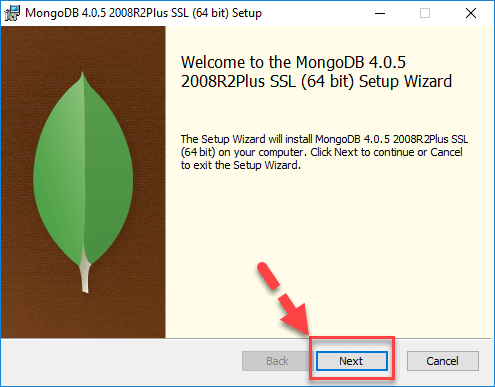
ขั้นตอนที่ 2) คลิกที่ตั้งค่า
เมื่อดาวน์โหลดเสร็จแล้ว ให้เปิดไฟล์ msi จากนั้นคลิก Next ในหน้าจอเริ่มต้น
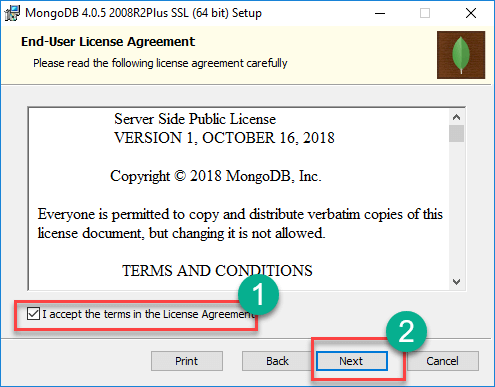
ขั้นตอนที่ 3) ยอมรับข้อตกลงสิทธิ์การใช้งานสำหรับผู้ใช้ปลายทาง
- ยอมรับข้อตกลงใบอนุญาตผู้ใช้ปลายทาง
- คลิกถัดไป
ขั้นตอนที่ 4) คลิกที่ปุ่ม “เสร็จสิ้น”
คลิกที่ปุ่ม “เสร็จสมบูรณ์” เพื่อติดตั้งส่วนประกอบทั้งหมด คุณสามารถใช้ตัวเลือกแบบกำหนดเองเพื่อติดตั้งส่วนประกอบที่เลือก หรือหากคุณต้องการเปลี่ยนตำแหน่งการติดตั้ง

ขั้นตอนที่ 5) การกำหนดค่าบริการ
- เลือก “เรียกใช้บริการในฐานะผู้ใช้บริการเครือข่าย” จดบันทึกชื่อไดเร็กทอรีข้อมูลไว้ เราจะต้องใช้ในภายหลัง
- คลิกถัดไป

ขั้นตอนที่ 6) เริ่มกระบวนการติดตั้ง
คลิกที่ปุ่มติดตั้งเพื่อเริ่มการติดตั้ง

ขั้นตอนที่ 7) เมื่อทำเสร็จแล้ว ให้คลิกถัดไป
เริ่มการติดตั้ง คลิกถัดไปเมื่อเสร็จสิ้น

ขั้นตอนที่ 8) คลิกที่ปุ่มเสร็จสิ้น
ขั้นตอนสุดท้าย: เมื่อการติดตั้งเสร็จสมบูรณ์แล้ว ให้คลิกปุ่ม เสร็จสิ้น (Finish)

สวัสดีชาวโลก MongoDB: Javaไดรเวอร์สคริปต์
พนักงานขับรถใน MongoDB ใช้สำหรับเชื่อมต่อระหว่างแอปพลิเคชันไคลเอ็นต์และฐานข้อมูล ตัวอย่างเช่น หากคุณมี Java โปรแกรมและจำเป็นต้องเชื่อมต่อ MongoDBจากนั้นคุณจะต้องดาวน์โหลดและผสานรวม Java ไดรเวอร์เพื่อให้โปรแกรมสามารถทำงานร่วมกับ MongoDB ฐานข้อมูล
คนขับรถสำหรับ Javaต้นฉบับ ออกมาจากกล่อง MongoDB เชลล์ซึ่งใช้ในการทำงานร่วมกับ MongoDB ฐานข้อมูลนั้นแท้จริงแล้วคือ Javaสคริปต์เชลล์ วิธีเข้าใช้งาน:
ขั้นตอน 1) ไปที่ “C:\Program Files\MongoDB\Server\4.0\bin” และดับเบิลคลิกที่ mongo.exe หรืออีกวิธีหนึ่ง คุณสามารถคลิกที่ MongoDB สิ่งของบนโต๊ะทำงาน

ขั้นตอน 2) ป้อนโปรแกรมต่อไปนี้ลงในเชลล์:
var myMessage='Hello World';
printjson(myMessage);
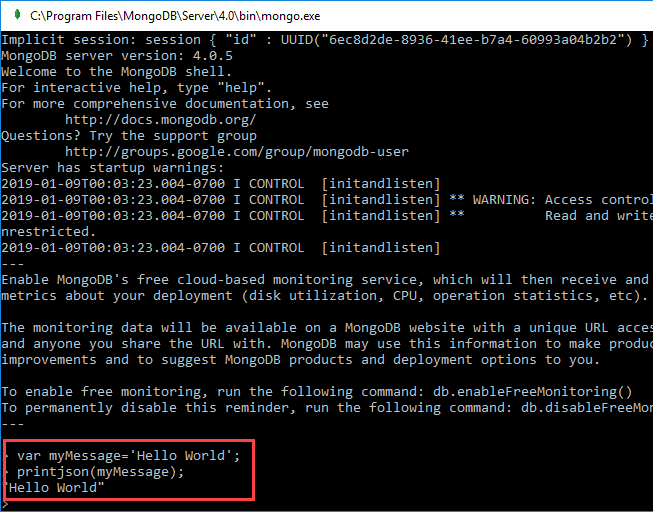
Code คำอธิบาย:
- เราแค่ประกาศเรื่องง่ายๆ Javaตัวแปรสคริปต์สำหรับเก็บข้อความชื่อ 'Hello World'
- เรากำลังใช้วิธี printjson เพื่อพิมพ์ตัวแปรไปที่หน้าจอ
การติดตั้ง Python คนขับรถ
ขั้นตอน 1) ทำให้มั่นใจ Python ติดตั้งอยู่ในระบบแล้ว
ขั้นตอน 2) ติดตั้งไดรเวอร์ที่เกี่ยวข้องกับ MongoDB โดยใช้คำสั่งต่อไปนี้:
pip install pymongo
ติดตั้งไดร์เวอร์รูบี้
ขั้นตอน 1) ตรวจสอบให้แน่ใจว่าได้ติดตั้ง Ruby ไว้ในระบบแล้ว
ขั้นตอน 2) ตรวจสอบให้แน่ใจว่า gems ได้รับการอัปเดตแล้วโดยใช้คำสั่ง:
gem update --system
ขั้นตอน 3) ติดตั้งไดรเวอร์ที่เกี่ยวข้องกับ MongoDB โดยใช้คำสั่งต่อไปนี้:
gem install mongo
การติดตั้ง MongoDB Compass - MongoDB เครื่องมือการจัดการ
มีเครื่องมือในตลาดที่พร้อมสำหรับการจัดการ MongoDB- เครื่องมือที่ไม่ใช่เชิงพาณิชย์อย่างหนึ่งก็คือ MongoDB Compassคุณสมบัติบางประการของ Compass มีดังต่อไปนี้:
- พลังเต็มที่ของเปลือกหอย Mongo
- เปลือกหอยหลายอัน
- ผลลัพธ์หลายรายการ
ขั้นตอน 1) ไปที่ ลิงค์ แล้วคลิกดาวน์โหลด

ขั้นตอน 2) กรอกรายละเอียดในหน้าต่างป๊อปอัพแล้วคลิกส่ง

ขั้นตอน 3) Double คลิกที่ไฟล์ที่ดาวน์โหลดมา

ขั้นตอน 4) การติดตั้งจะเริ่มต้นโดยอัตโนมัติ

ขั้นตอน 5) โปรแกรม Compass จะเริ่มต้นด้วยหน้าจอต้อนรับ

ขั้นตอน 6) ตั้งค่าความเป็นส่วนตัวตามค่าเริ่มต้น แล้วคลิก “เริ่มใช้งาน Compass”

ขั้นตอน 7) คุณจะเห็นหน้าจอหลักพร้อมรายการฐานข้อมูลปัจจุบัน

MongoDB การกำหนดค่า การนำเข้า และการส่งออก
ก่อนที่จะเริ่ม MongoDB เซิร์ฟเวอร์ลักษณะสำคัญประการแรกคือการกำหนดค่าไดเร็กทอรีข้อมูลที่ทั้งหมด MongoDB ข้อมูลจะถูกจัดเก็บ โดยสามารถทำได้ด้วยวิธีดังต่อไปนี้:

คำสั่งด้านบน 'md \data\db' สร้างไดเร็กทอรีชื่อ \data\db ในตำแหน่งปัจจุบันของคุณ MongoDB จะสร้างฐานข้อมูลในตำแหน่งนี้โดยอัตโนมัติ เนื่องจากนี่คือตำแหน่งเริ่มต้นสำหรับ MongoDB เพื่อเก็บข้อมูล เราเพียงแค่ต้องแน่ใจว่าไดเร็กทอรีนั้นมีอยู่ดังนั้น MongoDB สามารถค้นหาได้เมื่อมันเริ่ม
การนำเข้าข้อมูลเข้าสู่ MongoDB ทำได้โดยใช้คำสั่ง “mongoimport” ตัวอย่างต่อไปนี้จะแสดงวิธีดำเนินการนี้
ขั้นตอน 1) สร้างไฟล์ CSV ชื่อ data.csv และใส่ข้อมูลต่อไปนี้ลงไปในไฟล์:
Employeeid,EmployeeName
1,Guru99
2,Mohan
3,Smith
จากตัวอย่างข้างต้น สมมติว่าเราต้องการนำเข้าเอกสาร 3 ฉบับลงในคอลเลกชันที่ชื่อว่า "data" แถวแรกเรียกว่าบรรทัดส่วนหัว ซึ่งจะกลายเป็นชื่อฟิลด์ของคอลเลกชันนั้น
ขั้นตอน 2) เรียกใช้คำสั่ง mongoimport

Code คำอธิบาย:
- เรากำหนดตัวเลือก db เพื่อบอกว่าควรนำเข้าข้อมูลไปยังฐานข้อมูลใด
- ตัวเลือกประเภทใช้เพื่อระบุว่าเรากำลังนำเข้าไฟล์ CSV
- โปรดจำไว้ว่าแถวแรกเรียกว่าบรรทัดหัวเรื่อง ซึ่งจะกลายเป็นชื่อฟิลด์ของชุดข้อมูล นั่นคือเหตุผลที่เราใช้ตัวเลือก –headerline จากนั้นเราก็ระบุไฟล์ data.csv ของเรา
เอาท์พุต

ผลลัพธ์แสดงให้เห็นชัดเจนว่ามีการนำเข้าเอกสาร 3 ฉบับเข้ามา MongoDB.
การส่งออก MongoDB ทำได้โดยใช้คำสั่ง mongoexport

Code คำอธิบาย:
- เรากำลังระบุตัวเลือก db เพื่อบอกว่าฐานข้อมูลใดที่ควรส่งออกข้อมูล
- เรากำลังระบุตัวเลือกคอลเลกชันเพื่อบอกว่าควรใช้คอลเลกชันใด
- ตัวเลือกที่สามคือการระบุว่าเราต้องการส่งออกไปยังไฟล์ CSV
- ประการที่สี่คือการระบุว่าควรส่งออกฟิลด์ใดของคอลเลกชัน
- ตัวเลือก –out ระบุชื่อของไฟล์ csv ที่จะส่งออกข้อมูลไป
เอาท์พุต

ผลลัพธ์แสดงให้เห็นอย่างชัดเจนว่ามีการส่งออก 3 รายการ MongoDB.
การกำหนดค่า MongoDB เซิร์ฟเวอร์พร้อมไฟล์กำหนดค่า
เราสามารถกำหนดค่าอินสแตนซ์เซิร์ฟเวอร์ mongod ให้เริ่มต้นทำงานได้โดยใช้ไฟล์การกำหนดค่า ไฟล์การกำหนดค่าจะมีค่าการตั้งค่าที่เทียบเท่ากับตัวเลือกบรรทัดคำสั่งของ mongod ตัวอย่างเช่น สมมติว่าคุณต้องการ MongoDB หากต้องการจัดเก็บข้อมูลการบันทึกทั้งหมดไปยังตำแหน่งที่กำหนดเอง ให้ทำตามขั้นตอนด้านล่าง:
ขั้นตอน 1) สร้างไฟล์ชื่อ “mongod.conf” และบันทึกข้อมูลต่อไปนี้ลงในไฟล์

- บรรทัดแรกของไฟล์ระบุว่าเราต้องการเพิ่มการตั้งค่าสำหรับไฟล์บันทึกระบบ ซึ่งเป็นที่ที่ข้อมูลเกี่ยวกับสิ่งที่เซิร์ฟเวอร์กำลังทำอยู่จะถูกบันทึกไว้ในไฟล์บันทึกแบบกำหนดเอง
- ตัวเลือกที่สองคือการระบุว่าตำแหน่งนั้นจะเป็นไฟล์
- ข้อความนี้กล่าวถึงตำแหน่งที่ตั้งของไฟล์บันทึก
- logAppend: “true” หมายถึงเพื่อให้แน่ใจว่าข้อมูลบันทึกยังคงถูกเพิ่มลงในไฟล์บันทึก หากคุณใส่ค่าเป็น "false" ไฟล์จะถูกลบและสร้างใหม่ทุกครั้งที่เซิร์ฟเวอร์เริ่มทำงานอีกครั้ง
ขั้นตอน 2) เริ่มกระบวนการเซิร์ฟเวอร์ mongod และระบุไฟล์การกำหนดค่าที่สร้างไว้ข้างต้นเป็นพารามิเตอร์ ภาพหน้าจอแสดงวิธีการทำเช่นนี้แสดงอยู่ด้านล่าง

เมื่อรันคำสั่งข้างต้นแล้ว กระบวนการเซิร์ฟเวอร์จะเริ่มทำงานโดยใช้ไฟล์การกำหนดค่านี้ และหากคุณเข้าไปที่ไดเร็กทอรี /etc ในระบบของคุณ คุณจะเห็นไฟล์ mongod.log ถูกสร้างขึ้น ภาพด้านล่างแสดงตัวอย่างลักษณะของไฟล์บันทึก

วิธีการติดตั้ง MongoDB บนระบบคลาวด์ (AWS, Google, Azure)
คุณไม่จำเป็นต้องติดตั้ง MongoDB เซิร์ฟเวอร์และกำหนดค่า คุณสามารถปรับใช้ได้ MongoDB เซิร์ฟเวอร์ Atlas บนคลาวด์บนแพลตฟอร์มเช่น AWS Google Cloudและ Azureและเชื่อมต่อกับอินสแตนซ์โดยใช้ไคลเอ็นต์ ขั้นตอนโดยละเอียดมีดังต่อไปนี้:
ขั้นตอน 1) ไปที่ ลิงค์.
- ป้อนรายละเอียดส่วนบุคคล
- เห็นด้วยกับข้อตกลง
- คลิกปุ่ม “เริ่มต้นใช้งานฟรี”

ขั้นตอน 2) คลิก “สร้างคลัสเตอร์แรกของฉัน”

ขั้นตอน 3) คุณสามารถเลือกระหว่าง AWS, Google Cloudและ Azure เลือกผู้ให้บริการคลาวด์ของคุณ ในบทช่วยสอนนี้ เราจะใช้ AWS ซึ่งตั้งค่าไว้เป็นค่าเริ่มต้นแล้ว ไม่ต้องเปลี่ยนแปลงอะไรเพิ่มเติมในหน้านี้ แล้วคลิก “สร้าง” Cluster"
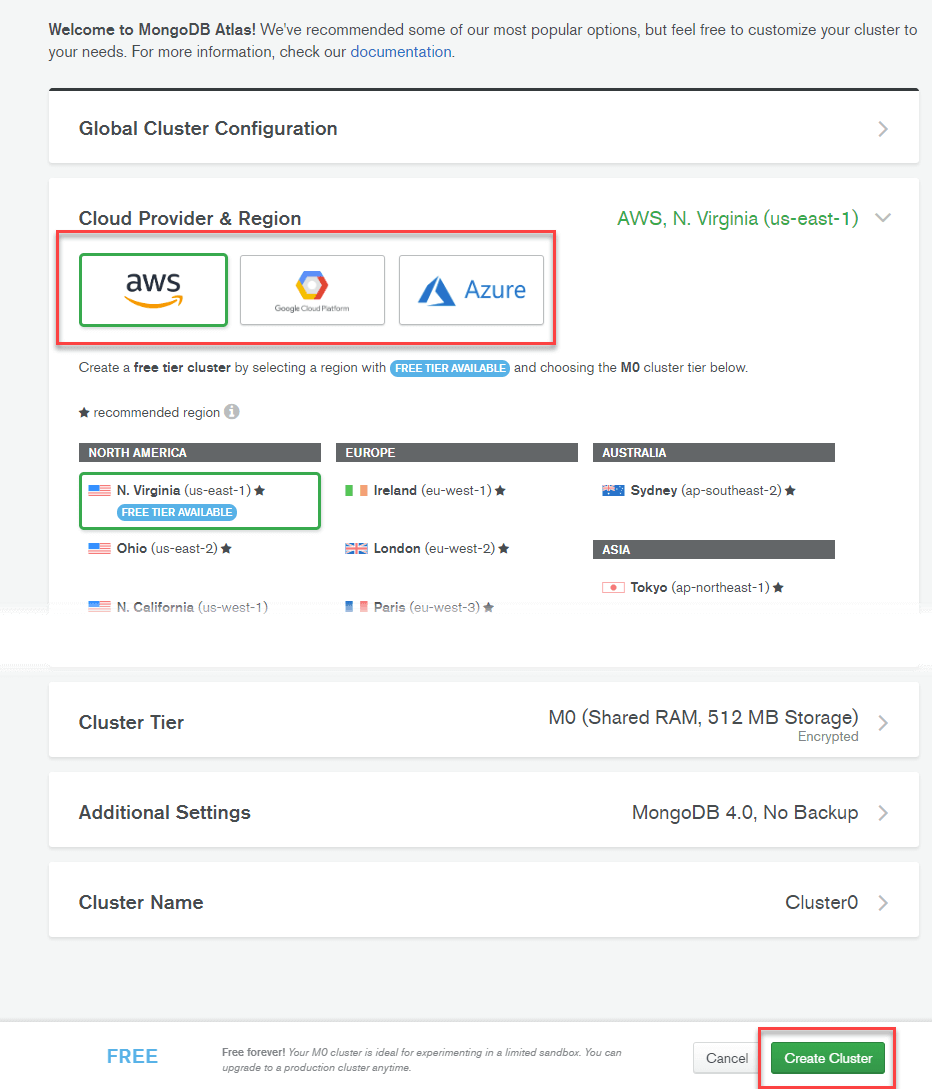
ขั้นตอน 4) Cluster การสร้างสรรค์ต้องใช้เวลา

ขั้นตอน 5) หลังจากผ่านไปสักพัก คุณจะเห็นว่าคลัสเตอร์พร้อมใช้งานแล้ว

ขั้นตอน 6) คลิก การตั้งค่า > เพิ่มผู้ใช้ใหม่

ขั้นตอน 7) ในหน้าจอถัดไป:
- ป้อนข้อมูลรับรองผู้ใช้
- กำหนดสิทธิพิเศษ
- คลิกปุ่ม เพิ่มผู้ใช้

ขั้นตอน 8) ในหน้าแดชบอร์ด ให้คลิกปุ่มเชื่อมต่อ
- ไวท์ลิสต์การเชื่อมต่อ IP ของคุณ
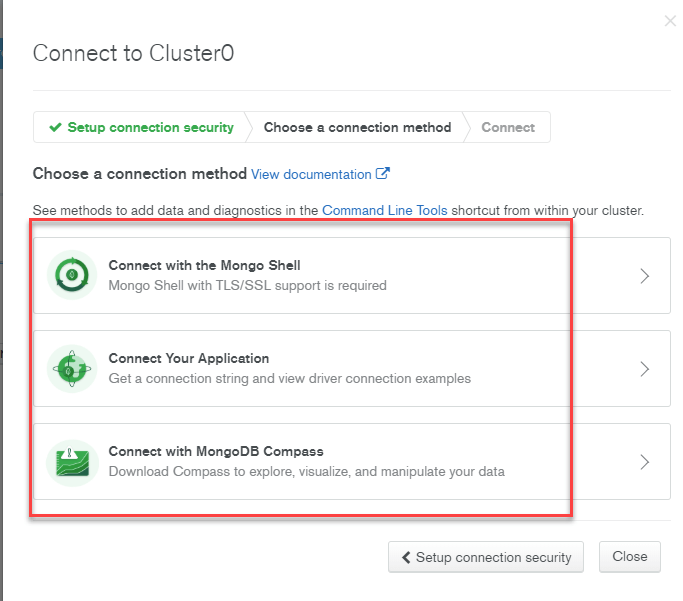
- เลือกวิธีการเชื่อมต่อ

ขั้นตอน 9) เลือกวิธีการเชื่อมต่อที่คุณต้องการเพื่อเชื่อมต่อกับ MongoDB เซิร์ฟเวอร์