
SQL Serverデータベース:作成、変更、削除、復元
 編集チーム
編集チーム
⚡ スマートサマリー
SQL Server データベースは、テーブル、ビュー、ストアドプロシージャ、その他のオブジェクトを格納するコンテナです。作成、変更、削除pingまた、データベースの復元は、SQL Server Management Studio または Transact-SQL ステートメントを使用して行うことができます。

データベースとは何ですか?
データベースとは、次のようなオブジェクトの集合です。 テーブルビュー、ストアドプロシージャ、トリガー、関数。 SQLサーバーデータベースとは、これら関連するすべてのオブジェクトが整理されて格納され、相互にリンクされる場所である。
実生活からいくつか例を挙げてみましょう。
- 本棚は本が置かれている場所です。
- 家とは、私たちが暮らす場所です。
- 駐車場とは、車両が駐車される場所であり、そのような例は数え切れないほどある。
同様に、データベースは、すべてのテーブル、ビュー、ストアドプロシージャを格納する一種の場所です。技術的には、データベースはデータを容易にアクセスおよび取得できるように整理された方法でデータを格納します。SQL Serverには、2種類のデータベースがあります。
- システムデータベース: これらはSQL Serverのインストール時に自動的に作成されます。サーバー上で重要な役割を果たし、特にデータベースオブジェクトが正しく動作することを保証します。SQL Serverのシステムデータベースの例としては、master、msdb、model、tempdb、resourceなどがあります。
- ユーザーデータベース: これらは、データベースを作成する権限を与えられた、あなたのようなデータベースユーザーによって作成されます。
データベース作成のルール
まず、新しいデータベースを作成するための基本的なルールを知っておく必要があります。
- データベース名は SQL Server のインスタンス内で一意である必要があります。
- データベース名には最大 128 文字を使用できます。
- CREATE DATABASE文は、自動コミットモードで実行する必要があります。
下の図は、SQL Serverでデータベースを作成する際に利用できる2つの方法を示しています。

SQL Serverでデータベースを作成する方法は2つあります。
- SQL Server Management Studio
- Transact SQL
SQL Server Management Studio でデータベースを作成する方法
SQL Server Management Studioでデータベースを作成する手順を段階的に説明します。
ステップ1) オブジェクトエクスプローラーウィンドウで「データベース」を右クリックし、「新しいデータベース」を選択します。
以下に、右クリックメニューの「新規データベース」オプションを示します。

ステップ2) 「新規データベース」画面が表示されます。「データベース名」を入力してください。「論理名」列には、以下の値が自動的に入力されます。
- Edu – ファイルタイプ: 行データ、ファイルグループ: PRIMARY
- Edu_log – ファイルタイプ: LOG、ファイルグループ: '該当なし'
以下に、データベース名とその論理ファイルが表示された「新規データベース」ダイアログを示します。
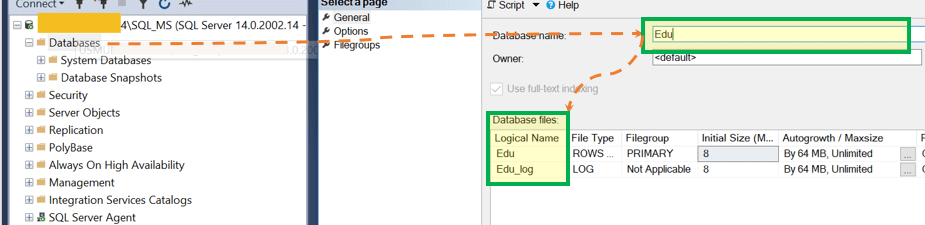
ここに:
- A) Edu (ファイルタイプ: 行データ、ファイルグループ: PRIMARY) は .mdf データファイルです。
- B) Edu_log (ファイルタイプ: LOG、ファイルグループ: '該当なし') は .ldf ログファイルです。
ステップ3) (オプション)より複雑な設定を行うには、「オプション」ページと「ファイルグループ」ページに移動してください。初心者レベルの場合は、「一般」タブからデータベースを作成するだけで十分です。
以下に「オプション」ページと「ファイルグループ」ページを示します。

ステップ4) データベースを作成するには、「追加」(OKボタン)をクリックしてください。
作成を確定するボタンが下にハイライト表示されています。

結果: 「Edu」データベースが作成されました。「Edu」データベースを拡張すると、テーブル、ビューなどが含まれます。これらは、新しいテーブルやビューなどを作成するまでは、最初は空の状態です。

ソース クエリを表示します。 新しく作成された「Edu」データベースのソースクエリを表示できます。次の手順で操作してください。データベース名を右クリック > データベースをスクリプト化 > 作成先 > 新しいクエリ エディター ウィンドウ。
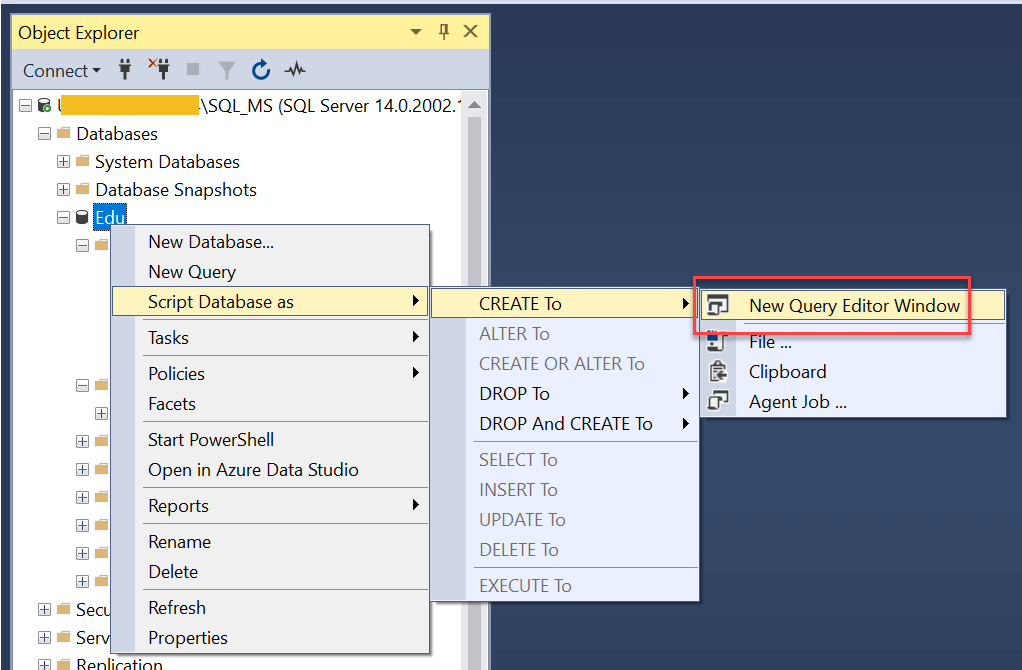
クエリウィンドウ: 生成されたCREATEスクリプトは、以下に示すように新しいクエリウィンドウで開きます。

スクリプトを作成します:
USE [master]
GO

CREATE DATABASE [Edu]
 CONTAINMENT = NONE
 ON  PRIMARY
( NAME = N'Edu', FILENAME = N'C:\Program Files\Microsoft SQL Server\MSSQL14.SQL_MS\MSSQL\DATA\Edu.mdf' , SIZE = 8192KB , MAXSIZE = UNLIMITED, FILEGROWTH = 65536KB )
 LOG ON
( NAME = N'Edu_log', FILENAME = N'C:\Program Files\Microsoft SQL Server\MSSQL14.SQL_MS\MSSQL\DATA\Edu_log.ldf' , SIZE = 8192KB , MAXSIZE = 2048GB , FILEGROWTH = 65536KB )
T-SQL を使用してデータベースを作成する
別の方法としては、T-SQLクエリを作成してデータベースを作成し、それを実行する方法があります。最もシンプルなデータベース作成用のT-SQLクエリを見てみましょう。
構文:
CREATE DATABASE <Database_name>
クエリ:
CREATE DATABASE [Edu_TSQL_file]
以下に示すように、「実行」をクリックしてクエリを実行してください。

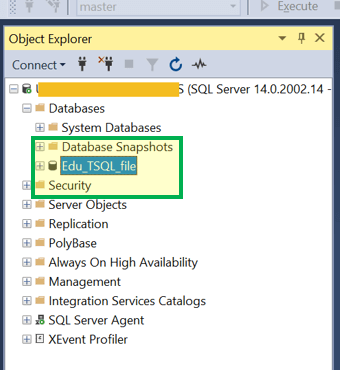
結果: SQLオブジェクトエクスプローラーで作成されたEdu_TSQL_fileを確認できます。

それでは、.mdf ファイルと .ldf ファイルを指定してデータベースを作成する方法を見ていきましょう。ここでは、クエリの一部としてファイルの場所を明示的に指定できます。
構文:
CREATE DATABASE database_name
[ CONTAINMENT = { NONE | PARTIAL } ]
[ ON
      [ PRIMARY ] <filespec> [ ,...n ]
      [ , <filegroup> [ ,...n ] ]
      [ LOG ON <filespec> [ ,...n ] ]
];
クエリ:
CREATE DATABASE [Edu_TSQL_file]
 CONTAINMENT = NONE
 ON  PRIMARY
( NAME = N'Edu_TSQL_file', FILENAME = N'C:\Program Files\Microsoft SQL Server\MSSQL14.SQL_MS\MSSQL\DATA\Edu_TSQL_file.mdf' , SIZE = 8192KB , MAXSIZE = UNLIMITED, FILEGROWTH = 65536KB )
 LOG ON
( NAME = N'Edu_TSQL_file_log', FILENAME = N'C:\Program Files\Microsoft SQL Server\MSSQL14.SQL_MS\MSSQL\DATA\Edu_TSQL_file_log.ldf' , SIZE = 8192KB , MAXSIZE = 2048GB , FILEGROWTH = 65536KB )
明示的なデータファイルとログファイルを含むデータベースは、以下に示すようにオブジェクトエクスプローラーに表示されます。

データベースを変更する方法
CREATE DATABASE クエリと同様に、データベースを変更することもできます。データベース名の変更、ファイルの場所や設定の変更などが可能です。
データベースを変更する際の基本的なルール:
- ALTER DATABASE ステートメントは、自動コミットモードで実行する必要があります。
- ALTER DATABASE は、明示的または暗黙的なトランザクションでは許可されません。
SQL Serverでデータベースを変更するには、2つの方法があります。
- SQL Server Management Studio
- Transact SQL
SQL Server Management Studio でデータベースを変更する方法
以下は、SQL Server Management Studio でデータベースを変更する手順です。事前に作成したデータベース「Edu」の名前を変更してみましょう。事前に作成した Edu データベースは、オブジェクト エクスプローラーに以下のように表示されます。

ステップ1) データベースの名前を変更します。データベース名を右クリックし、「名前の変更」をクリックします。

ステップ2) データベース名が編集可能になります。新しい名前を入力してEnterキーを押してください。

結果: データベースの名前が「Edu」から「Edu_Alter」に変更されました。

Transact-SQL を使用したデータベースの変更
それでは、T-SQLを使ってデータベースを変更してみましょう。
構文:
ALTER DATABASE <Databse_name>
MODIFY NAME = <New Name>
クエリ:
ALTER DATABASE Edu_TSQL
MODIFY NAME = Edu_TSQL_Alter;
「実行」をクリックして上記のクエリを実行します。
結果: 以下に示すように、データベースの名前が「Edu_TSQL」から「Edu_TSQL_Alter」に変更されました。

一般的な構文: 完全なALTER DATABASE構文は、名前変更、照合順序、ファイルオプション、互換性レベルなど、多くのオプションをサポートしています。
ALTER DATABASE { database_name  | CURRENT }
{   MODIFY NAME = new_database_name
  | COLLATE collation_name
  | <file_and_filegroup_options>
  | SET <option_spec> [ ,...n ] [ WITH <termination> ]
  | SET COMPATIBILITY_LEVEL = { 140 | 130 | 120 | 110 | 100 | 90 }
} ;
注意: 上記の互換性レベルは、以前のリリースを反映したものです。最新バージョンでは、150 (SQL Server 2019)、160 (SQL Server 2022)、および170 (SQL Server 2025) が追加され、さらに以前のいくつかのレベルも引き続きサポートされています。
.mdf/.ldfファイル名の変更
クエリ:
Alter DATABASE Edu_TSQL_Alter;
MODIFY FILE ( NAME = Edu_TSQL, NEWNAME = Edu_TSQL_newName );
名前が変更された論理ファイルは、以下に示すようにデータベースのプロパティに反映されます。

.mdf/.ldfファイルの場所を変更する
クエリ:
Alter DATABASE Edu_TSQL_Alter;
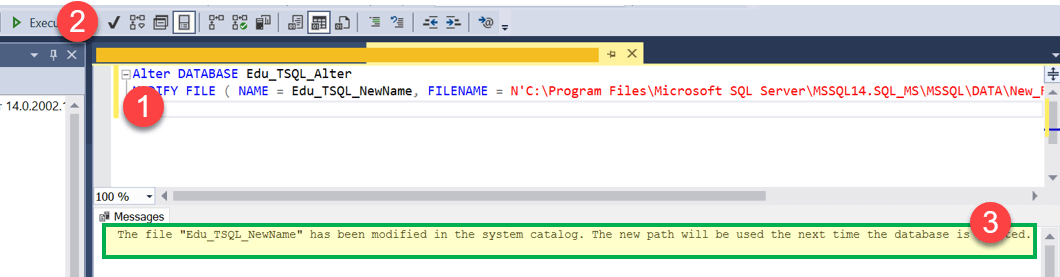
MODIFY FILE ( NAME = Edu_TSQL_NewName, FILENAME = N'C:\Program Files\Microsoft SQL Server\MSSQL14.SQL_MS\MSSQL\DATA\New_File\Edu_TSQL_log.ldf' );
データベースの更新されたファイルパスは以下のとおりです。
データベースの削除
SQL Serverでデータベースを削除(ドロップ)する方法は2つあります。
- SQL Server Management Studio
- Transact SQL
SQL Server Management Studio でデータベースを削除する方法
以下は、SQL Server Management Studio でデータベースを削除する手順です。事前に作成したデータベース「Edu_Alter」を削除してみましょう。
ステップ1) データベースを右クリックし、「削除」をクリックしてから「OK」をクリックします。

結果: 「Edu_Alter」は「オブジェクトエクスプローラー」データベースリストから削除されます。
Transact-SQL を使用してデータベースを削除する
事前に作成したデータベース「Edu_TSQL_Alter」を削除してみましょう。
構文:
DROP DATABASE <Databse_name>
クエリ:
USE master;
GO
DROP DATABASE Edu_TSQL_Alter;
GO
「実行」をクリックして上記のクエリを実行します。
結果: 以下に示すように、「オブジェクトエクスプローラー」データベースリストから「Edu_TSQL_Alter」が削除されます。

SQL Server でデータベースを復元する
以前にバックアップしたデータベースを復元することで、新しいデータベースを作成できます。これは、次の構文を使用する RESTORE DATABASE コマンドを実行することで実行できます。
restore Database <database name> from disk = '<Backup file location + filename>
クエリは、以前のコマンドと同様に、クエリウィンドウ内で実行する必要があります。例:
restore database Edu from disk = 'C:\Backup\Edu_full_backup.bak'
GUIナビゲーションを使用することもできます。データベースを右クリック > データベースの復元 > デバイス > バックアップファイルをインポート > OKをクリックします。
