---
description: Write your first Java program. This tutorial explains with example steps to compile and run hello world program. You need the following 2 software to create your first Java Program 1. Java SE Development Kit 2. A Text Editor
title: Java Hello World Program
image: https://www.guru99.com/images/java-hello-world-program.png
---


[Skip to content](#main) 

**⚡ Smart Summary**

Java Hello World Program walks new developers through writing, compiling, and running their first Java application on Windows using only Notepad, the JDK, and the command prompt for a clean, beginner-friendly introduction.

* 👋 **What You Build:** A minimal Java class that prints Hello World to the console using System.out.println inside the main method.
* 📝 **Tools Required:** The Java SE Development Kit (JDK 17 or 21 LTS recommended) plus any plain text editor such as Notepad, Notepad++, or an online editor.
* ⚙️ **Compile and Run:** Use javac FirstProgram.java to compile, then run java A to execute the generated bytecode class file.
* ✅ **Case Sensitivity:** Java treats file names, class names, and commands as case sensitive, so FirstProgram and firstprogram are not equivalent identifiers.
* 🧪 **Command Line Arguments:** Pass values after the class name to populate the String args array and read configuration directly from the terminal.

[ Read More ](javascript:void%280%29;) 

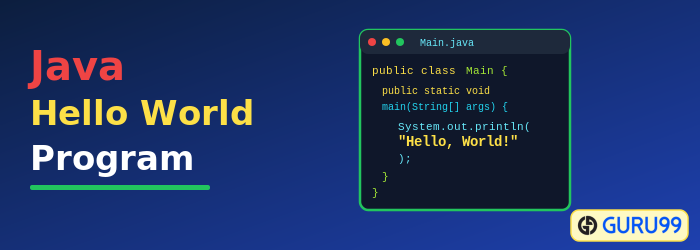
![Java Hello World Program](https://www.guru99.com/images/java-hello-world-program.png)

## What Is the Java Hello World Program?

The Java Hello World Program is the traditional first exercise for anyone learning Java. It is a tiny class that prints the text Hello World to the console and demonstrates the core moving parts of every Java application: a class declaration, a main method, and an output statement. Writing and running this program confirms that the JDK is installed correctly and that the javac compiler and java runtime are reachable from your terminal.

## Software You Need Before You Start

You need the following two pieces of software to create your first Java program.

### 1\. The Java SE Development Kit

Install a current JDK release. JDK 17 and JDK 21 are long-term-support (LTS) versions and remain the recommended choices for new learners in 2026\. Please refer to our previous tutorial to [download and install JDK](https://www.guru99.com/install-java.html).

### 2\. A Text Editor

In this Java Hello World example, we use Notepad. It is a simple editor included with the Windows operating system. You can use a different text editor like Notepad++, Visual Studio Code, or an [online Java compiler](https://www.guru99.com/try-java-editor.html).

## Hello World Java – Your First Java Program Video

This video will help you learn how to start a Java program.

Click [here](https://www.guru99.com/faq#faq1) if the video is not accessible   

## Steps to Compile and Run the Hello World Program in Java

Here is a step-by-step process on how to write, compile, and run your first Java program.

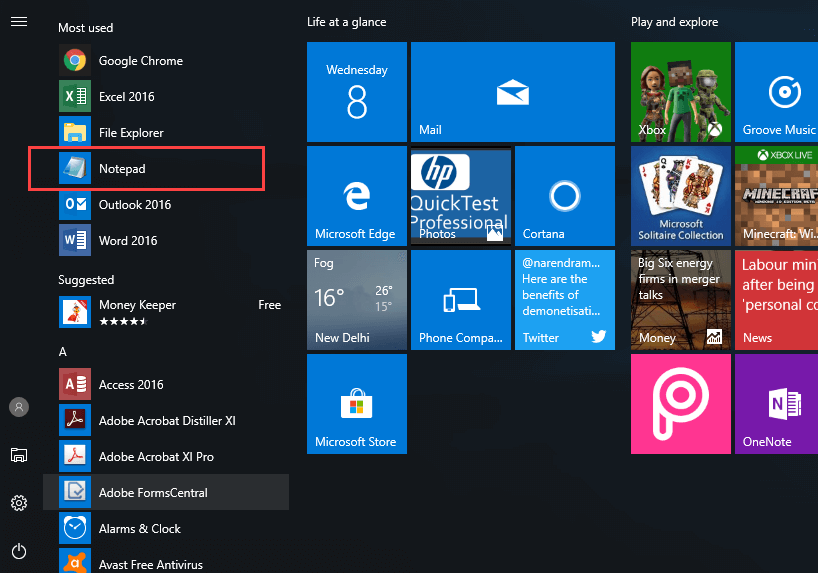
**Step 1)** Open Notepad from the Start menu by selecting Programs > Accessories > Notepad.

[](https://www.guru99.com/images/java/111417%5F1102%5FJava11.png)

**Step 2)** Create the source code for your Hello World program in Java.

* Declare a class with the name A.
* Declare the main method **public static void main(String args\[\]){**.
* Now type **System.out.println(“Hello World”);**, which will print Hello World in Java.

[](https://www.guru99.com/images/java/111417%5F1102%5FJava12.png)

class A {
 public static void main(String args[]){
     System.out.println("Hello World");
 }
}

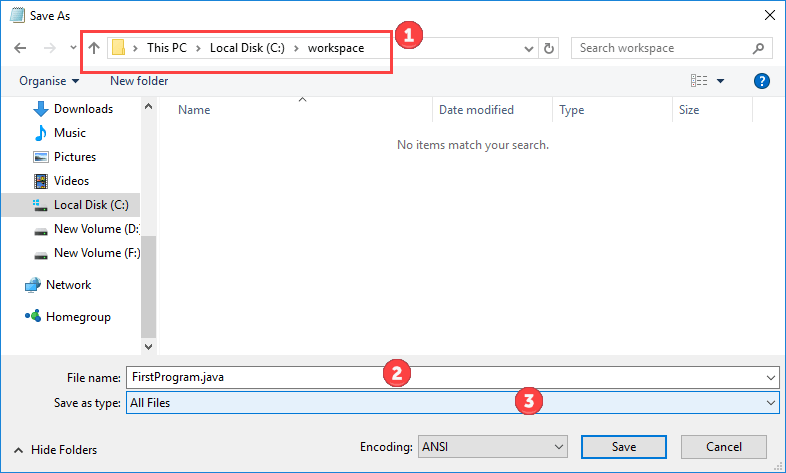
**Step 3)** Save the file for your Java Hello World program as **FirstProgram.java**. Make sure to select the file type as All Files while saving the file in your working folder **C:\\workspace**.

[](https://www.guru99.com/images/java/111417%5F1102%5FJava13.png)

**Step 4)** Open the command prompt. Go to the directory **C:\\workspace**. Compile the code of your Hello World Java program using the command:

javac FirstProgram.java

[](https://www.guru99.com/images/java/111417%5F1102%5FJava14.png)

### RELATED ARTICLES

* [What is Abstraction in Java? (with Example) ](https://www.guru99.com/java-data-abstraction.html "What is Abstraction in Java? (with Example)")
* [Switch Statement in Java ](https://www.guru99.com/switch-statement-in-java.html "Switch Statement in Java")
* [Comparable vs Comparator in Java ](https://www.guru99.com/comparable-vs-comparator-java.html "Comparable vs Comparator in Java")
* [Top 40 JSF Interview Questions and Answers (2026) ](https://www.guru99.com/jsf-interview-questions.html "Top 40 JSF Interview Questions and Answers (2026)")

## Verifying the Compiled Class File

**Step 5)** If you look in your working folder, you can see that a file named **A.class** has been created. This file holds the platform-independent bytecode produced by javac.

[](https://www.guru99.com/images/java/111417%5F1102%5FJava15.png)

**Step 6)** To execute the code, enter the command java followed by the class name. The expected output **Hello World** is displayed.

java A

[](https://www.guru99.com/images/java/111417%5F1102%5FJava16.png)

**Note:** Java is a case-sensitive programming language. All code, commands, and file names should use consistent casing. **FirstProgram** is not the same as **firstprogram**.

**Step 7)** If you copy and paste the same code into an IDE like [Eclipse](https://www.guru99.com/install-eclipse-java.html), compiling and execution are handled with the click of a button. Using an IDE is convenient and improves productivity, but since you are [learning Java](https://www.guru99.com/java-tutorial.html), we recommend you stick with Notepad for simple Java program execution.

[](https://www.guru99.com/images/java/Eclipse.png)

## What Is a Command Line Argument in Java?

A **command line argument in Java** is information that is passed to the program when it is executed. The information passed is stored in the String array that is supplied to the main() method, and each value is stored as a string. It is the data that directly follows the program’s name on the command line when it is launched.

### Example

While running a class **Demo**, you can specify command line arguments as follows.

java Demo arg1 arg2 arg3 ...

## Command Line Arguments in Java: Important Points

* Command line arguments can be used to specify configuration information while launching your application.
* There is no restriction on the number of Java command line arguments. You can specify any number of arguments.
* Information is passed as strings.
* The values are captured in the String args array of your main method.

### Example: Learn Java Command Line Arguments

**Step 1)** Copy the following code into an editor.

class Demo{
     public static void main(String args[]){
         System.out.println("Argument one = "+args[0]);
         System.out.println("Argument two = "+args[1]);
    }
}

**Step 2)** Save and compile the code.

**Step 3)** Run the code as **java Demo apple orange**.

[](https://www.guru99.com/images/uploads/2012/07/java-command-line-argument.jpg)

**Step 4)** You should see the following output.

[](https://www.guru99.com/images/uploads/2012/07/java-command-line-argument-1.jpg)

This code is editable. Click Run to Compile + Execute   

![]()

## FAQs

👋 Why is the Hello World program important in Java?

The Hello World program is the smallest possible Java application that still exercises a class, a main method, and console output. Running it successfully confirms that the JDK, the javac compiler, and the java runtime are installed and working correctly.

📝 Do the class name and file name have to match in Java?

If the class is declared public, the file name must exactly match the class name, including casing. For non-public classes such as the simple class A in this example, the file name can differ, but matching them is still considered best practice.

⚙️ What is the difference between javac and java commands?

The javac command is the Java compiler that converts your .java source file into a .class bytecode file. The java command is the Java runtime launcher that loads a .class file into the JVM and executes its main method.

✅ Which JDK version should beginners install in 2026?

Beginners should install a long-term-support release such as JDK 17 or JDK 21\. Both versions receive security updates for several years, are widely supported by IDEs and tutorials, and run every example shown in this Hello World walkthrough without modification.

🤖 Can AI coding assistants help Java beginners write Hello World?

Yes. AI coding assistants such as GitHub Copilot, Amazon Q Developer, and JetBrains AI can scaffold a Hello World class, explain each keyword, and flag missing semicolons or mismatched braces, helping beginners learn Java syntax faster while still writing the code themselves.

🧪 Can AI auto-generate variations of the Hello World program?

Yes. Modern AI assistants can auto-generate Hello World variations that accept command line arguments, loop over greetings, read user input, or format the output, which helps learners explore Java features quickly without leaving their editor.

#### Summarize this post with:

ChatGPT Perplexity Grok Google AI 

**Stay Updated on AI** **Get Weekly AI Skills, Trends, Actionable Advice.** 

##### Sign up for the newsletter

Subscribe for Free 

You have successfully subscribed.  
Please check your inbox. 

![AI-Newsletter]() Chosen by over **350,000+** professionals 

[Scroll to top ](#wrapper)Scroll to top 

× 

Toggle Menu Close 

Search for: 

Search

```json
{"@context":"https://schema.org","@graph":[{"@type":"Organization","@id":"https://www.guru99.com/#organization","name":"Guru99","sameAs":["https://www.facebook.com/Guru99Official","https://twitter.com/guru99com"],"logo":{"@type":"ImageObject","@id":"https://www.guru99.com/#logo","url":"https://www.guru99.com/images/guru99-logo-v1-150x59.png","contentUrl":"https://www.guru99.com/images/guru99-logo-v1-150x59.png","caption":"Guru99","inLanguage":"en-US"}},{"@type":"WebSite","@id":"https://www.guru99.com/#website","url":"https://www.guru99.com","name":"Guru99","publisher":{"@id":"https://www.guru99.com/#organization"},"inLanguage":"en-US"},{"@type":"ImageObject","@id":"https://www.guru99.com/images/java-hello-world-program.png","url":"https://www.guru99.com/images/java-hello-world-program.png","width":"700","height":"250","caption":"Java Hello World Program","inLanguage":"en-US"},{"@type":"BreadcrumbList","@id":"https://www.guru99.com/java-hello-world-program.html#breadcrumb","itemListElement":[{"@type":"ListItem","position":"1","item":{"@id":"https://www.guru99.com","name":"Home"}},{"@type":"ListItem","position":"2","item":{"@id":"https://www.guru99.com/java-tutorials","name":"Java Tutorials"}},{"@type":"ListItem","position":"3","item":{"@id":"https://www.guru99.com/java-hello-world-program.html","name":"Java Hello World Program"}}]},{"@type":"WebPage","@id":"https://www.guru99.com/java-hello-world-program.html#webpage","url":"https://www.guru99.com/java-hello-world-program.html","name":"Java Hello World Program","dateModified":"2026-06-26T10:50:22+05:30","isPartOf":{"@id":"https://www.guru99.com/#website"},"primaryImageOfPage":{"@id":"https://www.guru99.com/images/java-hello-world-program.png"},"inLanguage":"en-US","breadcrumb":{"@id":"https://www.guru99.com/java-hello-world-program.html#breadcrumb"}},{"@type":"Person","@id":"https://www.guru99.com/author/james","name":"James Hartman","description":"I am James Hartman, a seasoned professional in Oracle Certified Java Professional tutorials, specializing in crafting comprehensive guides to help you excel in your Java certification journey.","url":"https://www.guru99.com/author/james","image":{"@type":"ImageObject","@id":"https://www.guru99.com/images/james-hartman-author-v2-120x120.png","url":"https://www.guru99.com/images/james-hartman-author-v2-120x120.png","caption":"James Hartman","inLanguage":"en-US"},"worksFor":{"@id":"https://www.guru99.com/#organization"}},{"articleSection":"Java Tutorials","headline":"Java Hello World Program","description":"Write your first Java program. This tutorial explains with example steps to compile and run hello world program. You need the following 2 software to create your first Java Program 1. Java SE Development Kit 2. A Text Editor","keywords":"java","speakable":{"@type":"SpeakableSpecification","cssSelector":[".entry-title",".summary"]},"@type":"Article","author":{"@id":"https://www.guru99.com/author/james","name":"James Hartman"},"dateModified":"2026-06-26T10:50:22+05:30","image":{"@id":"https://www.guru99.com/images/java-hello-world-program.png"},"copyrightYear":"2026","name":"Java Hello World Program","subjectOf":[{"@type":"HowTo","name":"How to Compile and Run first Java program","description":"Here is a step by step process on how to run Java program:","step":[{"@type":"HowToStep","name":"Step 1) Open Notepad","text":"In first step Open Notepad from Start menu by selecting Programs &gt; Accessories &gt; Notepad.","image":{"@type":"ImageObject","url":"https://cdn.guru99.com/images/java/111417_1102_Java11.png"},"url":"https://www.guru99.com/first-java-program.html#step1"},{"@type":"HowToStep","name":"Step 2) Create a Source Code","text":"Create a Source Code for your Hello World program in Java. Now Declare a class with name A.","image":{"@type":"ImageObject","url":"https://cdn.guru99.com/images/java/111417_1102_Java12.png"},"url":"https://www.guru99.com/first-java-program.html#step2"},{"@type":"HowToStep","name":"Step 3) Save the file","text":"Now Save the file for Java Hello World program as FirstProgram.java make sure to select file type as all files while saving the file in our working folder","image":{"@type":"ImageObject","url":"https://cdn.guru99.com/images/java/111417_1102_Java13.png"},"url":"https://www.guru99.com/first-java-program.html#step3"},{"@type":"HowToStep","name":"Step 4) Go to Directory","text":"In the next step Open the command prompt. Go to Directory. Compile the code of your Hello world Java program using command,","image":{"@type":"ImageObject","url":"https://cdn.guru99.com/images/java/111417_1102_Java14.png"},"url":"https://www.guru99.com/first-java-program.html#step4"},{"@type":"HowToStep","name":"Step 5) Look in your working folder","text":"If you look in your working folder, you can see that a file named A.class has been created.","image":{"@type":"ImageObject","url":"https://cdn.guru99.com/images/java/111417_1102_Java15.png"},"url":"https://www.guru99.com/first-java-program.html#step5"},{"@type":"HowToStep","name":"Step 6) Execute the code","text":"To execute the code, enter the command java followed by the class name, as expected output Hello World is displayed now.","image":{"@type":"ImageObject","url":"https://cdn.guru99.com/images/java/111417_1102_Java16.png"},"url":"https://www.guru99.com/first-java-program.html#step6"},{"@type":"HowToStep","name":"Step 7) Check code in IDE like Eclipse","text":"If you copy and paste the same code in IDE like Eclipse the compiling and execution is done with the click of a button Using IDE is convenient and improves your efficiency but since you are learning Java, we recommend you stick to notepad for simple Java program execution.","image":{"@type":"ImageObject","url":"https://cdn.guru99.com/images/java/Eclipse.png"},"url":"https://www.guru99.com/first-java-program.html#step7"}]},{"@type":"FAQPage","mainEntity":[{"@type":"Question","name":"Why is the Hello World program important in Java?","acceptedAnswer":{"@type":"Answer","text":"The Hello World program is the smallest possible Java application that still exercises a class, a main method, and console output. Running it successfully confirms that the JDK, the javac compiler, and the java runtime are installed and working correctly."}},{"@type":"Question","name":"Do the class name and file name have to match in Java?","acceptedAnswer":{"@type":"Answer","text":"If the class is declared public, the file name must exactly match the class name, including casing. For non-public classes such as the simple class A in this example, the file name can differ, but matching them is still considered best practice."}},{"@type":"Question","name":"What is the difference between javac and java commands?","acceptedAnswer":{"@type":"Answer","text":"The javac command is the Java compiler that converts your .java source file into a .class bytecode file. The java command is the Java runtime launcher that loads a .class file into the JVM and executes its main method."}},{"@type":"Question","name":"Which JDK version should beginners install in 2026?","acceptedAnswer":{"@type":"Answer","text":"Beginners should install a long-term-support release such as JDK 17 or JDK 21. Both versions receive security updates for several years, are widely supported by IDEs and tutorials, and run every example shown in this Hello World walkthrough without modification."}},{"@type":"Question","name":"Can AI coding assistants help Java beginners write Hello World?","acceptedAnswer":{"@type":"Answer","text":"Yes. AI coding assistants such as GitHub Copilot, Amazon Q Developer, and JetBrains AI can scaffold a Hello World class, explain each keyword, and flag missing semicolons or mismatched braces, helping beginners learn Java syntax faster while still writing the code themselves."}},{"@type":"Question","name":"Can AI auto-generate variations of the Hello World program?","acceptedAnswer":{"@type":"Answer","text":"Yes. Modern AI assistants can auto-generate Hello World variations that accept command line arguments, loop over greetings, read user input, or format the output, which helps learners explore Java features quickly without leaving their editor."}}]}],"@id":"https://www.guru99.com/java-hello-world-program.html#schema-23940","isPartOf":{"@id":"https://www.guru99.com/java-hello-world-program.html#webpage"},"publisher":{"@id":"https://www.guru99.com/#organization"},"inLanguage":"en-US","mainEntityOfPage":{"@id":"https://www.guru99.com/java-hello-world-program.html#webpage"}}]}
```